Workflow setup
Configuring inspection, service and estimate templates
VMOTEK uses intake and diagnostic configuration to standardize evidence, while service menus standardize the labor and parts proposed from common findings. The advisor still reviews scope, price and customer language before sending an estimate. Pilot each configuration with real users before making it the default.
Written by the VMOTEK Product Team · Updated August 13, 2026
01
1. Choose the inspection purpose
Start by deciding which VMOTEK record owns the content. Intake Template is the vehicle check-in and visual walk-around. Diagnostic Checklist is the technician's repair-related inspection. Service Menu is a reusable package of parts, labor and in-shop checklist steps. The Estimate is the priced customer proposal. Do not combine these into one oversized universal checklist.
- Intake or walk-around: vehicle identity and pre-existing condition.
- General inspection: repeatable condition and maintenance review.
- Specialized diagnostic: a focused symptom or system.
- Fleet or regulatory inspection: customer or jurisdiction-specific evidence.
02
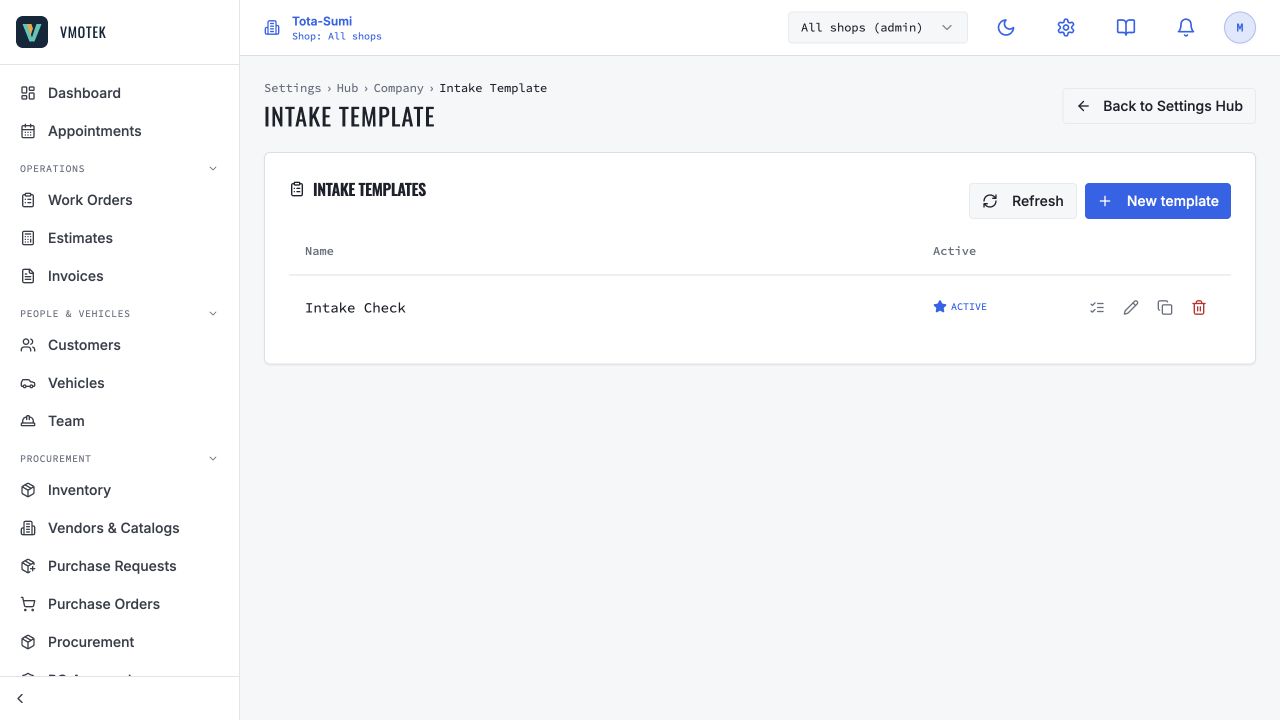
2. Configure the company intake template
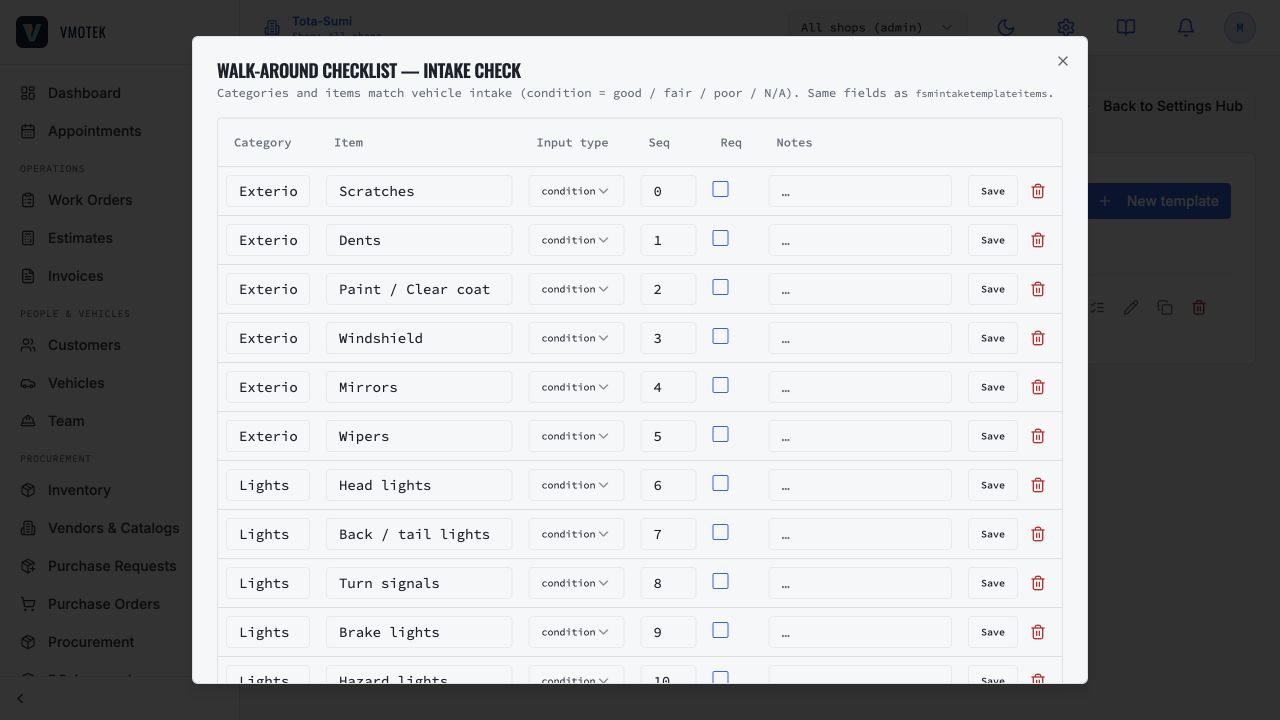
Select Settings → Company → Intake Template. Create a clearly named draft, add its inspection rows, and review it before publishing. Publishing makes that exact version available for operational use; selecting Publish as default makes it the version offered first for new inspections. Published versions are intentionally read-only. When the process changes, copy the published template to a new draft version, edit and test that draft, then publish it. Existing work orders retain the original version and row snapshot, so later template changes cannot rewrite historical evidence.
- Draft is editable; Published is available for use and immutable; Archived is retained for history but unavailable for new inspections.
- Use Copy to new version instead of editing a published inspection process.
- Only one published default applies within the same company or shop scope.
- Condition rows use VMOTEK's Good, Fair, Poor and N/A results.
- Use yes/no, text, number or other available inputs only when they fit the question better than condition.
- Use Notes as a template hint that tells the operator what evidence or measurement is expected.
- Validate the result through Work Orders → New Work Order → Vehicle → Walk-around.
03
3. Configure diagnostic or inspection content
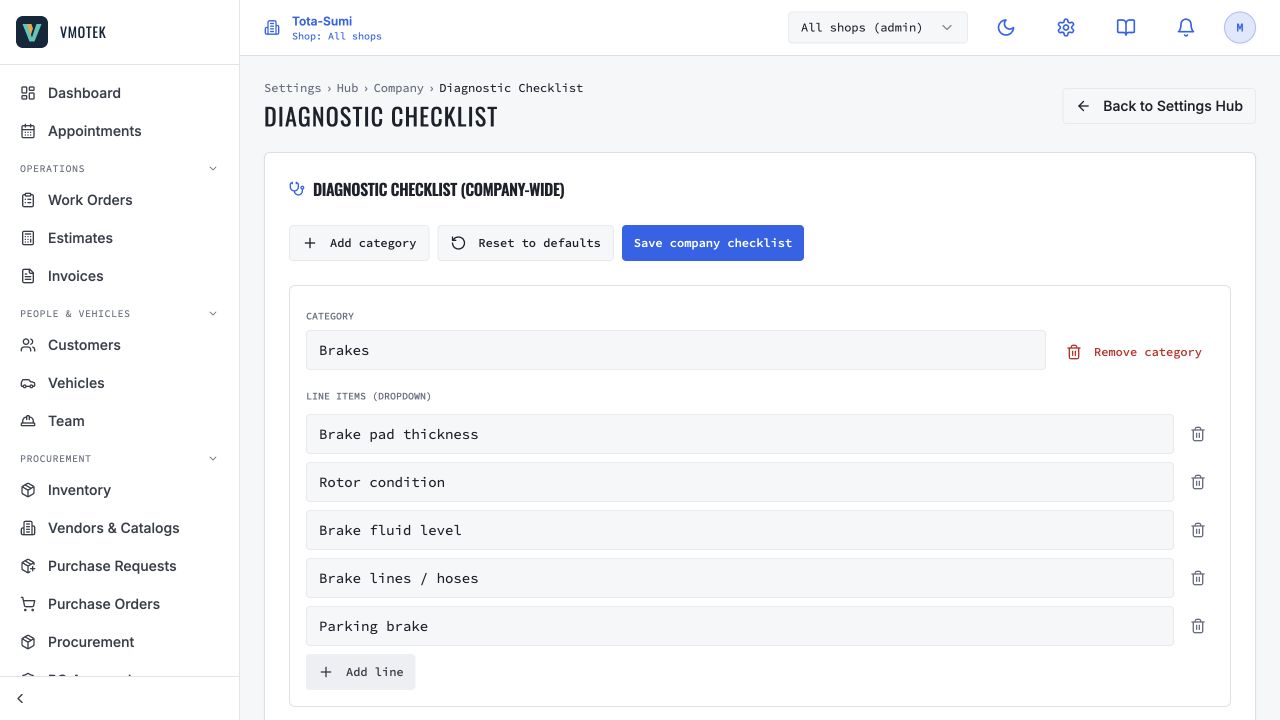
Select Settings → Company → Diagnostic Checklist. Organize technician findings into categories such as Brakes, Engine & Fluids, Electrical and Suspension. Add concise finding labels, save the company checklist and use a shop override only when that location requires different content.
- Good: inspected and acceptable at the time of inspection.
- Fair: attention, monitoring or future service should be discussed.
- Poor: corrective work or further diagnosis should be recommended now.
- N/A: not applicable or not inspected; require the technician to explain why when the distinction matters.
- Require measurement and unit where a threshold determines the recommendation.
- Use notes and photos for meaningful Fair or Poor evidence; avoid unnecessary photos for every Good result.
04
4. Create standardized service menus
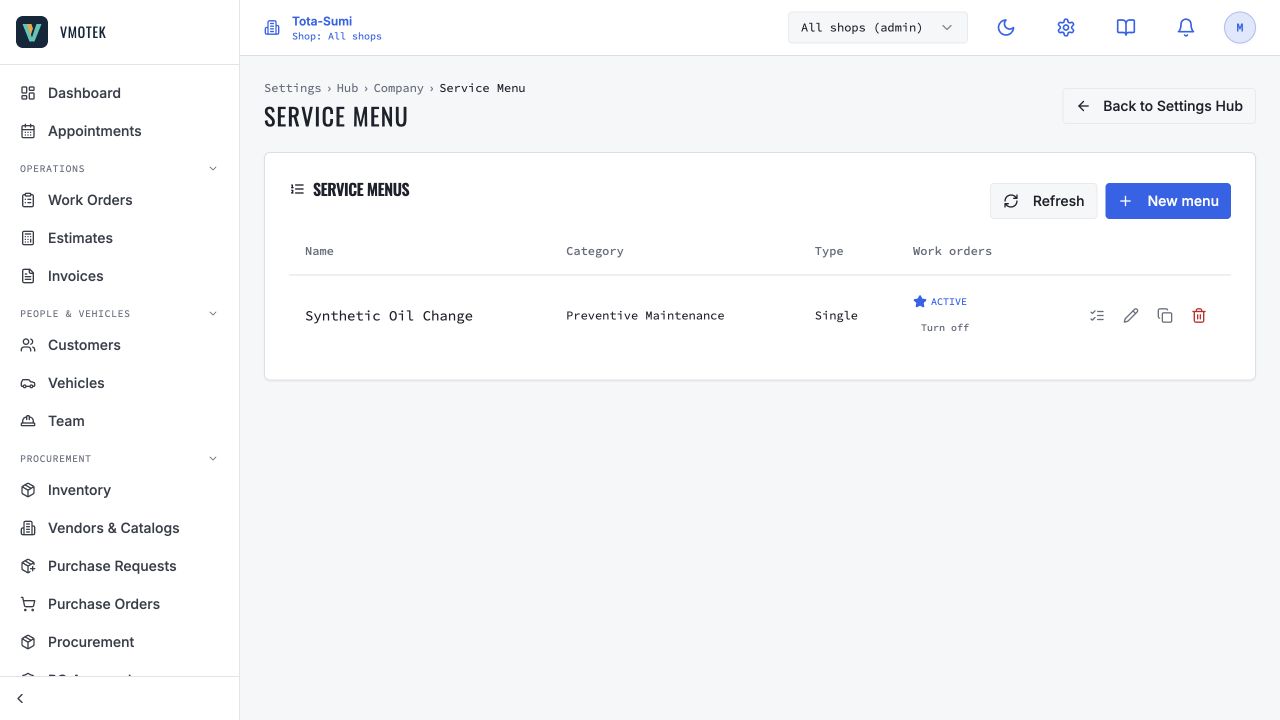
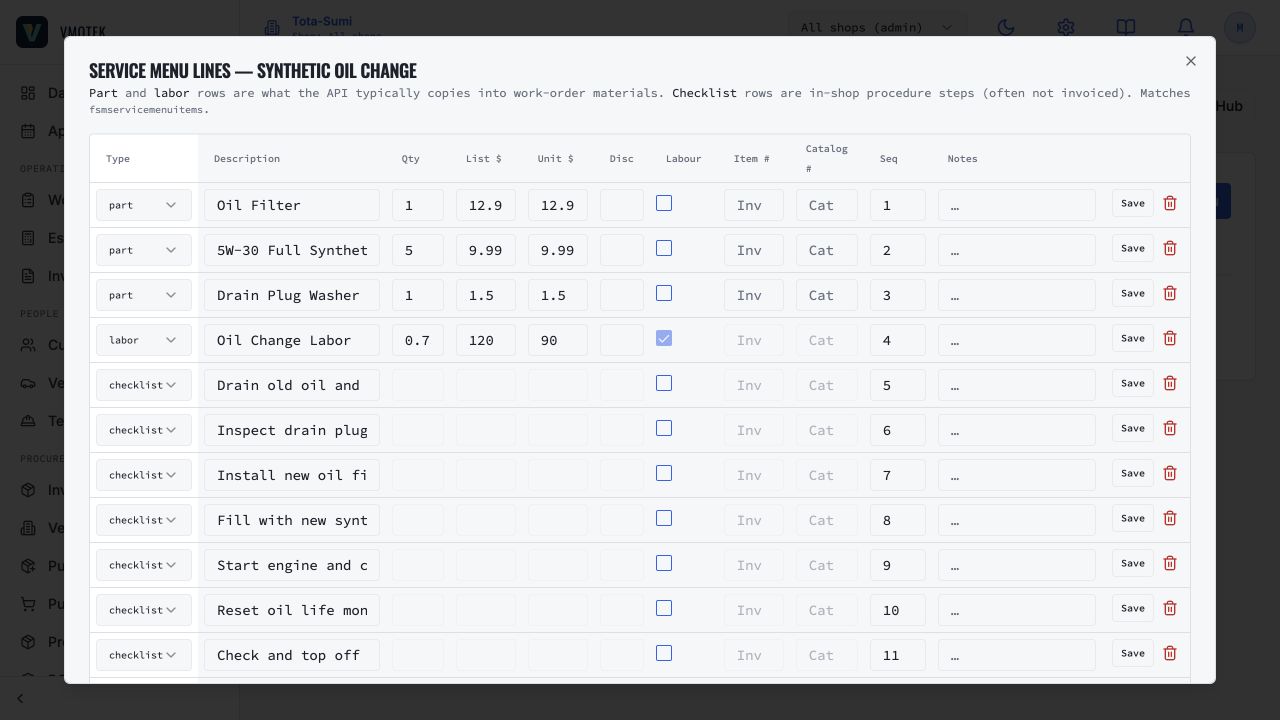
Select Settings → Company → Service Menu. Create reusable services such as oil service, tire rotation or brake service and mark the menus that should be offered on work orders. Open Parts, labor & checklist lines to define what the service adds to operational work.
- Part rows carry quantity, price and inventory or catalog references when known.
- Labor rows carry time or quantity and labor pricing.
- Checklist rows are technician procedure steps and are normally not invoice charges.
- Do not hide diagnostic uncertainty inside a fixed service package.
- Review costs, selling prices, tax treatment and labor rates before use.
- Copy and version menus carefully so duplicate services do not confuse advisors.
05
5. Write customer-facing recommendation language
On the work order, technicians and advisors use Customer concerns & technician findings to keep the reported symptom separate from what inspection or diagnosis discovers. Add the original customer concern as a customer concern. Add a discovered condition as a technician finding, select its severity, and describe the evidence in plain language. When action is justified, choose Add as recommendation and enter the proposed work, quantity and price. The linked recommendation becomes an operational work-order line while the original finding remains traceable. Record the customer's Approve, Decline or Defer decision and a short note describing how authorization was received.
- Customer concern: what the driver or fleet contact reported before diagnosis.
- Technician finding: an observed condition supported by inspection, measurement, note or photo.
- Recommendation: the corrective work proposed from that finding.
- Decision: the customer's authorization state; inspection completion alone does not authorize repair.
- Use Condition, Consequence, Recommendation and Priority so a customer can understand both urgency and value.
06
6. Build and review the estimate
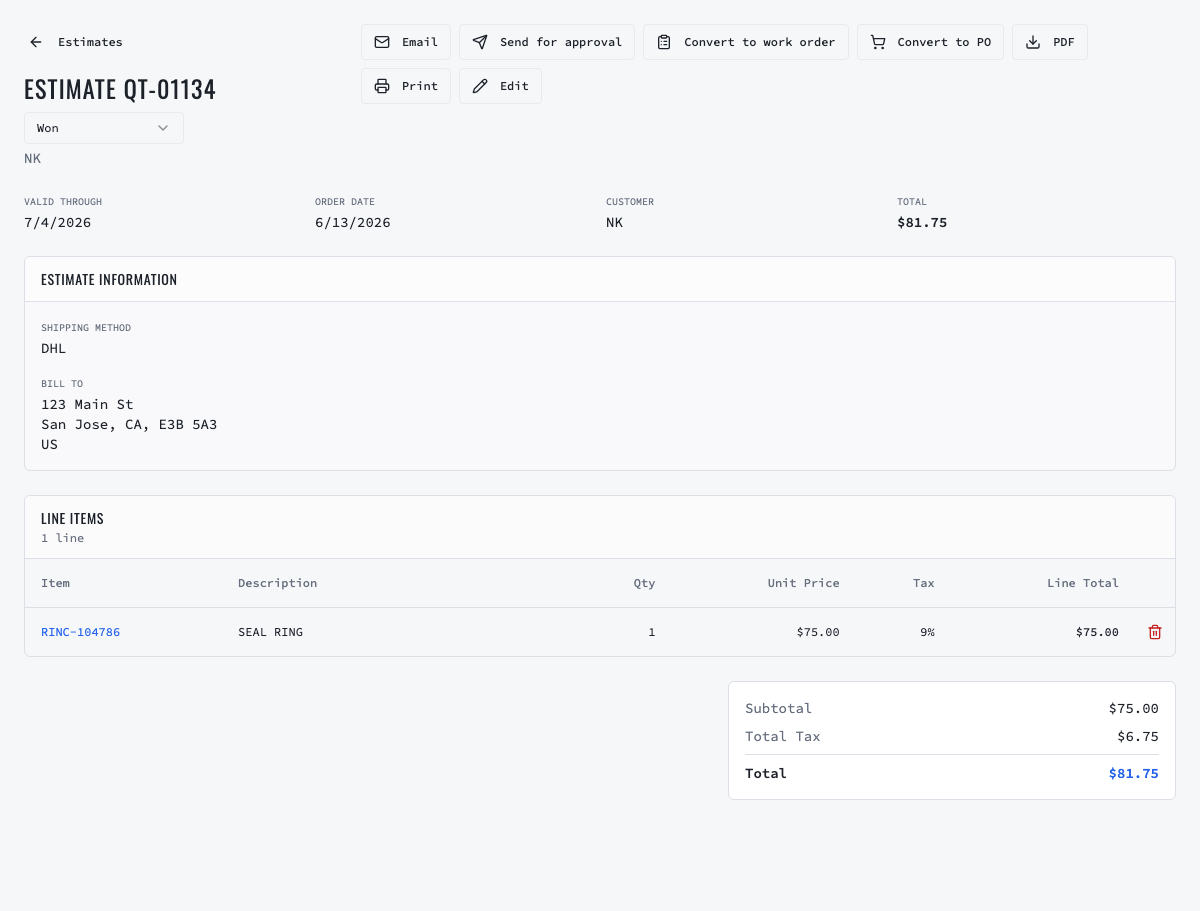
Approved diagnostic recommendations can contribute labor and parts to the work order. Create or update the estimate against the same customer and vehicle, add appropriate service-menu lines or individual labor and parts, then verify quantities, rates, fees, discounts, taxes and total. Inspection completion by itself is not authorization.
07
7. Configure delivery and email templates
Use Email Templates for the standard estimate message while keeping vehicle-specific findings inside the estimate. Verify the connected Gmail account and suggested recipient before sending. For SMS, confirm consent and valid mobile number.
08
8. Test the customer decision
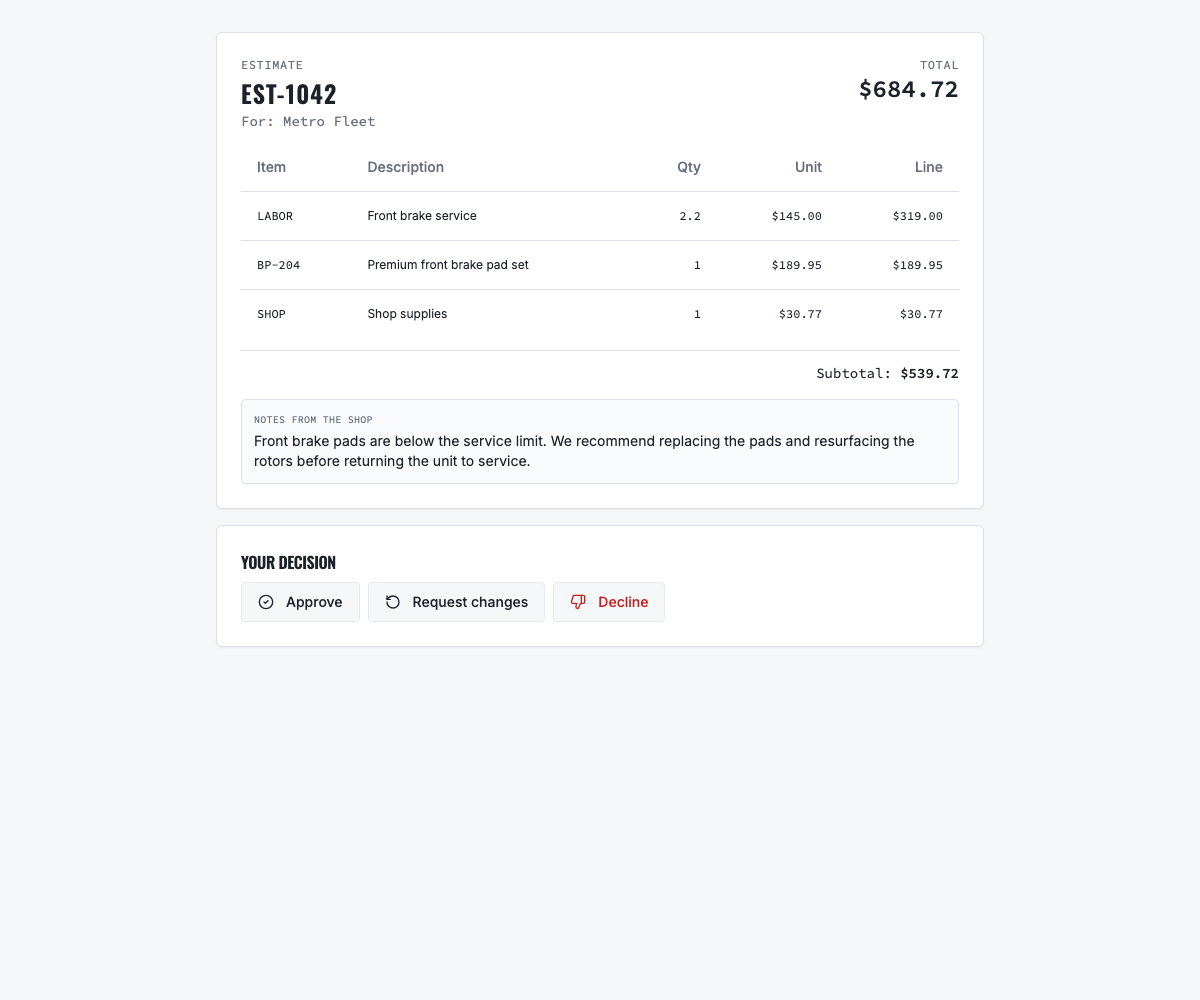
Send a test approval by email, SMS and both. Open the link on a phone and test Approve, Request changes and Decline. The current public decision applies to the complete estimate; a customer wanting only some work should request changes so the advisor can revise and resend.
09
9. Pilot with technicians and advisors
Run representative vehicles for two weeks. Confirm the active intake template appears during Walk-around, diagnostic categories appear on the work order's Diagnostic tab, Good/Fair/Poor/N/A results persist, recommendations can carry notes/photos and linked labor or parts, and approved work reaches the estimate and work order correctly. Measure completion time, skipped checks, unclear questions, evidence quality, advisor edits and customer clarification calls.
10
10. Govern template changes
Name an owner, review every draft with technicians and advisors, and publish only after a representative test. VMOTEK records the version and publication history and snapshots the chosen template on each work order inspection. Copy a published version when requirements change; never attempt to rewrite completed inspection evidence. Archive superseded versions only after the replacement is published and communicated. Use specialized templates when one workflow becomes too long for ordinary service.
Related product areas
Understand the capability behind the task
Continue to the applicable platform page for workflow behavior, role differences and connected operating consequences.
Ready to move forward?
Need help with your configuration?
Existing customers should use in-product support for account-aware assistance. Evaluation teams can contact us to discuss requirements.