Pricing and profitability
Configure parts pricing matrices and shop overrides
A parts pricing matrix answers one practical question: when a part costs the shop a certain amount, what should the customer price be? VMOTEK deliberately keeps Purchase Cost, Default Selling Price and optional MSRP separate. The matrix uses Purchase Cost as its basis and proposes a transaction selling price; it does not overwrite the inventory item. Without a shared rule, two advisors may sell the same part at different prices, low-cost parts may not recover handling expense, and expensive parts may be priced out of the market. VMOTEK records the calculation on the work order and still allows an authorized person to make a documented exception.
Written by the VMOTEK Product Team · Updated August 13, 2026
01
Before you build a matrix: understand the three part prices
Open Inventory, select an item and review its Pricing section. VMOTEK currently preserves legacy database column names for compatibility, but the application labels describe their real business meaning. Keep the values separate; substituting MSRP for Purchase Cost will overstate inventory value and produce an incorrect matrix result.
- Purchase Cost: what the shop paid or expects to pay to acquire one unit. VMOTEK uses this for inventory valuation, gross-profit analysis and the cost basis of a parts pricing matrix. A vendor catalog or purchase-order price may provide a transaction-specific acquisition cost.
- Default Selling Price: the shop's normal customer price when no applicable matrix, package price, fleet agreement or authorized transaction override supplies another result. This is the legacy product unit_cost field; despite that column name, it is a selling price.
- MSRP / Reference Retail Price: an optional manufacturer or market reference. It is not Purchase Cost, does not value inventory and does not automatically replace the shop's Default Selling Price.
- Wholesale Price: an optional reference for a documented wholesale program. Do not use it as the normal purchase-cost or customer-price field unless that is the company's explicit policy.
02
1. Why not use one markup for every part?
Part costs range from a few dollars to thousands of dollars. A single percentage usually performs poorly at one end of that range. For example, a 30% markup adds only $3 to a $10 item, which may not cover ordering, receiving, storage, warranty risk and advisor time. The same 30% adds $300 to a $1,000 component, which may make the quote uncompetitive. Cost bands let the shop use a stronger markup on inexpensive items and a more moderate markup on expensive items while keeping the policy consistent.
03
2. Understand markup and gross margin
Markup and gross margin are not interchangeable. In these examples, cost means Purchase Cost, not Default Selling Price and not MSRP. If a part costs $40 and you apply a 50% markup, the price before rounding is $60. Gross profit is $20 and gross margin is 33.33% because profit is divided by the $60 selling price. If you instead request a 50% target margin, VMOTEK calculates $40 ÷ (1 − 0.50), producing an $80 selling price and $40 gross profit. Decide which measurement your shop uses before entering values.
- Markup %: cost × (1 + percentage). A $40 cost with 50% markup becomes $60.
- Target margin %: cost ÷ (1 − percentage). A $40 cost with 50% target margin becomes $80.
- Multiplier: cost × multiplier. A $40 cost with a 1.5 multiplier becomes $60.
- Fixed adjustment: cost + amount. A $40 cost with a $15 adjustment becomes $55.
04
3. A realistic four-band example
Assume the shop wants the following company policy: costs from $0 up to $25 receive 100% markup; $25 up to $100 receive 60%; $100 up to $500 receive 40%; and costs of $500 or more receive 25%. With the standard .99 ending, a $12 part becomes $23.99, an $80 part becomes $127.99, a $300 part becomes $419.99, and an $800 part becomes $999.99. The lower boundary is included and the upper boundary is excluded, so a part costing exactly $25 uses the second band and a part costing exactly $100 uses the third band.
05
4. Simple mode versus progressive mode
Most repair shops should begin with Simple mode. VMOTEK finds the one band containing the complete part cost and applies that band to the entire cost. Progressive mode works like a graduated tax calculation: each portion of the cost is priced by its own band and the portions are added. For example, with multipliers of 2.0 for the first $50, 1.5 for the next $50 and 1.25 above $100, a $120 cost produces $100 + $75 + $25 = $200. In Simple mode, a 1.25 multiplier in the $100-and-up band would price the same $120 part at $150. Use Progressive only when that graduated result is the shop's intentional policy.
06
5. Open the settings page
Sign in with a role that can maintain company settings. Select the Settings gear in the upper-right corner. Under Company, select Pricing & Profitability. The pricing matrix is maintained by an owner or administrator; advisors use its result while building work orders but should not need access to change the company policy.
07
6. Create the company default
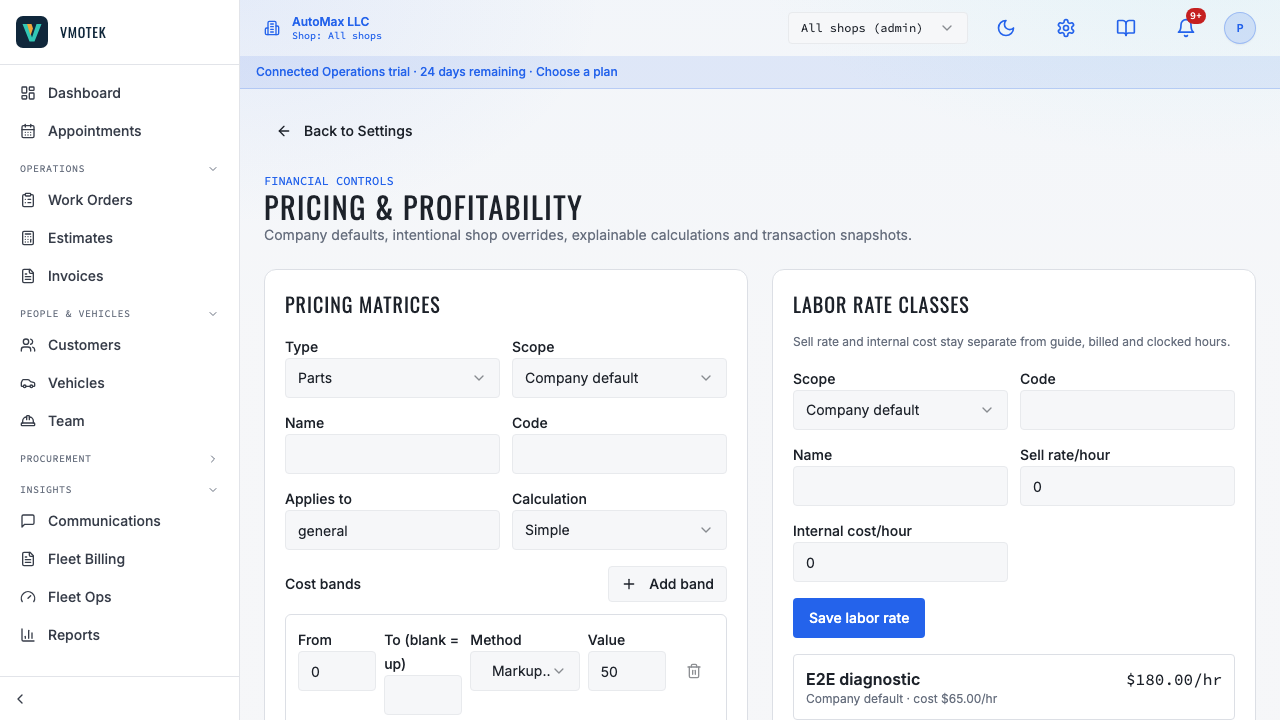
In Pricing matrices, choose Type = Parts and Scope = Company default. Enter a readable name such as Standard Parts Pricing and a stable code such as STANDARD_PARTS. Set Applies to = general so the rule can serve as the normal fallback. Choose Simple unless the business has deliberately approved progressive pricing. The code becomes part of the calculation record, so use a code that will still make sense during a later audit.
08
7. Complete every parts-matrix field
Use the following values for a normal first matrix. Name and Code describe the rule itself; they are not a part name, vendor name or accounting code.
- Type: choose Parts. This tells VMOTEK that the rule calculates the selling price of parts rather than labor.
- Scope: choose Company default for the normal rule used by all shops. Choose a particular shop only when creating an intentional location override.
- Name: enter a human-readable policy name, such as Standard Parts Pricing, General Parts Matrix or Downtown Parts Pricing. Staff see this label in settings, so make its purpose obvious.
- Code: enter a short, stable identifier, such as STANDARD_PARTS, GENERAL_PARTS or DOWNTOWN_PARTS. VMOTEK converts spaces to underscores and uppercase. The code is saved in pricing snapshots and audit evidence, so do not use a temporary description such as TEST or NEW. A code must be unique among parts matrices at the same company or shop scope.
- Applies to: enter general for the fallback used by ordinary parts. Use a specific classification only when the incoming item is consistently classified the same way, for example tires, batteries, fluids or sublet. Use lowercase, stable terms and do not alternate between singular, plural or spelling variants.
- Calculation: choose Simple for the usual cost-band model, where one band prices the entire item cost. Choose Progressive only when the owner deliberately wants each portion of the cost priced by successive bands.
09
8. Complete every cost-band field
Each row defines which costs it covers and how those costs become a customer price. For a first general matrix, use Markup % unless the company's pricing policy is explicitly based on target margin.
- From: the lowest acquisition cost included in the band. The value is inclusive. Enter 0 in the first row.
- To (blank = up): the first cost not included in the band. Enter 25 to make a 0-through-24.9999 band. Leave this field blank only in the last row so it covers all higher costs.
- Method, Markup %: adds the entered percentage to cost. Value 60 changes an $80 cost to $128 before rounding.
- Method, Target margin %: solves for the price needed to retain that margin. Value 50 changes a $40 cost to $80.
- Method, Multiplier: multiplies cost by the entered number. Value 1.5 changes a $40 cost to $60.
- Method, Fixed adjustment: adds a fixed currency amount. Value 15 changes a $40 cost to $55.
- Value: enter the percentage, multiplier or currency adjustment required by the selected Method. Enter 60, not 0.60, for a 60% markup.
10
9. Enter complete, non-overlapping cost bands
The From amount is included. The To amount is not included; leave To blank on the final band to mean there is no upper limit. For the four-band example, enter 0 to 25 with Markup % = 100; 25 to 100 with Markup % = 60; 100 to 500 with Markup % = 40; and 500 to blank with Markup % = 25. Do not leave gaps and do not overlap ranges. A gap can leave a cost without a matching calculation, while an overlap makes the intended policy unclear.
11
10. Save and verify the rule on a work order
Select Save matrix. Then open or create a work order for a test customer and vehicle. Add a part through catalog or supplier search so VMOTEK has an acquisition cost. For an $80 cost under the example matrix, confirm the calculated customer price is $127.99. Save and reopen the work order. The line keeps a snapshot containing the matrix code, cost basis, calculated price, applicable shop and calculation time. This evidence explains how the price was produced even if the company changes its matrix later.
12
11. How VMOTEK selects a rule
VMOTEK chooses the most specific active rule available for the work-order shop and part classification. The order is: matching shop and matching classification; shop general rule; company matching classification; then company general rule. This means a shop override is intentionally stronger than a company rule. Create the company general matrix first so every shop has a safe fallback, and avoid creating an override unless that location truly needs different pricing.
13
12. Example of a shop override
Suppose the company default marks an $80 part up by 60%, resulting in $127.99 after the standard ending. A high-cost downtown location may require 70%, resulting in $135.99. Open Pricing & Profitability, create a second parts matrix, choose that shop as Scope, use the same applicability, and enter its approved bands. Work orders at that shop use the override; other shops continue using the company default. The advisor does not choose which matrix wins, the work-order shop determines it.
14
13. What happens when an advisor changes the price?
A pricing matrix is a policy, not a prohibition against every exception. An authorized user may need to honor an advertised price, a fleet contract or a manager-approved concession. When the calculated work-order price is changed, VMOTEK requires an override reason and records who made the change and when. The exception changes only that transaction; it does not silently modify the matrix for future work orders.
15
14. Roll out safely
Test at least one low-cost item, every exact band boundary, one value just below each boundary and one high-cost item. Test one work order at a normal shop and one at every shop with an override. Review the displayed customer price and expected gross margin with the owner before enabling the policy in daily quoting. Keep the initial rule simple, review actual parts gross margin after the first month, and change bands based on evidence rather than creating many special rules.
- Confirm that supplier or catalog cost, not an old retail price, is used as the basis.
- Test exact values such as $24.99, $25, $99.99, $100, $499.99 and $500.
- Confirm an existing saved work order retains its original pricing snapshot after a matrix change.
- Document why each shop override exists and review it periodically.
16
15. Common questions
- Does saving a matrix reprice old work orders or invoices? No. Existing transaction snapshots remain historical evidence.
- What happens if no specialized rule exists? VMOTEK falls back through the rule order to the company general matrix.
- Should every shop have its own matrix? Usually no. Start with one company default and add only justified exceptions.
- Can the customer see the shop's acquisition cost? The matrix uses cost as its internal basis; the work order presents the customer selling price.
- Should I use markup or target margin? Use the measure your owner and financial reports are designed around, and verify the result with worked examples before rollout.
Related product areas
Understand the capability behind the task
Continue to the applicable platform page for workflow behavior, role differences and connected operating consequences.
Ready to move forward?
Need help with your configuration?
Existing customers should use in-product support for account-aware assistance. Evaluation teams can contact us to discuss requirements.