Fleet portal
Setting up fleet accounts, billing and portal access
Fleet portal access is based on the invited person's email identity and an explicit relationship with a fleet customer and repair company. A person invited by multiple repair companies uses one identity and selects the company they intend to work with. Portal membership never grants staff access to the repair application.
Written by the VMOTEK Product Team · Updated August 13, 2026
01
1. Confirm the fleet operating agreement
Before configuration, confirm who may request service, approve estimates, receive vehicle updates and receive invoices. Record fleet unit conventions, PO requirements, service locations, payment terms, maintenance expectations and escalation contacts.
02
2. Create or update the fleet customer
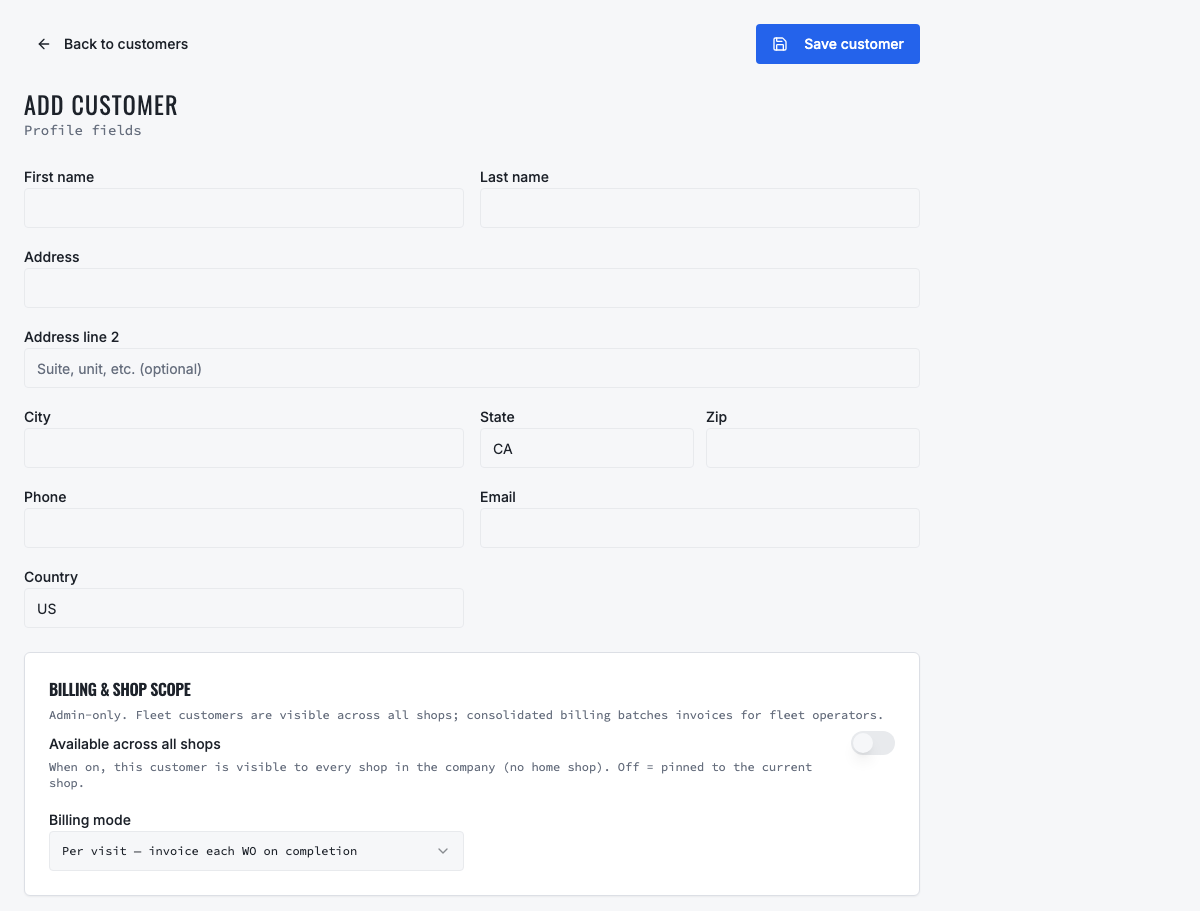
Create one customer record for the organization. Add operational, approval and billing contacts with verified business email and phone information. Avoid creating a separate customer for every vehicle or contact.
03
3. Choose regular or consolidated billing
Choose regular billing when each completed repair should create its own invoice. Choose fleet consolidated billing when eligible completed work should be grouped for a billing period. Only authorized staff should change this setting when inviting or approving portal access.
- Billing mode and portal access are related configuration choices but not the same permission.
- Confirm billing frequency, payment terms and billing contact.
- Reconcile queued work before generating a consolidated invoice.
04
4. Add and verify fleet vehicles
Add each active asset under the fleet customer with unit number, VIN, year, make, model, plate, current odometer and active status. Retire disposed units so they do not continue producing false maintenance demand.
05
5. Configure preventive-maintenance rules
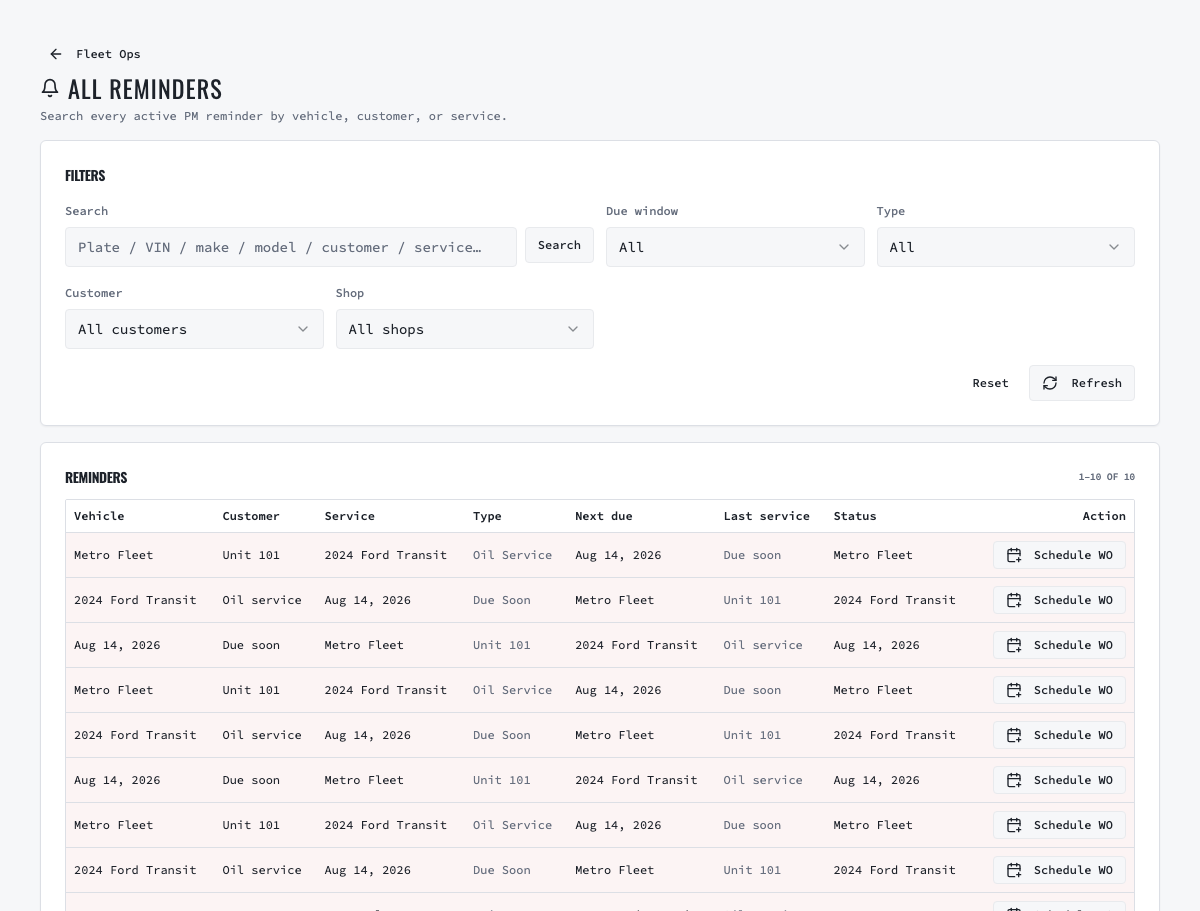
Assign applicable service menus and time, mileage, hour or combined reminder rules. Enter the last verified service evidence and inspect the calculated next due point. Define who reviews the due queue and contacts the fleet.
06
6. Send or approve portal access
In VMOTEK, select Customers and open the fleet organization. Click Invite to Fleet Portal at the top of the customer profile. The Portal Access tab opens with the invitation form already displayed. Enter the authorized contact's email, optional name and phone, then choose Regular billing (per visit) or Consolidated billing and its frequency before sending. VMOTEK emails an activation link and records the contact and delivery status in the Portal Access tab. If the customer requested access first, open the same customer and Portal Access tab, review the pending request, choose the correct billing arrangement, and select Approve & invite. Any staff member permitted to use the invitation API may invite, but business policy should identify accountable roles.
- Navigation: Customers → open the fleet company → Invite to Fleet Portal.
- Alternative path: Customers → open the fleet company → Portal Access → Invite contact.
- Portal access does not require consolidated billing; choose the billing arrangement agreed with that customer.
- If the company has multiple shops and Gmail connections, choose the Email sending shop. VMOTEK preselects the active or preferred shop when possible; in All shops mode this choice prevents the system from guessing which Gmail account should send the message.
- After sending, confirm the contact shows Invited and investigate any email-delivery warning before telling the customer to sign in.
07
7. Existing email identities and multiple shops
If the email already has a portal identity, accepting the invitation adds the new repair-company relationship instead of creating another password identity. After sign-in, the user selects the company they intend to access. Membership and customer scope are evaluated separately for each repair company.
08
8. Validate with a non-staff portal account
Accept the invitation in a private browser using the invited email. Verify company selection, allowed customer and vehicle visibility, estimates, approvals, invoices and service information. Try direct URLs from another company and confirm access is denied.
- The portal account must not open staff routes such as repair work orders, settings or company inventory.
- A multi-company user should see only companies with accepted membership.
- Removing one company membership must not destroy valid access to another company.
09
9. Operate and support the portal relationship
Keep contacts current, monitor invitation and email delivery failures and provide a process for wrong-company or missing-vehicle reports. The repair shop remains responsible for correcting source customer and vehicle data.
10
10. Revoke access and audit regularly
Revoke membership promptly when a contact leaves the fleet or no longer needs access. Review active portal users, companies, customer relationships and billing authority on a regular schedule. Never solve access problems by sharing one fleet login.
Related product areas
Understand the capability behind the task
Continue to the applicable platform page for workflow behavior, role differences and connected operating consequences.
Ready to move forward?
Need help with your configuration?
Existing customers should use in-product support for account-aware assistance. Evaluation teams can contact us to discuss requirements.