Administration
Roles, permissions and location boundaries
VMOTEK authorization combines identity, role or module permissions and shop membership. A role answers what a person may do; shop access answers where they may do it. Configure both explicitly and validate them with non-administrator accounts.
Written by the VMOTEK Product Team · Updated August 13, 2026
01
1. Build a responsibility matrix
List each job and the records it must view, create, edit, approve, export or administer. Include owner, administrator, service advisor, technician, purchaser, receiver, finance and cross-shop manager. Mark sensitive actions separately.
02
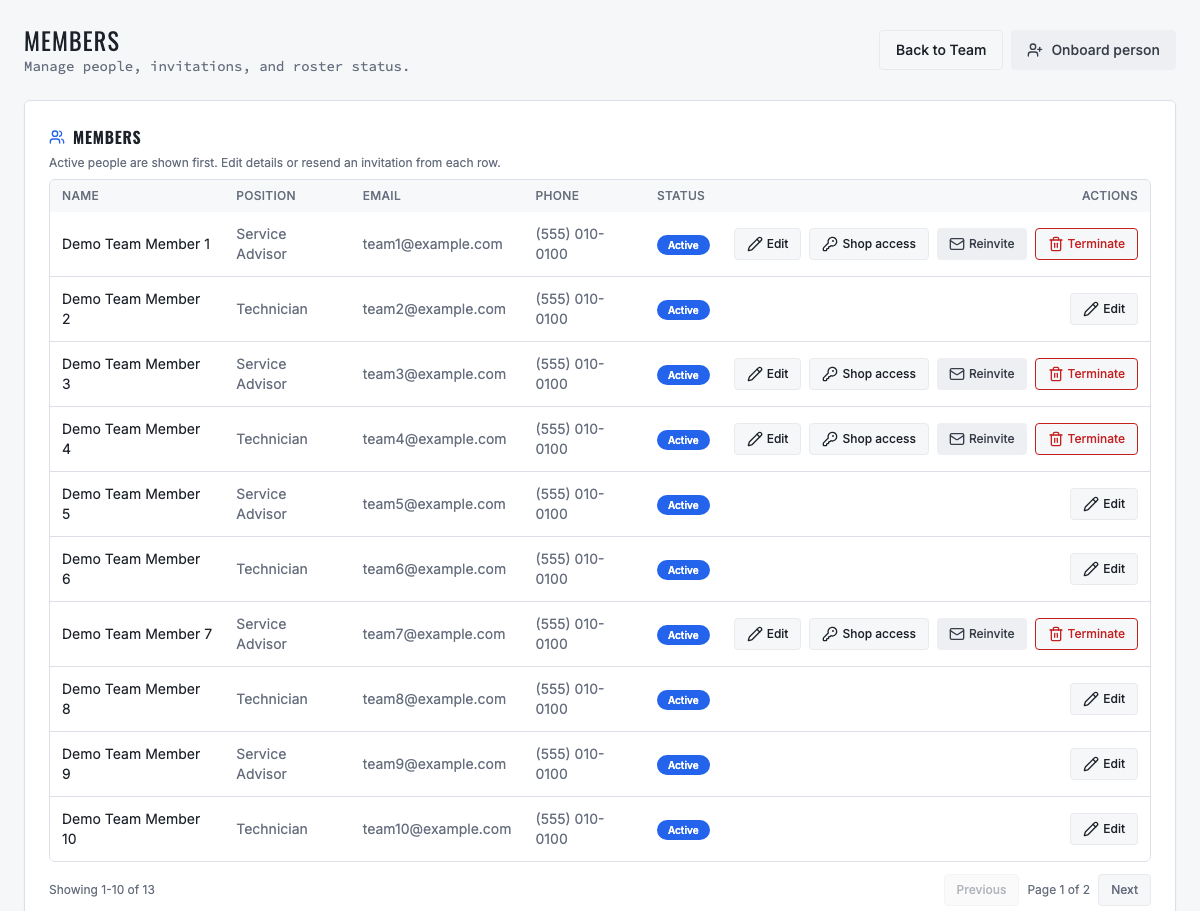
2. Invite individual users
Onboard each employee using an individual email. Do not share accounts between shifts or technicians. Individual identity supports assignment, audit history, notifications and prompt offboarding.
03
3. Assign the least-privileged role
Choose the role that supports normal work without exposing unrelated administration or financial controls. Avoid administrator access as a workaround. When a permission is missing, document the required business action and update the role deliberately.
- Technicians need repair execution, not user administration or company billing.
- Service advisors may need customers, estimates and work orders without inventory adjustment authority.
- Purchasers and receivers can be separated when ordering and physical receiving require different accountability.
- Finance users may require invoices and reporting without technician or shop-floor actions.
04
4. Assign explicit shop access
Use Shop access to assign the locations where the employee works. A technician explicitly assigned to one shop should appear only in that shop's technician-assignment choices. Administrators should change shop membership before trying to assign that technician elsewhere.

05
5. Separate high-risk authority
Restrict user administration, subscription changes, company integrations, refunds, tax configuration, PO approval, inventory adjustment, consolidated procurement and cross-shop financial reporting to accountable roles.
06
6. Understand administrator visibility versus operational eligibility
An administrator may be able to view multiple shops, but that does not make every technician eligible for every location. Viewing, editing and assignment eligibility are different controls. Respect explicit shop ownership instead of bypassing it because the current user is an administrator.
07
7. Test menus, APIs and direct URLs
Sign in using representative non-admin accounts. Verify visible navigation, shop selector, list results, search, direct URLs, exports, assignments, approvals and write actions. A hidden menu is not sufficient security; restricted APIs and direct routes must also deny access.
- Technician cannot assign another shop's worker or open restricted settings.
- Advisor cannot perform purchasing or financial approval unless explicitly granted.
- Local employee cannot retrieve another shop's scoped records through search or URL.
- Portal user cannot enter the repair staff application.
08
8. Handle employee transfers
When a worker changes locations, update shop access first, then verify assignments, crews, notifications and open work. Decide whether the employee temporarily needs both locations during transition and record an expiry date for exceptional access.
09
9. Offboard immediately and preserve records
Disable the departing user's access, revoke active sessions or connected credentials where applicable, reassign open work and approvals and retain historical business records under the original identity. Do not delete audit evidence merely to remove login access.
10
10. Review accountable multi-shop changes
Include shop-access grants and revocations, bulk imports, customer-location rules and shop deactivation in the company’s periodic control review. Confirm the actor, affected location, before-and-after context and business reason where applicable. Operational history should remain attached to its original shop even after staff move or a location is deactivated.
- Investigate unexpected all-shop access immediately.
- Reconcile import summaries to the approved source file.
- Review customer restrictions and location-specific commercial terms with account owners.
- Resolve open work, purchasing and inventory before deactivating a location.
11
10. Review access on a schedule
Review administrators, cross-shop users, purchasing approvers, inventory adjusters, integration owners and portal memberships at least quarterly and after organizational change. Record reviewer, date, exception owner and expiry.
12
Troubleshooting access errors
A 403 means the server rejected the action; confirm signed-in identity, company, active shop, role or module permission and explicit shop membership. If a worker is missing from assignment, verify the work order's shop and the technician's shop access. Do not change database permissions or tenant data to bypass a business authorization problem.
Related product areas
Understand the capability behind the task
Continue to the applicable platform page for workflow behavior, role differences and connected operating consequences.
Ready to move forward?
Need help with your configuration?
Existing customers should use in-product support for account-aware assistance. Evaluation teams can contact us to discuss requirements.