Product guide
Configure work order assignment and dispatch
VMOTEK separates a work order’s lifecycle from its ownership. Status tells the team whether work is Open, In Repair, Completed or Delivered; technician, bay and crew assignments tell them who owns it and where it belongs. Use this guide to configure those decisions for each shop.
Written by the VMOTEK Product Team · Product reviewed August 13, 2026
01
Start with the recommended default
Open Settings, select the shop, and choose Work Order Workflow. New shops default to Advisor assigned: an advisor or manager assigns every order to an eligible technician before work starts. Configuration is shop-specific, and changing it does not rewrite active work orders.
- Use the shop selector before editing because tire, mechanical and fleet locations may operate differently.
- An Open order is not necessarily available to claim; check its technician and readiness state.
- Test the configuration with a sample order before releasing it to the team.
02
Choose one of four dispatch methods
Match dispatch to the way work actually reaches technicians. Advisor assigned gives service leadership direct control. Claim queue releases approved work for eligible technicians to claim. Bay or crew routes work to a staffed physical lane or team. Hybrid lets advisors assign priority or specialist jobs while technicians claim the remaining ready work.
- Advisor assigned: best general default and clearest ownership model.
- Claim queue: useful when similarly skilled technicians pull from a shared backlog.
- Bay or crew: useful for tire lanes, express service and team production.
- Hybrid: useful when urgent and specialist work needs assignment but routine work can be claimed.

03
Define what Ready means
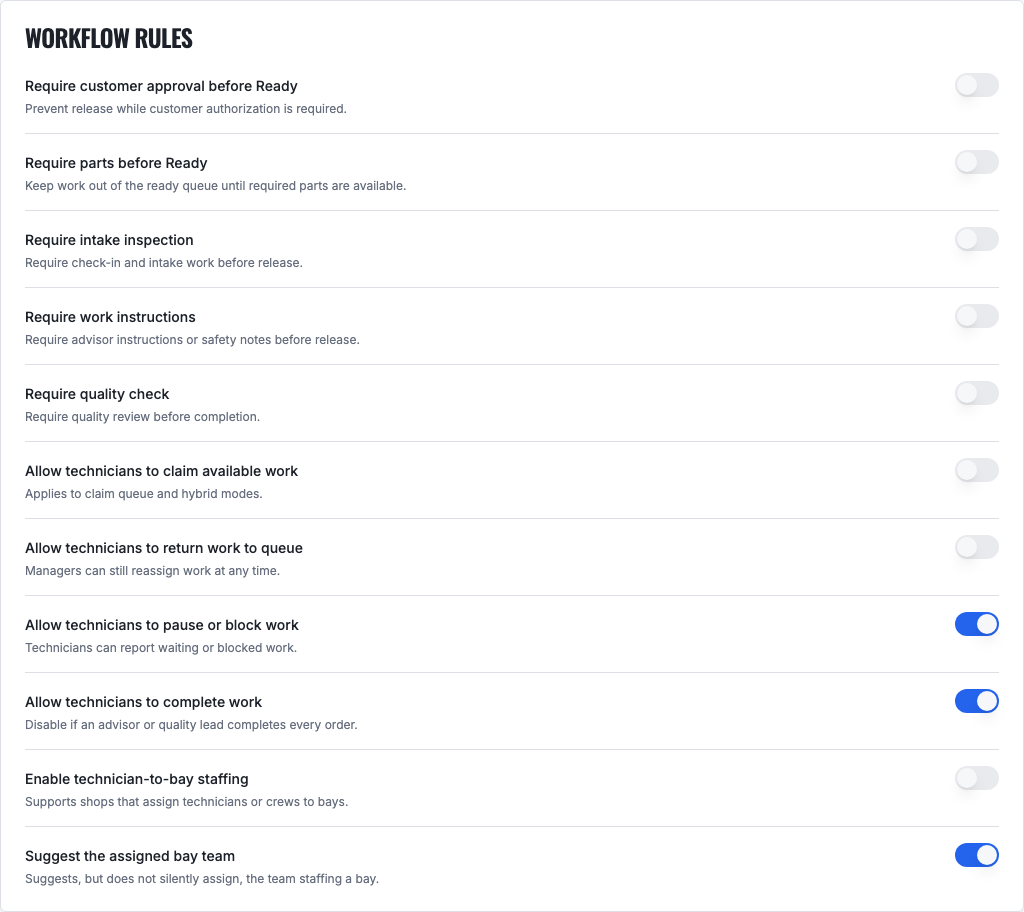
Ready is the operational gate between preparation and technician work. Configure whether customer approval, available parts, completed intake inspection and written instructions are required. VMOTEK should not release the work until every enabled condition is satisfied.
- Require customer approval when labor or parts cannot begin without authorization.
- Require parts when starting without them would occupy a bay or create avoidable downtime.
- Require intake and instructions when safety checks or advisor direction must be documented.
04
Control technician actions and quality review
Choose whether technicians may claim work, return it to the queue, pause it, report a blocker or complete it. If your process requires a road test, inspection or advisor review, require quality control and reserve final completion for the appropriate role.
- Technicians should begin from My jobs or the eligible claim queue and select Start Work.
- A paused or blocked order should retain its owner while clearly exposing the reason.
- Disable technician completion when a quality lead or advisor must approve the finished repair.
05
Configure bays, crews and shop eligibility
Enable bay staffing when work is dispatched through physical bays. Create named crews, add eligible technicians and assign the current technician or crew to a bay. A technician explicitly assigned to one shop appears only in that shop’s assignment choices; administrators must change the staff member’s shop access before assigning them elsewhere.
- Use bays for physical location and technicians or crews for ownership, they answer different questions.
- A technician with no explicit default shop can be treated as company-wide according to your access configuration.
- Never bypass shop eligibility simply because an administrator can view all locations.

06
Turn on actionable notifications
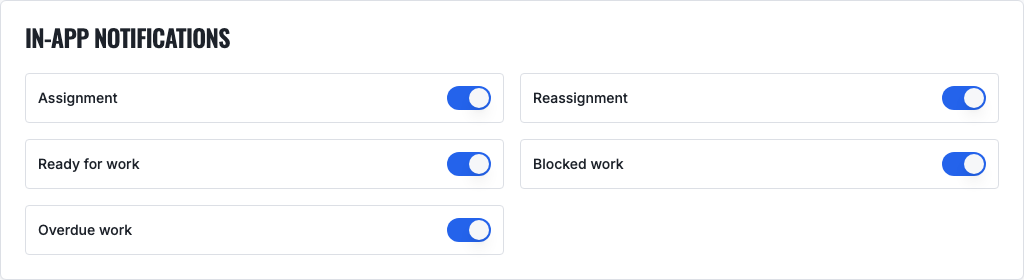
Enable assignment, reassignment, ready, blocked and overdue notifications for the roles expected to respond. Alerts should identify an exception or handoff, not merely repeat every status change.
07
Run the complete service-to-delivery flow
Create the work order, add authorized labor and parts, dispatch it and satisfy the readiness rules. Mark it Ready; the assigned or claiming technician starts the repair, records progress and completes it or submits it for quality control. The advisor reviews the completed lines, creates and opens the invoice, emails it to the customer, records payment when applicable and marks the vehicle Delivered when it is returned.
- Use Open and No technician to find work that has not been dispatched.
- Use Assigned and Not started to find work waiting for the technician.
- Create the invoice from approved labor and parts so the work order and billing history remain connected.
- Do not use Delivered as another word for Completed; it records the customer handoff.
08
Troubleshoot a work order that cannot start
Confirm that the order belongs to the current shop, is Open and Ready, and is assigned to the signed-in technician or is eligible for that technician to claim. Check required approval, intake, parts and instructions. If assignment changed after the page opened, refresh before trying again.
Related VMOTEK workflows
Continue from the guide into the product
Use the capability pages for operating behavior, role differences, related guides, pricing and a product walkthrough.
Ready to move forward?
See the workflow in VMOTEK
Bring your current process and we will demonstrate where the platform fits, what changes, and what it does not yet support.