Guide
Getting repair approvals back in minutes
Fast approval is not produced by sending a vague total faster. The estimate must identify the vehicle, explain the work, show complete pricing and give the right customer or fleet contact a simple decision. VMOTEK can send a single-use approval link by email, SMS or both; the customer can approve the estimate, request changes or decline it without signing into the repair application.
Written by the VMOTEK Product Team · Product reviewed August 13, 2026
01
1. Confirm the customer, vehicle and approver
Before writing the estimate, verify the customer and vehicle record, VIN or plate, current mileage and complaint. Confirm who is authorized to decide. For a consumer, this is normally the vehicle owner. For a fleet, it may be a maintenance manager with a spending limit, required PO number or separate billing contact.
- Update the customer's email and mobile number before sending anything.
- Record fleet unit number, authorization rules and purchase-order requirements where the advisor can see them.
- Do not send a repair decision to a convenient contact who is not authorized to approve it.
02
2. Create the estimate from the real repair need
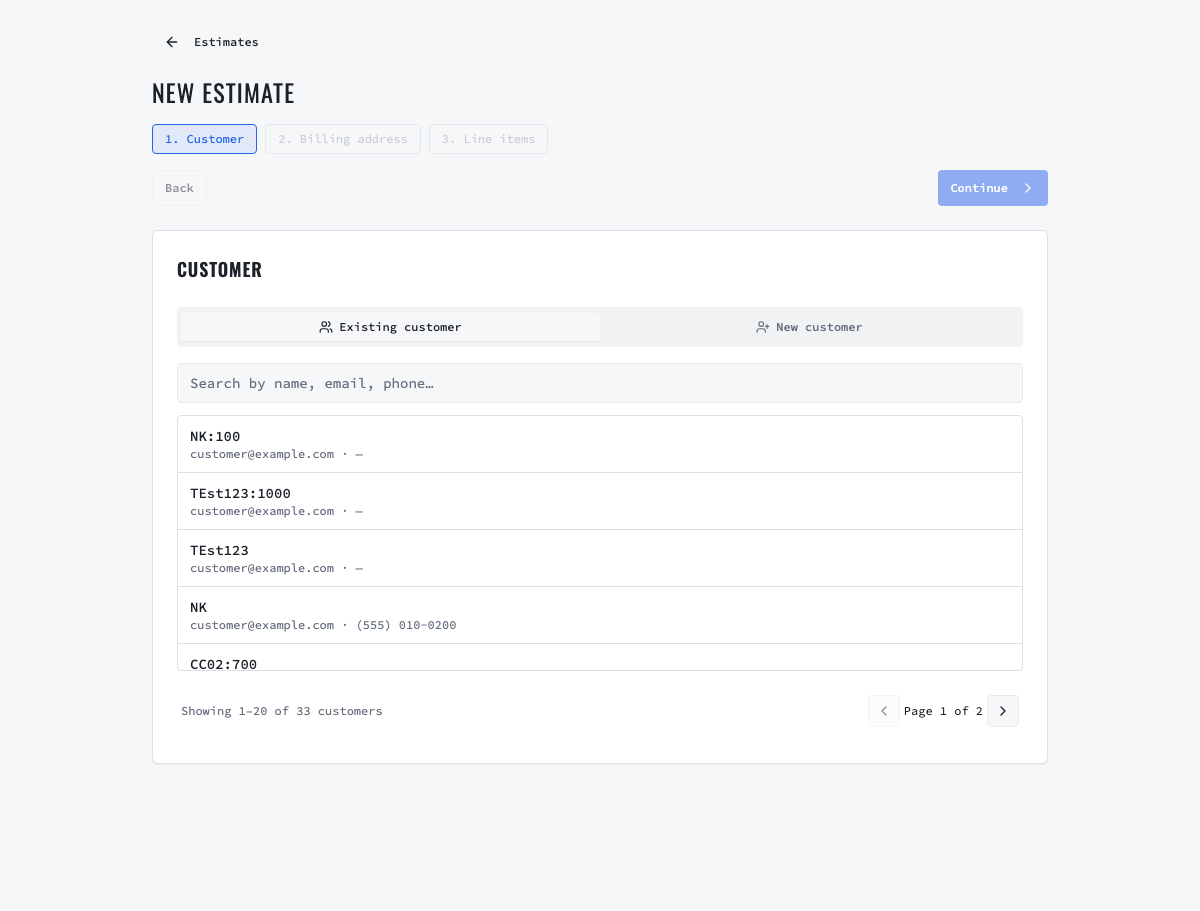
Create a new estimate for the correct shop, customer and vehicle. Add each labor operation and part with a customer-readable description, quantity, price and applicable taxes or fees. Group urgent work clearly and separate work that can be monitored. Use inspection findings, measurements and photos to support the recommendation without overwhelming the customer.
03
3. Review scope, evidence and the complete price
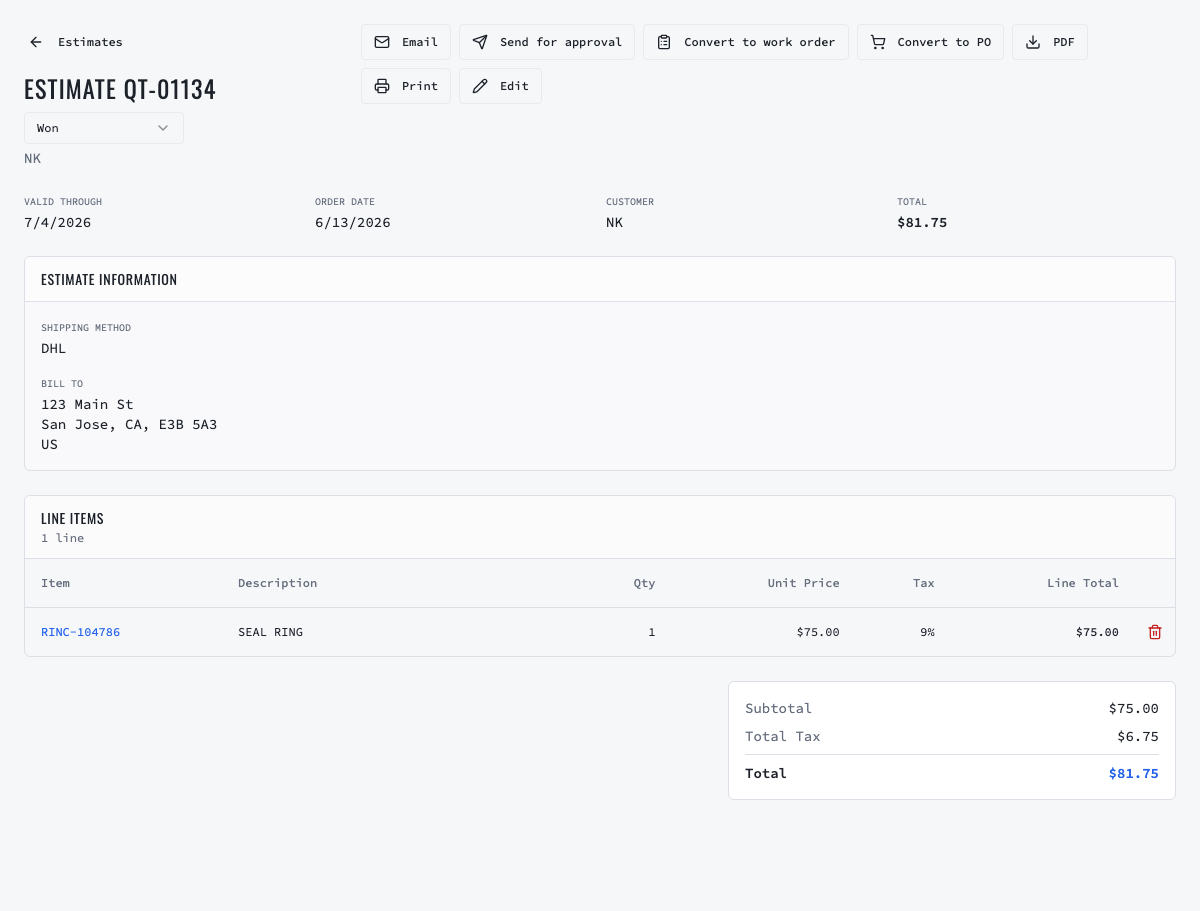
Open the estimate and review it as the customer will. Confirm parts, labor, quantities, rates, discounts, fees, taxes and total. Add a concise customer note that explains the condition, consequence and recommendation. For fleet work, include the unit and required authorization or PO reference. Correct confusing internal abbreviations before sending.
- Condition: what the inspection or diagnosis found.
- Consequence: what may happen if the work is delayed.
- Recommendation: what the shop proposes and why.
- Price: the full amount the customer is being asked to authorize.
04
4. Send the secure approval request
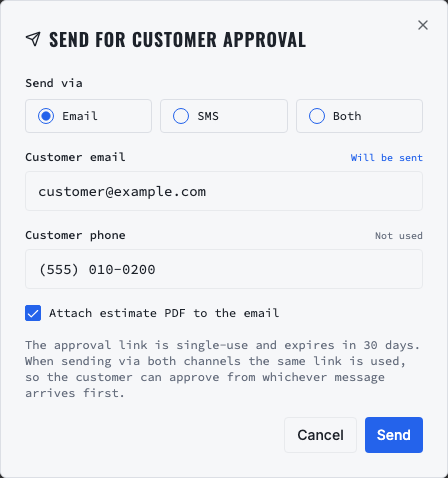
Select Send for approval. Choose Email, SMS or Both; verify the displayed address and phone number and decide whether to attach the estimate PDF to email. VMOTEK sends the same single-use approval link through the selected channels. The link expires after 30 days, and the first completed decision consumes it.
- Use Email when the approver wants the PDF and a durable inbox record.
- Use SMS when speed and mobile response matter and the customer has consented to receive texts.
- Use Both for time-sensitive work; the customer still makes only one decision through the shared link.
- Never send protected customer or vehicle information to a phone number or email address you have not verified.
05
5. Explain the customer's three choices
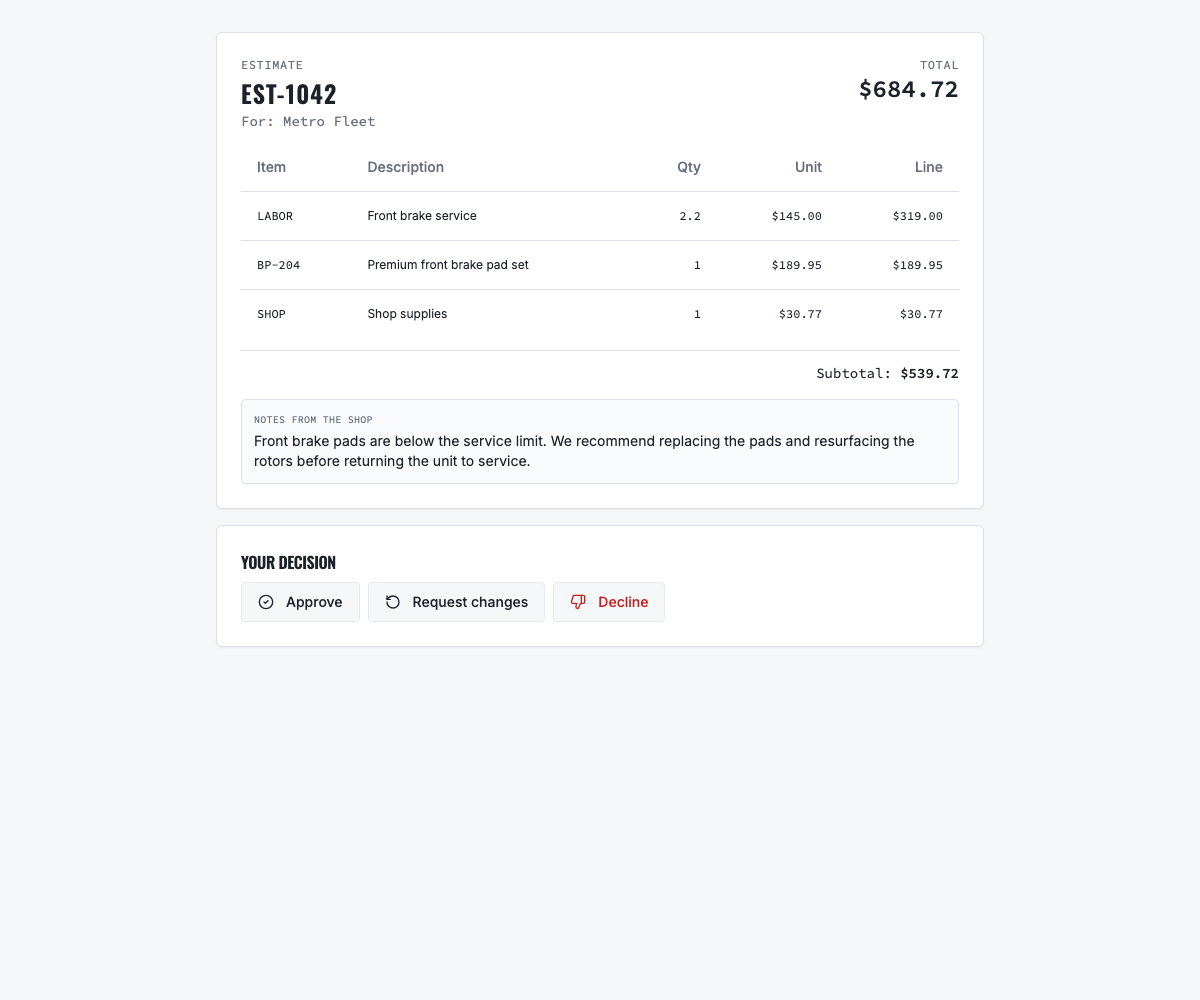
The customer-facing page shows the estimate lines, quantities, unit prices, total and shop note. The approver can approve the complete estimate, request changes with a required explanation or decline with a required reason. The current workflow makes a decision on the estimate as a whole; if the customer wants only part of the work, use Request changes so the advisor can revise and resend a new estimate.
- Approve records authorization and notifies the shop.
- Request changes returns the estimate to the shop with actionable instructions.
- Decline records the decision and reason; preserve the recommendation for history and appropriate follow-up.
06
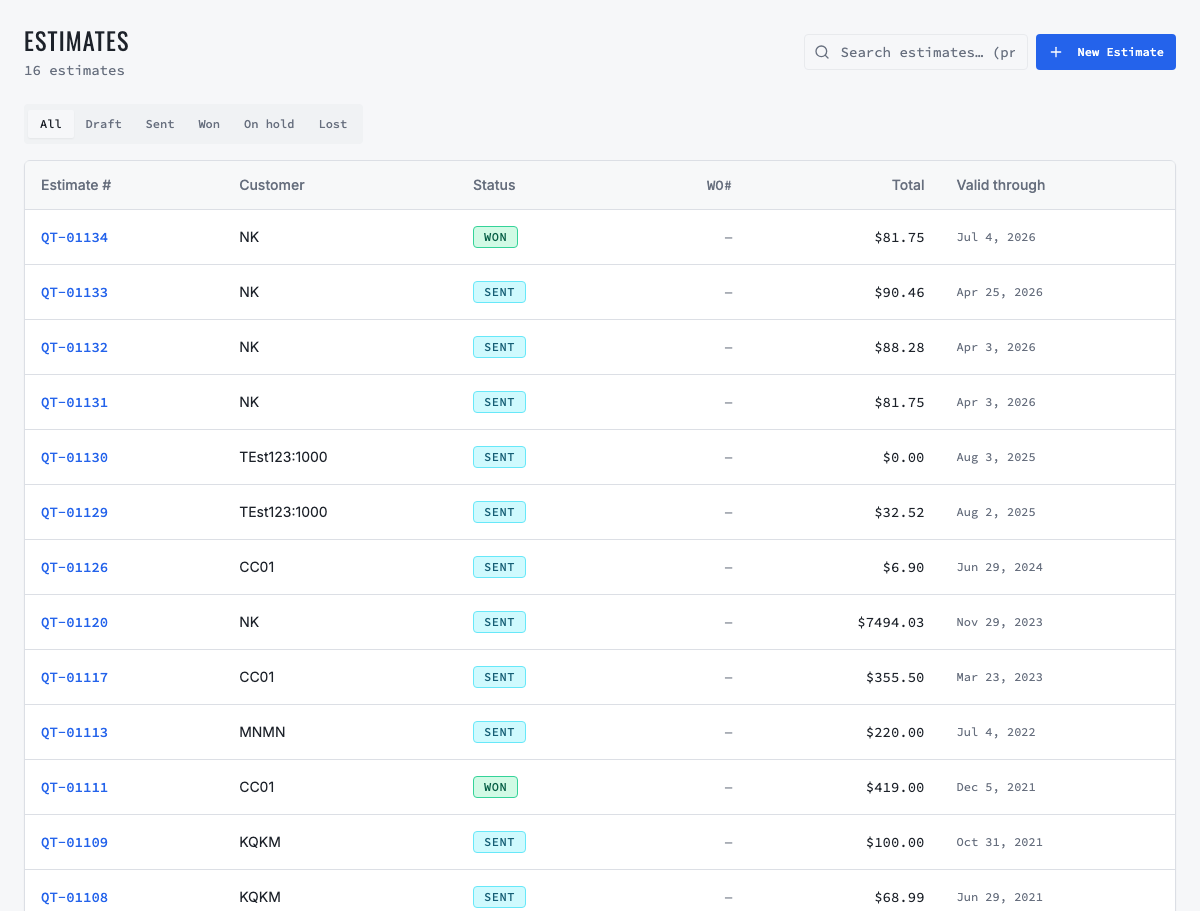
6. Monitor the estimate pipeline
Use the Estimates page to review draft, sent, approved, declined and other current states. Advisors should own a regular follow-up queue rather than relying on memory. Search by customer or estimate, confirm whether the decision is still pending and contact the customer through the appropriate channel when the vehicle is waiting.
07
7. Respond correctly to a requested change
Read the customer's note, call when clarification is needed, update the scope and pricing, then review the revised total. Send a new approval request so the final authorization matches the work the shop will perform. Do not treat a conversation about a change as approval of the earlier estimate.
08
8. Convert approval into controlled repair work
After approval, create or update the connected work order with the authorized labor and parts. Confirm parts availability, assignment and readiness requirements before marking the work Ready. If additional work is discovered, add it to a revised estimate and obtain another decision before performing chargeable work outside the approved scope.
- Approval authorizes the described scope and price; it does not automatically prove parts are available or the bay is ready.
- Keep the estimate, approval decision and work order connected for invoicing and disputes.
- When the repair is complete, invoice the approved work and retain declined recommendations for future service discussions.
09
9. Handle expired, used and undelivered links
If a customer reports an expired or already-used link, verify the estimate's current decision before sending another request. For failed email or SMS delivery, correct the contact information and resend through a working channel. Never infer approval from a delivery receipt or from the customer opening the link.
10
10. Measure and improve the approval loop
Track time from estimate sent to decision, percentage approved, value approved and declined, requested-change frequency, delivery failures and the number of follow-up touches. Review slow approvals by advisor, customer type and estimate value. Improve unclear descriptions and contact-data quality before simply sending more reminders.
Related VMOTEK workflows
Continue from the guide into the product
Use the capability pages for operating behavior, role differences, related guides, pricing and a product walkthrough.
Ready to move forward?
See the workflow in VMOTEK
Bring your current process and we will demonstrate where the platform fits, what changes, and what it does not yet support.