Guide
Moving fleet service off spreadsheets
Moving off spreadsheets is not just a data-import project. It is a controlled change from disconnected lists to one repeatable service workflow. This guide shows what to prepare, where to go in VMOTEK, what to enter, who owns each step and how to prove the new process is working.
Written by the VMOTEK Product Team · Product reviewed August 13, 2026
01
1. Back up the spreadsheets and choose a pilot fleet
Keep a read-only copy of every current spreadsheet before changing anything. Choose one representative fleet account for the first rollout, large enough to include preventive maintenance and repair activity, but small enough for the team to verify every record. Name a shop owner for the migration, a fleet contact who can confirm vehicle data and a service advisor who will run the daily workflow.
- Collect the customer list, vehicle register, current odometers, service intervals, open repairs, unpaid invoices and recent service history.
- Remove obvious duplicate vehicles and contacts, but keep uncertain records in an exception list for human review.
- Agree on success criteria: all active units loaded, PM dates validated, no open repair lost and the first billing cycle reconciled.
02
2. Configure the company, shops and responsible team
Confirm the company and each participating shop before importing fleet work. Add service advisors, technicians and administrators; assign each worker to the correct shop and role. Configure the work-order dispatch model so the team knows whether advisors assign work, technicians claim ready work, or both methods are allowed.
- Company and shop details print on estimates, work orders and invoices, so verify names, addresses, phone numbers and email addresses.
- Use role permissions to separate customer service, technician, purchasing, billing and administrative responsibilities.
- If a technician is assigned to one shop, that technician appears only in that shop's assignment choices until an administrator changes the shop assignment.
03
3. Create the fleet customer and billing rules
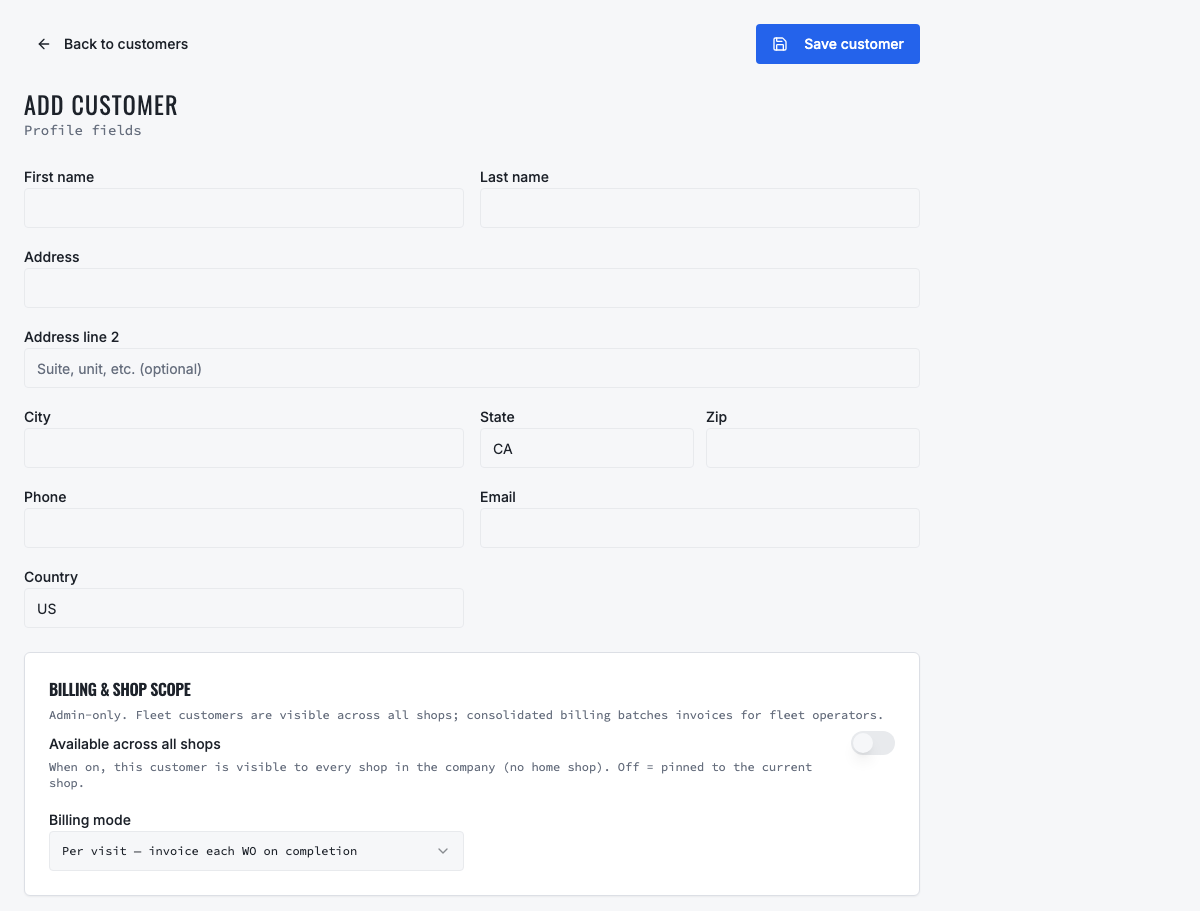
Create one customer record for the fleet organization and add the people who approve repairs, receive updates and handle invoices. Record email and mobile contact information. Choose regular billing when each repair is invoiced separately, or fleet consolidated billing when approved work should be grouped for a billing period. Record purchase-order requirements and other account instructions your advisors must see.
04
4. Register every active fleet vehicle
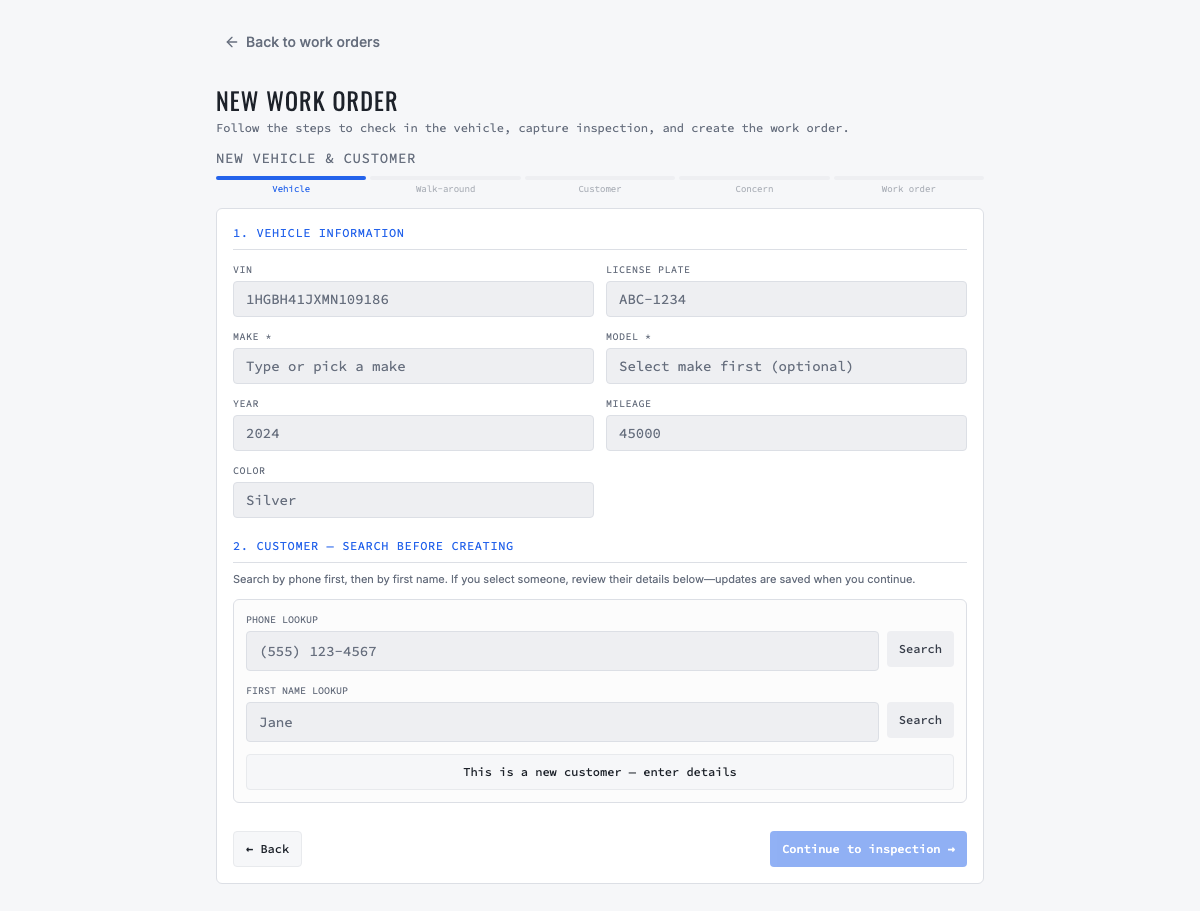
Add each active unit under the correct fleet customer. Capture the fleet's unit number, VIN, year, make, model, license plate, current odometer and operating status. Decode the VIN where available, but verify decoded information against the vehicle. Do not invent missing mileage or service dates; mark them for follow-up with the fleet manager.
- Use the fleet's own unit number so the shop and customer discuss the same vehicle.
- Separate active, inactive and disposed units so retired vehicles do not create false maintenance demand.
- Attach service history to the vehicle record instead of keeping another vehicle-history spreadsheet.
05
5. Standardize service menus and preventive-maintenance rules
Convert free-form spreadsheet descriptions into consistent service menus such as Oil and Filter Service, Tire Rotation or DOT Inspection. For each relevant vehicle, define whether the reminder is triggered by elapsed time, odometer, operating hours or a combination. Enter the last verified service date or reading and let the rule calculate the next due point.
- Use the same service-menu name for equivalent work so labor, parts and completion reporting can be compared.
- Agree with the fleet customer on due-soon and overdue thresholds, such as 500 miles or 14 days before due.
- Assign one person to investigate missing readings and one person to contact the fleet when work becomes due.
- Review the calculated next-due date or mileage before declaring the spreadsheet retired.
06
6. Operate from the Fleet Operations Center
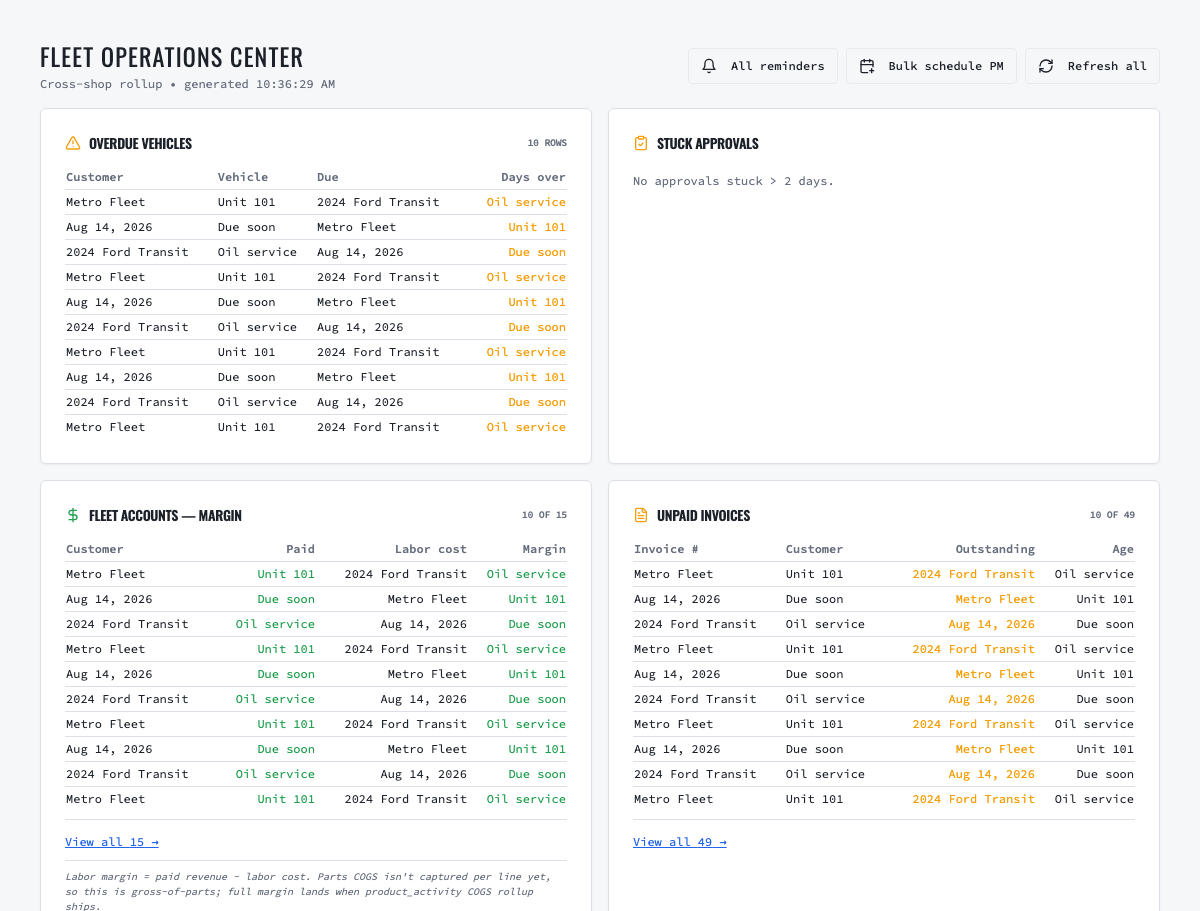
Open the Fleet Operations Center at the start of the day or week. It rolls up exceptions across shops so managers can act on overdue vehicles, stuck approvals, unpaid invoices, PM compliance, skipped maintenance, repeat failures, failed inspections and service-spend signals. Open a tile to investigate the underlying vehicles or work instead of maintaining a separate management spreadsheet.
07
7. Review the service-reminder due queue
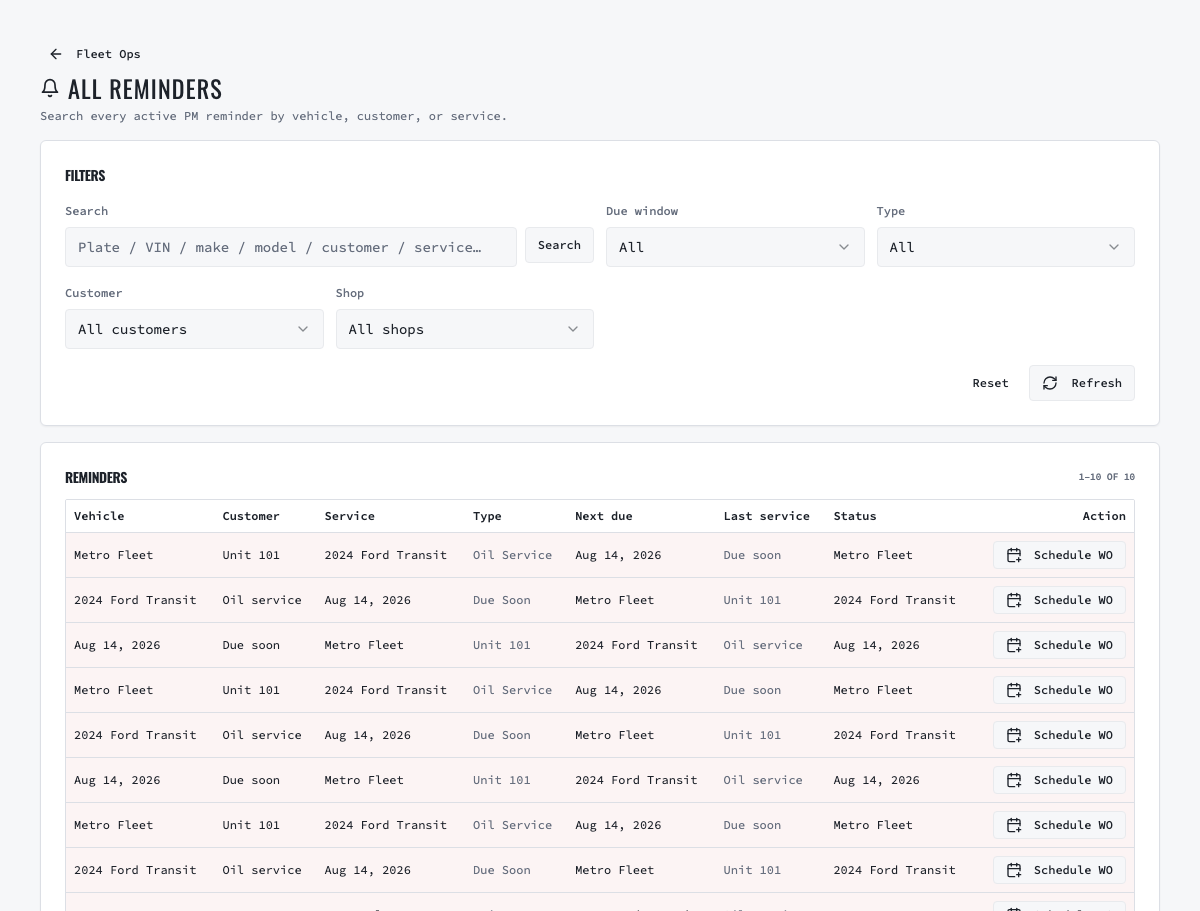
Select All reminders from Fleet Ops to see preventive-maintenance reminders across vehicles. Filter the list by due window, reminder type, customer or vehicle. Confirm the latest mileage before acting. Contact the fleet manager for availability, record any deferral and convert an accepted reminder into a draft work order so the maintenance rule and repair record remain connected.
- Due soon means outreach should begin; overdue means the service needs immediate exception handling.
- A reminder should not disappear merely because the customer postponed it, retain the decision and next action.
- When work is completed, update the last-service evidence so the next reminder is forecast from a trusted event.
08
8. Schedule preventive maintenance in bulk
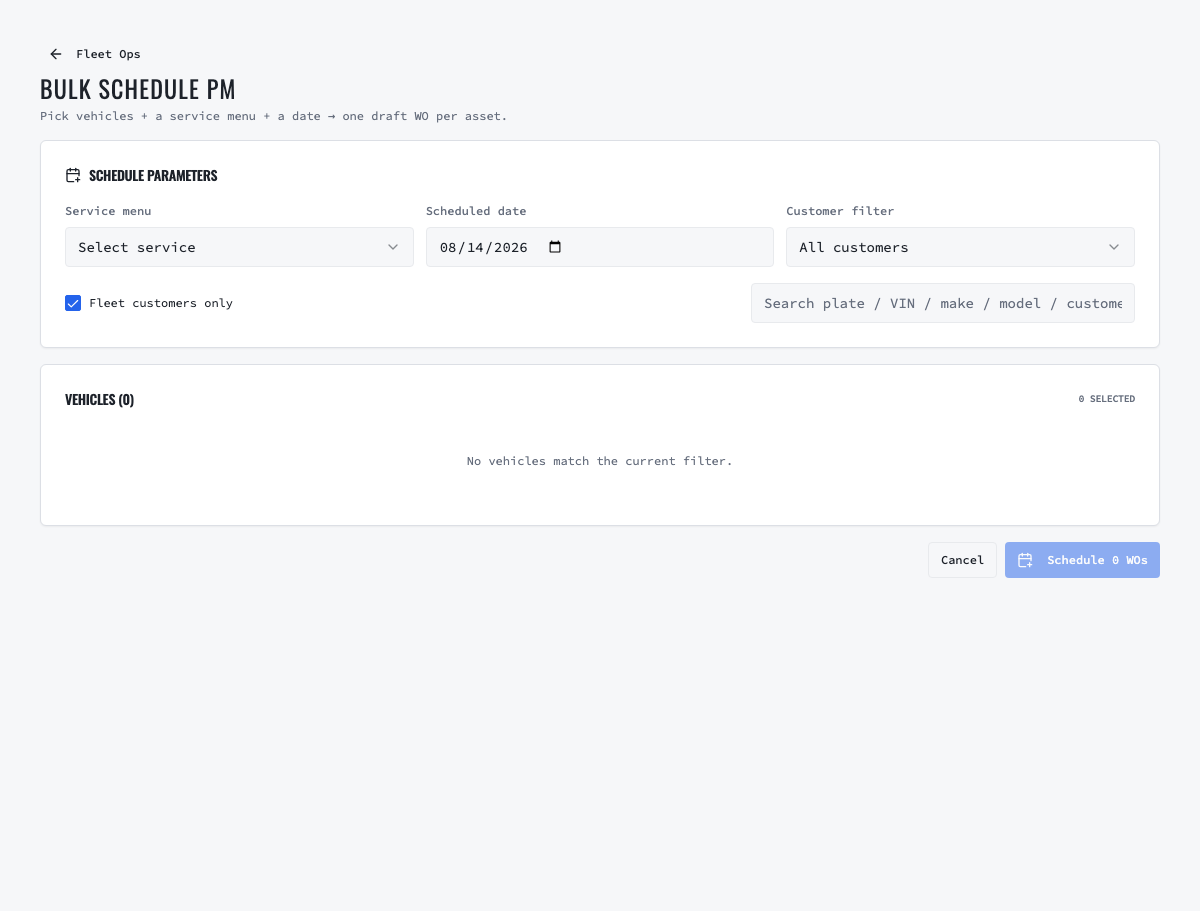
When several vehicles need the same service, use Bulk schedule PM. Select the service menu, scheduled date and fleet customer; filter or search the eligible vehicles; review skipped units and create one draft work order per selected asset. Verify the generated work orders before dispatching them to the shop floor.
09
9. Run repair work from intake through completion
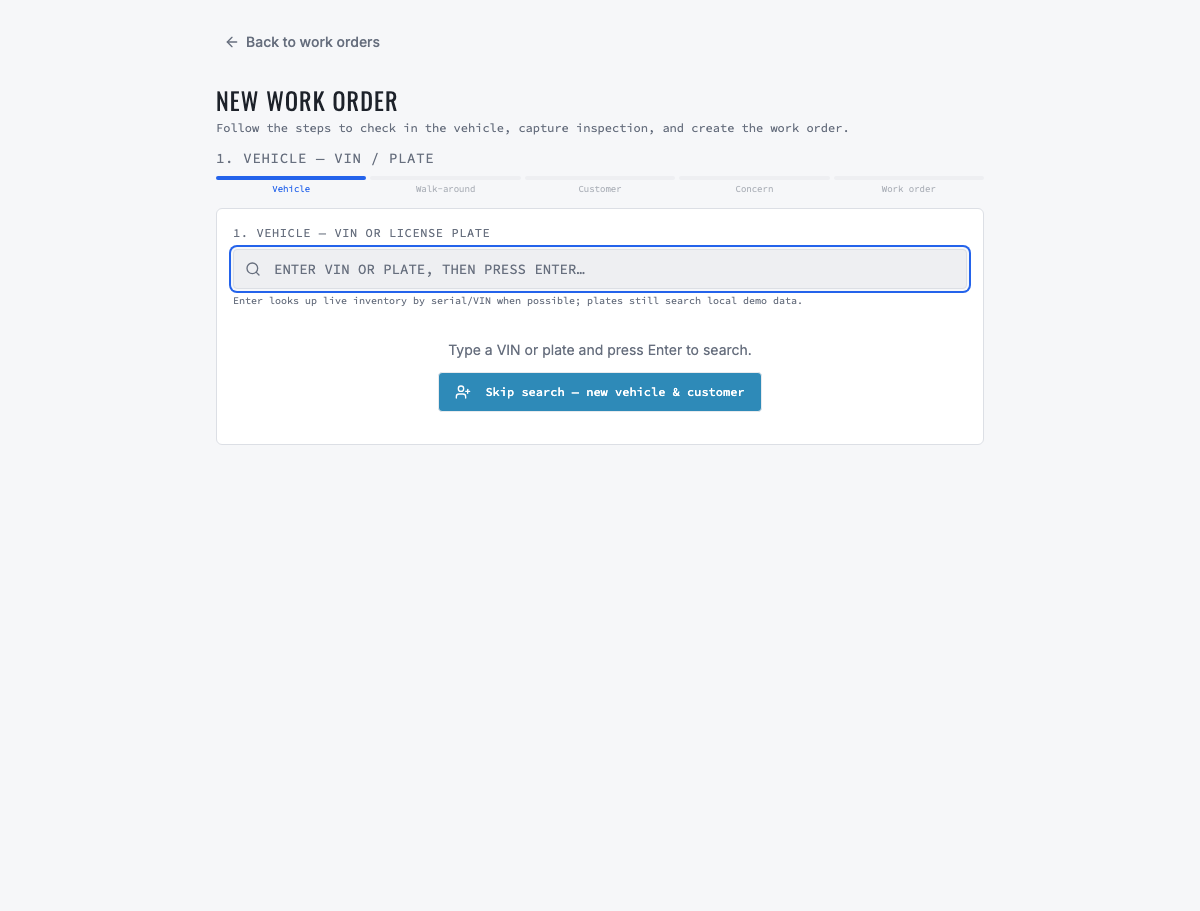
For planned or unplanned service, create the appointment or work order against the correct fleet customer and vehicle. Record the complaint, inspection findings and fleet PO or authorization reference. Add labor and parts, send the estimate for digital approval when required, mark the work Ready, assign or let an eligible technician claim it, move it to In Repair and then Completed after the work and quality checks are finished.
- If the technician finds more work, add the recommendation and obtain approval before performing chargeable repairs.
- Search local and cross-shop inventory before buying; reserve, transfer or purchase the required part with traceable quantities.
- Use purchase orders to order unavailable parts, then receive them into the location that physically owns the stock.
- Completion means the repair work is done; Delivered records the later customer handoff.
10
10. Give the fleet customer controlled portal access
Invite the customer's authorized contact to the fleet portal when self-service access is appropriate. The portal identity is based on email, so the same person can accept invitations from multiple repair companies and select the company they need. Portal users can work with the fleet relationship without receiving staff access to the repair application.
- Confirm the email address and the customer account before sending the invitation.
- Explain what the contact can review or approve and whom to contact when information is wrong.
- Revoke access when the contact leaves the fleet organization; do not share one portal login among employees.
11
11. Invoice each repair or create consolidated fleet billing
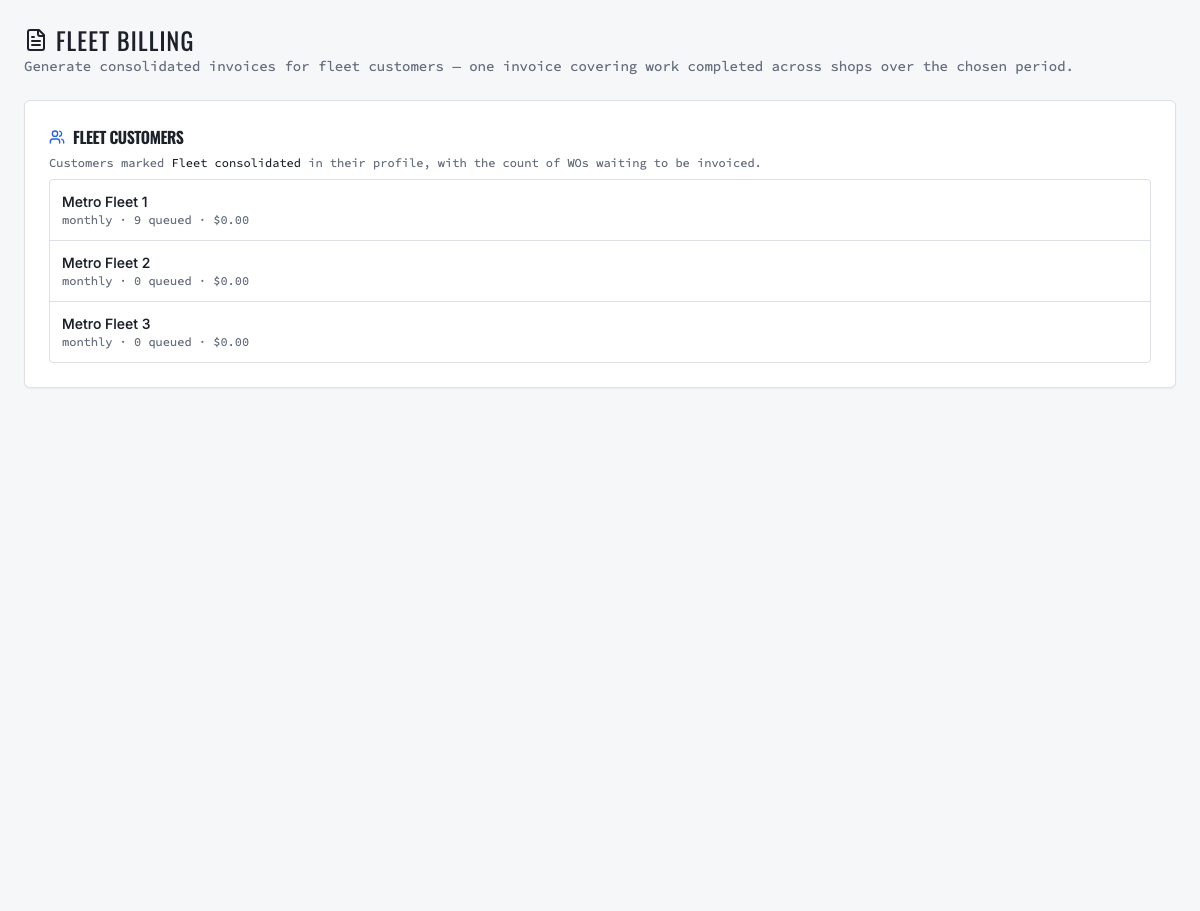
Use regular billing when the fleet expects an invoice per job. For consolidated billing, complete the eligible work orders throughout the billing period, open Fleet Billing, select the fleet customer and verify the queued work, dates and amounts before generating the combined invoice. Email the invoice to the billing contact, record payment and retain the linked work-order detail for questions or disputes.
12
12. Reconcile the pilot, report results and retire the spreadsheet
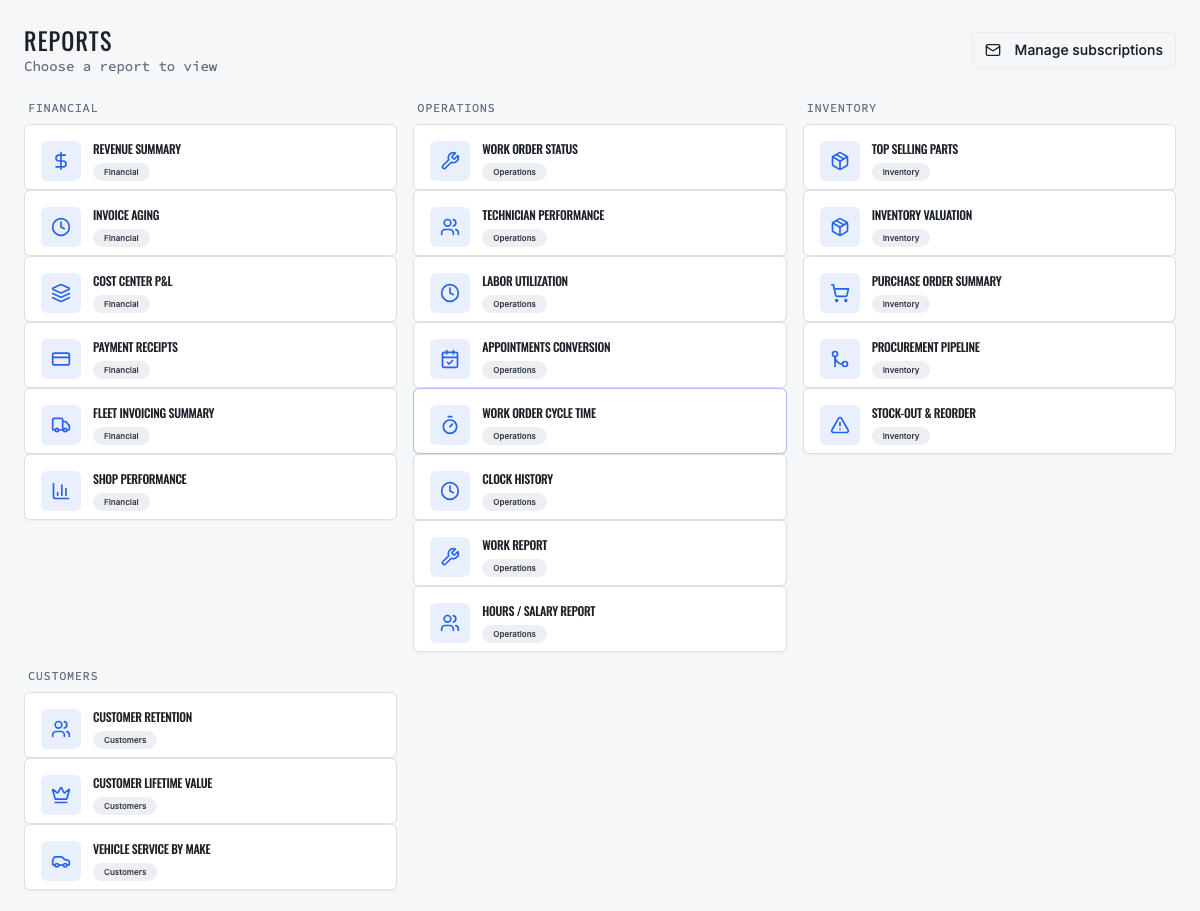
Run the pilot through at least one complete maintenance and billing cycle. Compare vehicle counts, open work, completed work and invoice totals against the old records. Use VMOTEK reports for shop performance and service activity, document any differences and obtain approval from the migration owner and fleet contact before making the old spreadsheet read-only.
- Measure active assets with complete identity and odometer data.
- Track due services contacted, reminders converted to work orders, on-time PM completion and deferred work.
- Reconcile completed work orders to regular or consolidated invoices and payments.
- After acceptance, make VMOTEK the system of record and prohibit parallel spreadsheet updates except a temporary documented exception log.
13
A practical four-week rollout
Week 1: clean one fleet and configure the team. Week 2: load vehicles, service menus and verified PM rules. Week 3: operate reminders, approvals, work orders and portal communication in VMOTEK while reconciling the old sheet. Week 4: complete billing, review reports, fix exceptions and formally retire the spreadsheet for the pilot. Repeat the proven process for the next fleet instead of importing every account at once.
Related VMOTEK workflows
Continue from the guide into the product
Use the capability pages for operating behavior, role differences, related guides, pricing and a product walkthrough.
Ready to move forward?
See the workflow in VMOTEK
Bring your current process and we will demonstrate where the platform fits, what changes, and what it does not yet support.