Tire shop guide
Configure and run a connected tire-shop workflow
Use this guide to prepare VMOTEK for tire sales and service and then run a visit from mobile intake through installation. The operating template creates safe drafts; it does not decide your prices, taxes, legal terms, product fitment or supplier promises. An accountable administrator must review those local decisions before the team relies on them.
Written by the VMOTEK Product Team · Updated August 14, 2026
01
1. Preview the Tire Shop operating template
Open Settings, select Setup & Readiness, and choose the operating-template setup for the intended shop. Select Tire Shop and preview before applying. The preview explains which draft records will be created, which matching records will be kept and which items need local values. Apply only to the selected shop or intended locations. Reapplying the same template is designed to keep matching configuration instead of creating duplicates.
- Select the intended tire-shop location in the top header, then select Settings → Setup & Readiness → Operating templates. During initial onboarding, use Choose how each shop operates.
- Confirm the selected shop before applying; organization shape and shop specialty are separate decisions.
- Expect draft intake, inspection, installation, included-care and tire-protection packages plus inactive disposal and environmental fee rules.
- The Publish tire-shop setup gate lists missing shop address, sales tax, default tax, required templates, package publication and fee values, with a direct Configure link for each item.
- Inventory-dependent package components remain incomplete until linked to real company inventory items.
02
2. Review the tire intake fields
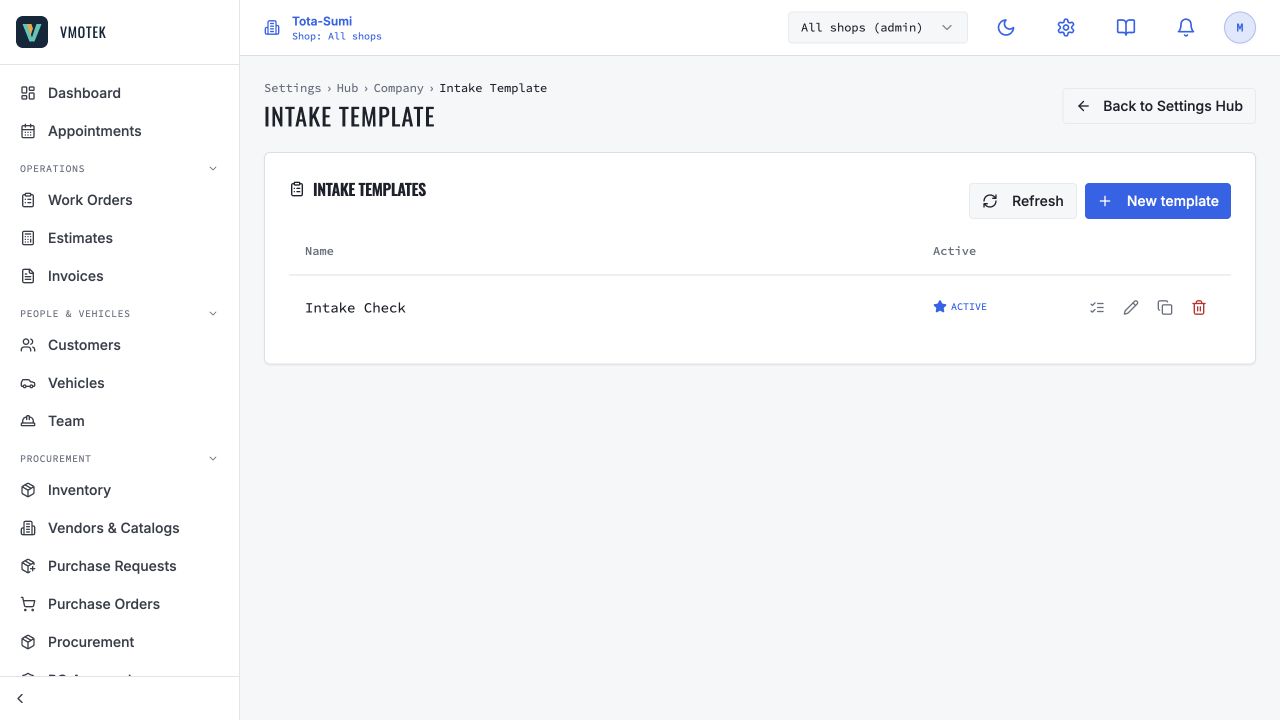
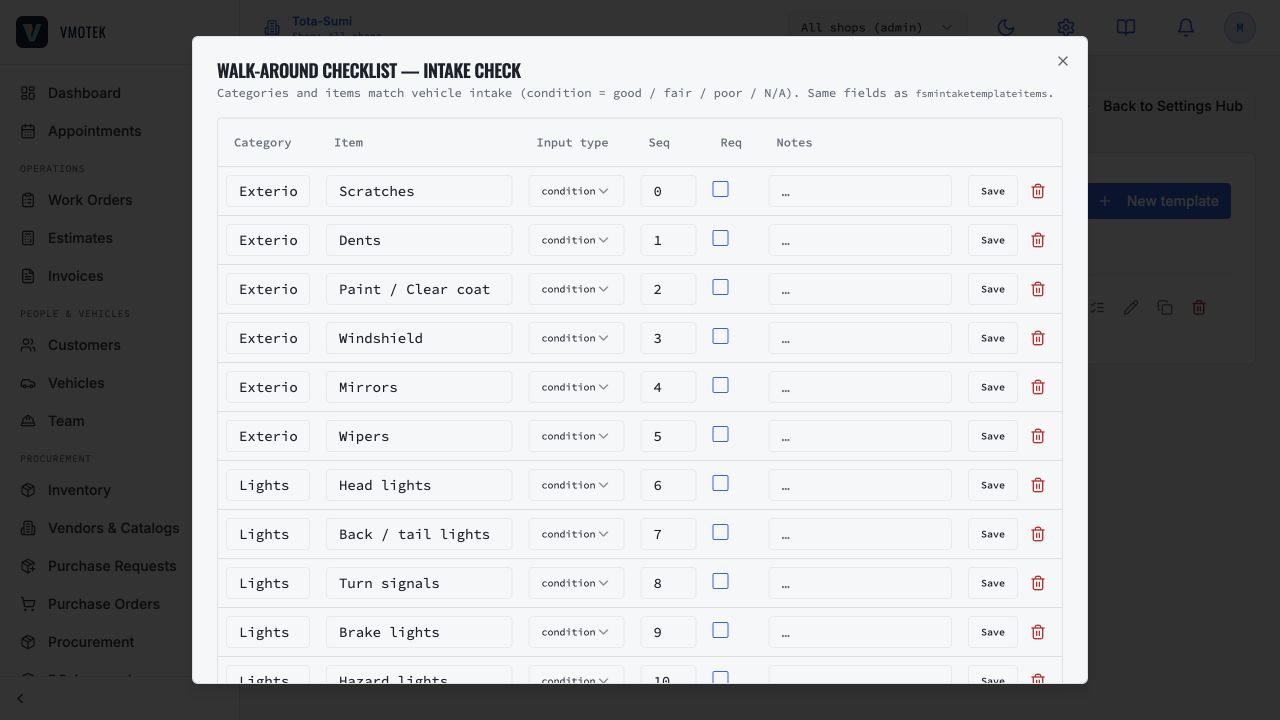
From Settings, open the intake-template configuration and select Tire and tread intake. Review the vehicle odometer, OE tire size, current tire size, wheel size, left-front, right-front, left-rear and right-rear tread depth in 32nds, four pressure values in PSI, DOT code and date, visible damage and customer preference. Keep numeric measurements numeric so they can be compared later. Rename a label only when every advisor and technician will understand the new wording.
- Mark the current tire size and four tread values required when that matches shop policy.
- Use OE size as reference; do not infer it from a generic catalog when authoritative data is unavailable.
- On mobile, use Photo on the relevant row to capture damage or wear evidence with the rear camera.
- Save, reopen and verify that values and photo evidence remain attached to the intake record.
03
3. Prepare tire products and fitment rules
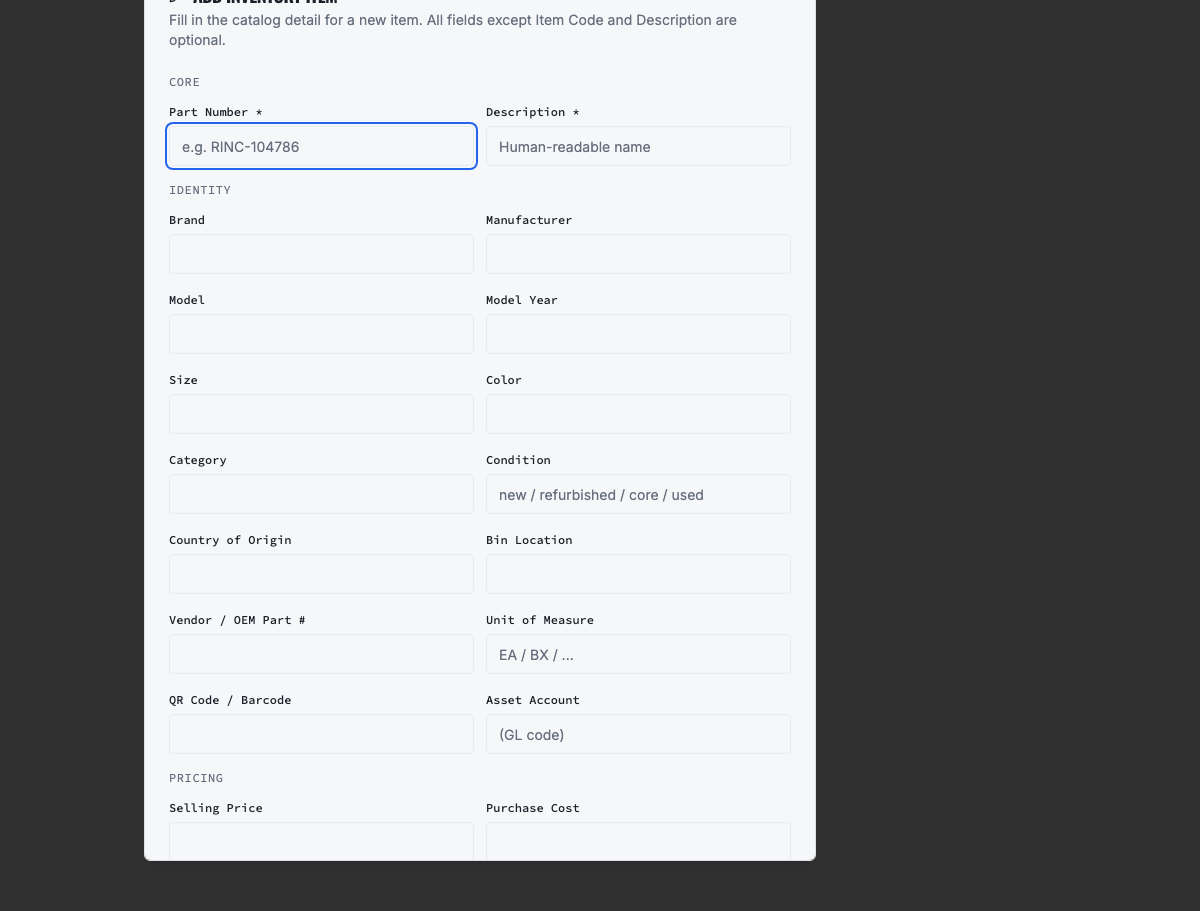
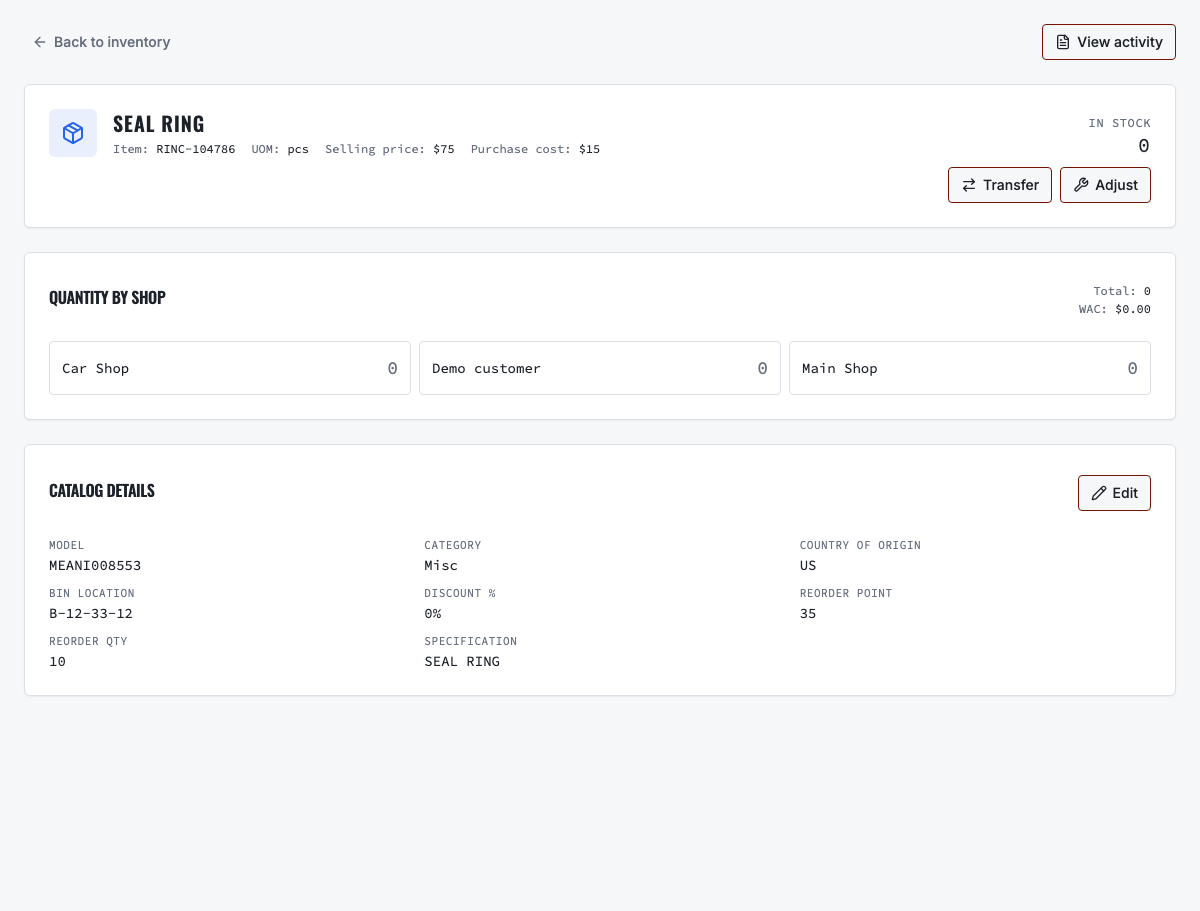
Open Inventory and create or import the tire products the shop actually sells. Record a stable part number, customer-facing description, brand, model, size, specification, image, purchase cost and default selling price. Open the product detail editor to maintain vehicle fitment rules. A saved rule can specify make, model, starting year, ending year and engine. Review existing stock by shop rather than creating another product definition for each location.
- The company inventory item is the shared definition; each shop's lots and movements determine local quantity.
- Default selling price is the normal customer price, purchase cost supports margin, and MSRP is reference information rather than an automatic selling rule.
- An exact saved fitment rule is company-maintained evidence, not licensed OE data.
- Archive an obsolete product instead of deleting history needed by prior estimates, work orders or purchase orders.
04
4. Review packages, fees, taxes and capacity
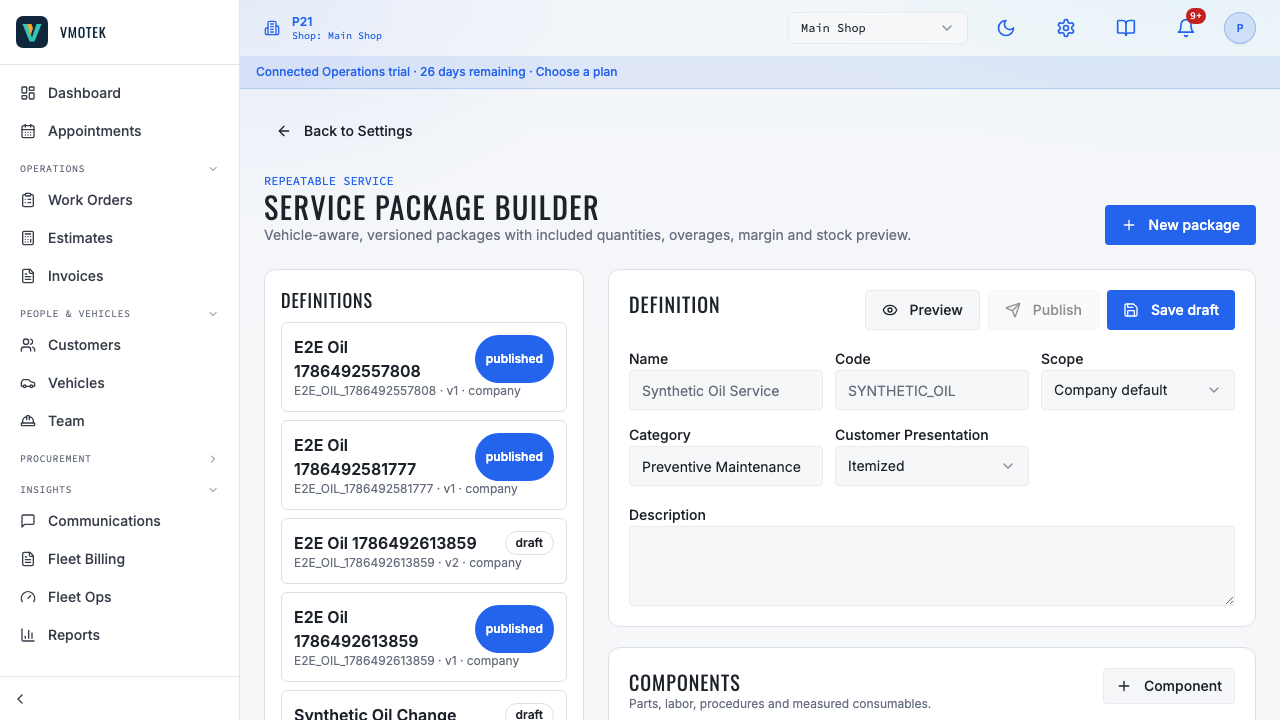
Open Service Packages and review the installation, included-care and tire-protection drafts. Link real inventory and labor, enter local prices, and publish Included tire care only when the shop truly provides those benefits. Keep protection optional and write the shop's actual price, coverage terms and exclusions. Then open Fees, discounts and customer documents to enter and activate the generated disposal and environmental rules. Finally open Appointment & Capacity and confirm hours, duration, bay expectations and online reschedule/cancel policy.
- Preview package price and margin using a representative vehicle before publishing.
- Confirm whether each fee is fixed, percentage or per quantity and whether local rules make it taxable.
- Do not publish a placeholder price, tax decision, warranty statement or customer promise.
- Return to Operating templates, select Recheck, and publish the tire-shop setup only when every required row is complete; optional packages may remain unpublished.
- Test one appointment at a busy time and one outside capacity to confirm the intended result.
05
5. Capture the customer and vehicle on mobile
Create or find the customer, identify the vehicle and open the tire intake from the visit or work record. Confirm the VIN and decoded vehicle information rather than relying only on a plate or customer description. Record the current size and measured values, add condition notes and attach relevant photos. Save before moving away from the screen, then reopen the intake to make sure the structured evidence is available to the advisor.
- Use one durable customer and vehicle record; do not recreate them for the estimate or appointment.
- Record what was measured and observed, not an unsupported diagnosis.
- If the vehicle or tire identity is uncertain, stop and verify before recommending a product.
06
6. Find tires and build the estimate
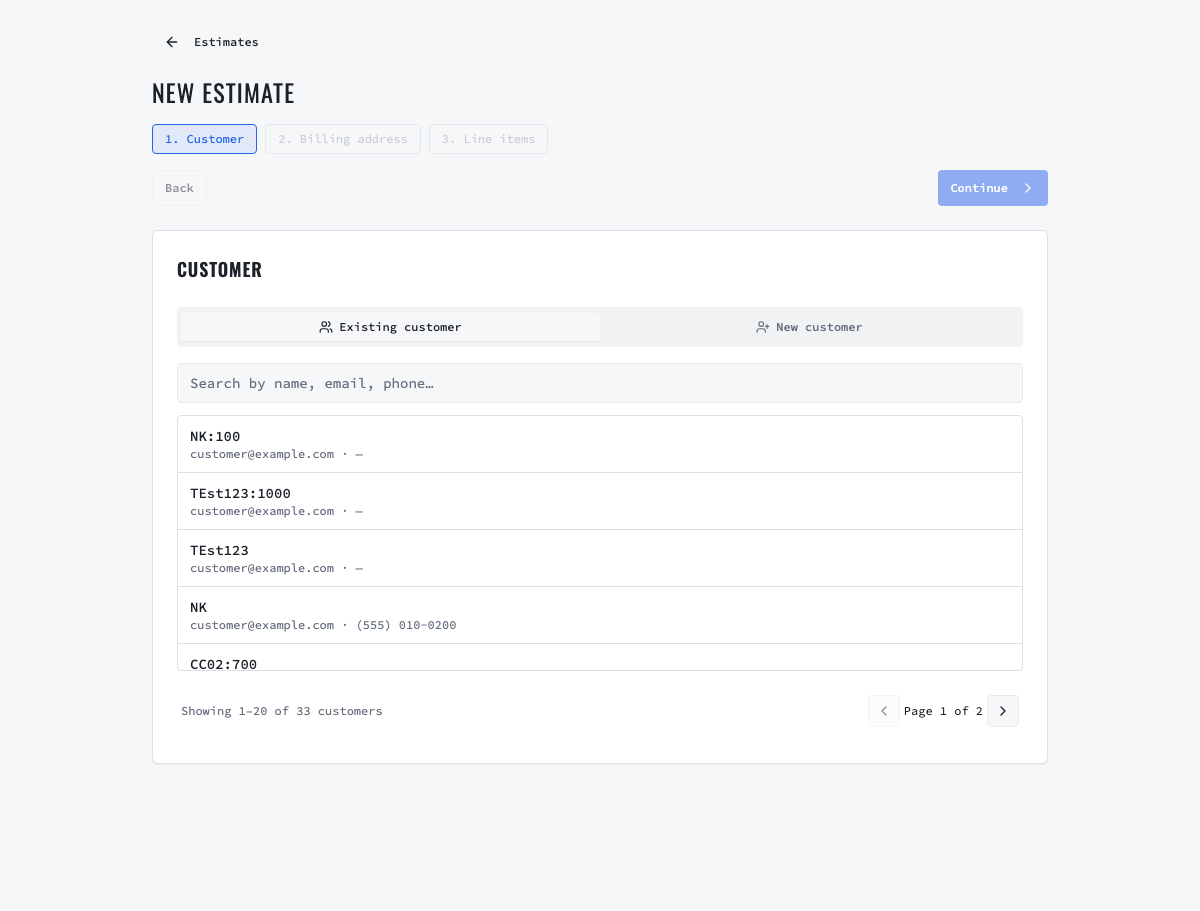
Create an estimate for the selected customer and vehicle. On Line items, open Tire fitment. VMOTEK searches the company catalog using the vehicle, entered tire size and optional brand, model or part-number text. Results show the saved product image, selling price and shop quantity. A result labeled Verified from your saved fitment rule matched a company-maintained rule. A Manual match must be checked by the advisor. Selecting a tire adds four by default; adjust quantity, add installation, fees, included care and optional protection, then confirm the total.
- Compare quantity on hand before promising installation; stock is not the same as supplier availability.
- Review selling price, purchase cost and margin when the role permits it.
- VMOTEK does not currently claim licensed OE tire fitment, live distributor inventory or delivery time.
- Use a manual result only after checking the vehicle and tire specification through an authoritative source available to the shop.
07
7. Send the visual quote and record the decision
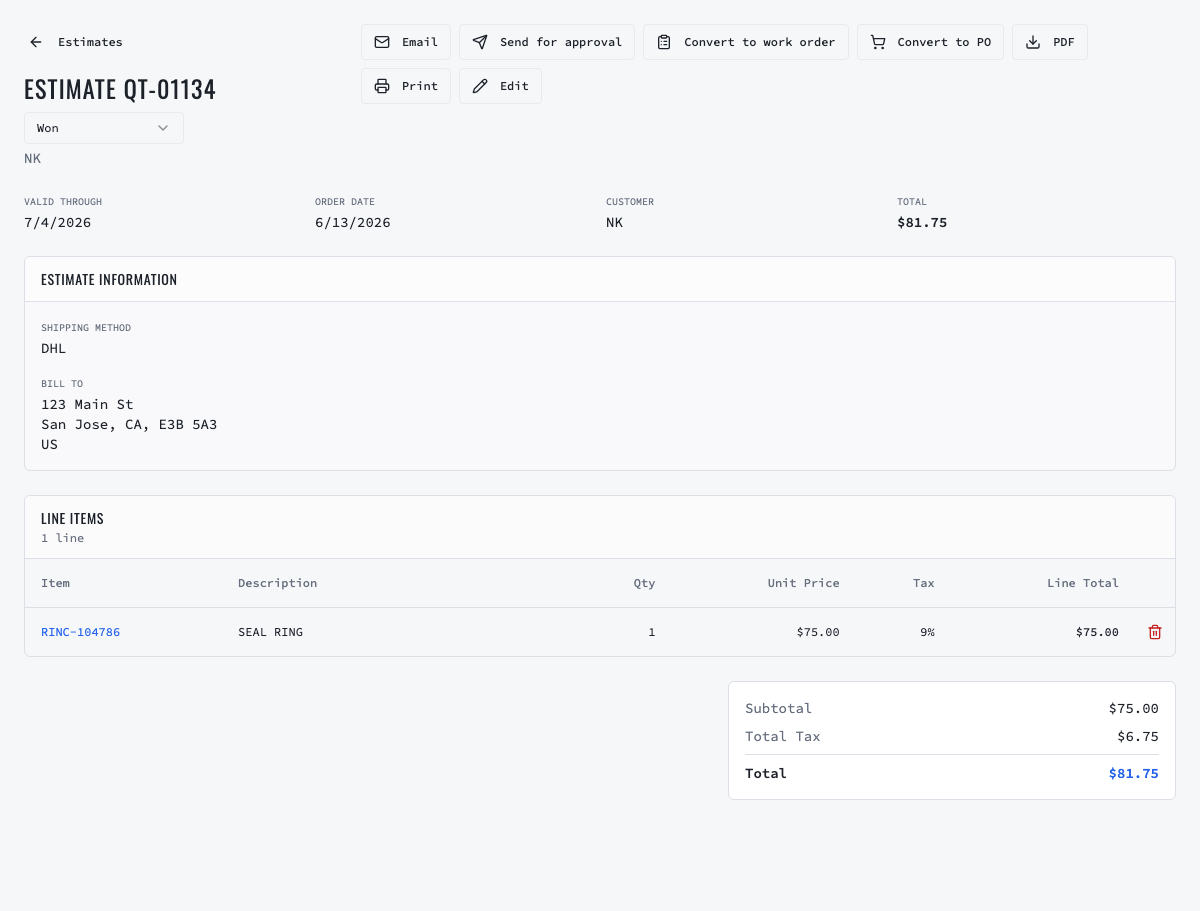
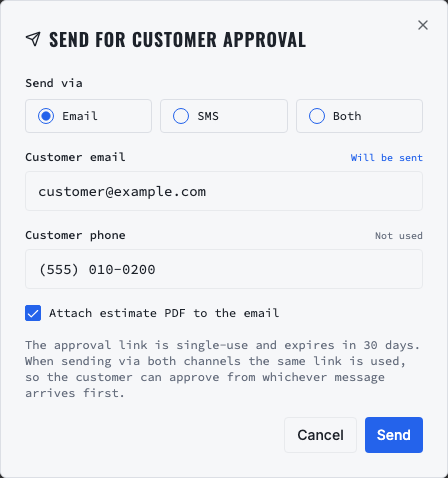
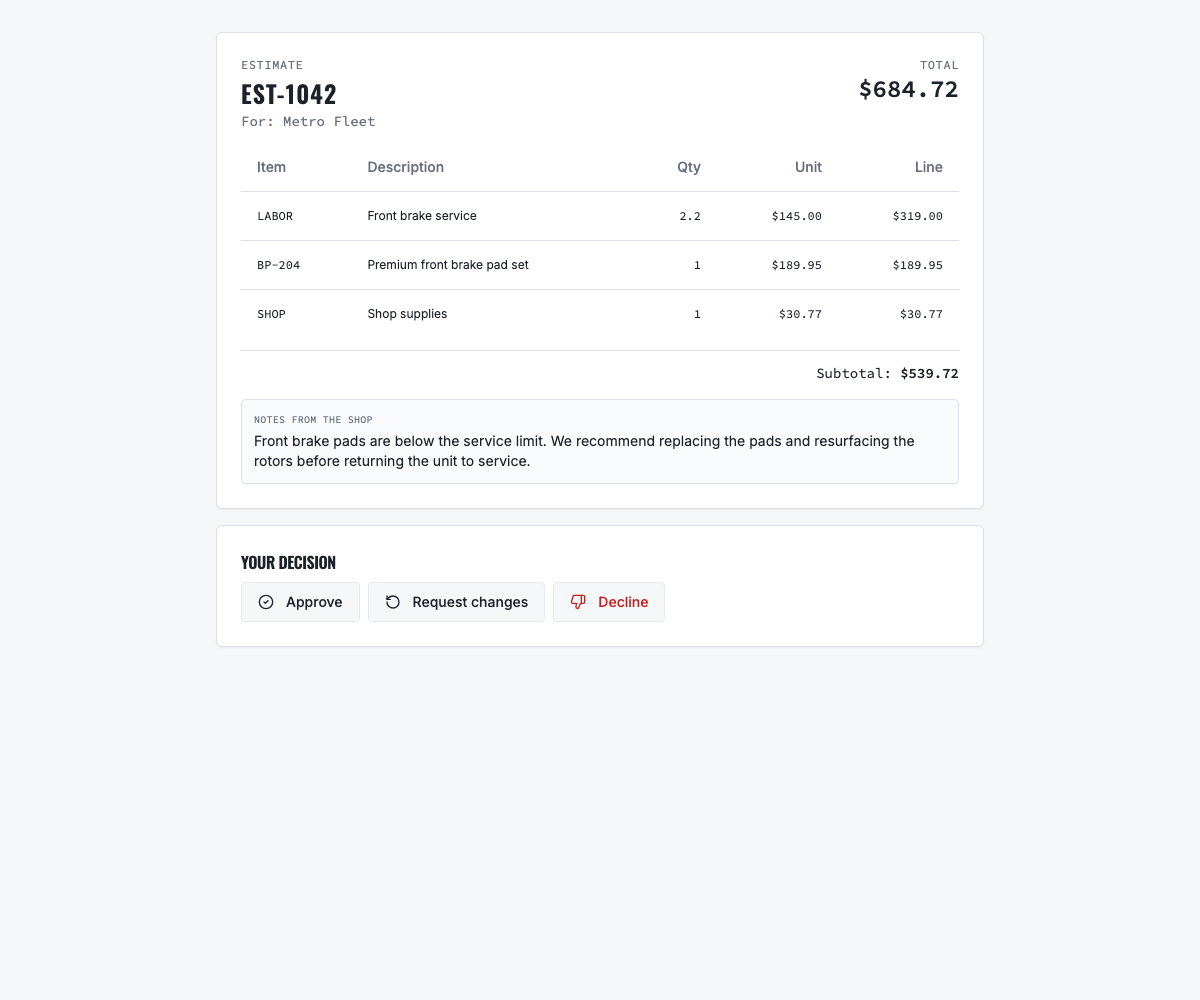
Open the saved estimate and select the customer approval action. Verify the email address or consented SMS number before sending. The signed public page shows shop contact information, vehicle, validity date, product image when linked to inventory, brand, model, size, specification, quantity, unit price and total. The customer can approve, request a change or decline. A token is not a reusable login and the decision remains attached to the estimate.
- Email and SMS depend on the shop's configured Gmail and Twilio channels; verify delivery status separately.
- Do not treat sending as approval, wait for the recorded customer decision or use the shop's documented internal authorization process.
- If the customer requests changes, revise the estimate and send a new controlled approval request.
08
8. Schedule installation from the estimate
From the estimate detail, select Schedule appointment. VMOTEK carries the customer, vehicle, shop and source-estimate relationship into the appointment. After the customer approves the estimate, VMOTEK also checks every inventory-linked estimate line against availability at the appointment shop. It records the quantity requested, quantity reserved and any shortage before the visit is promised. Manual description-only lines remain valid estimate lines, but they do not reserve inventory because they are not linked to a company item. Choose a date and time allowed by shop capacity, review the reservation result, confirm the expected duration and save. The appointment confirmation can include the vehicle, quote number, location, contact details, calendar file and secure appointment link. The public estimate also shows the latest linked appointment and its status.
- A complete reservation means the approved linked quantity is protected for this appointment at the selected shop.
- A shortage warning identifies the requested and reserved quantities; review another shop, an approved transfer or a purchase order before installation.
- Use the appointment's secure public page for status, permitted rescheduling and cancellation.
- A reschedule creates a replacement while preserving the source estimate, reservation and reschedule history.
- Cancellation, no-show and expiry release active estimate reservations so stock is not stranded.
- If email delivery fails, the staff action remains saved and the failure should be handled from communication status.
09
9. Execute, purchase, invoice and review
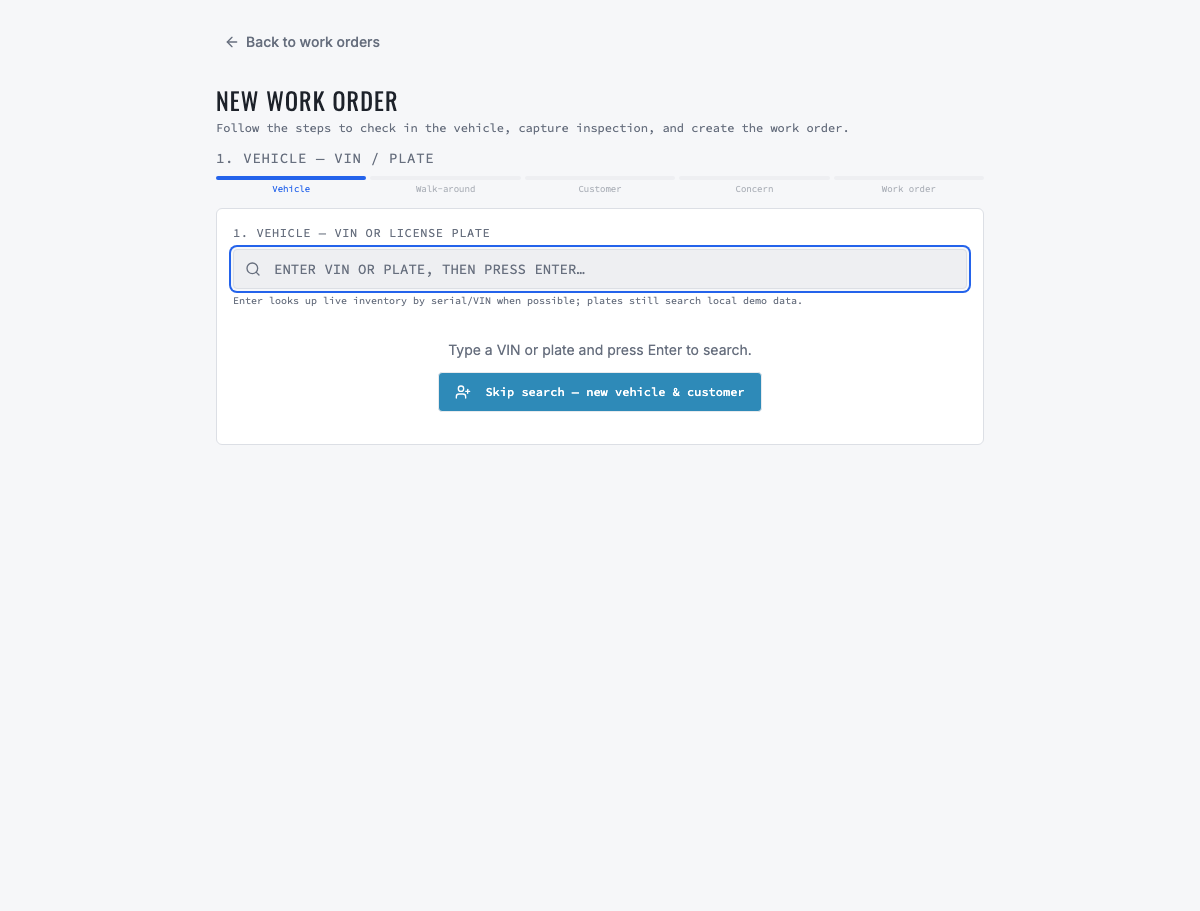
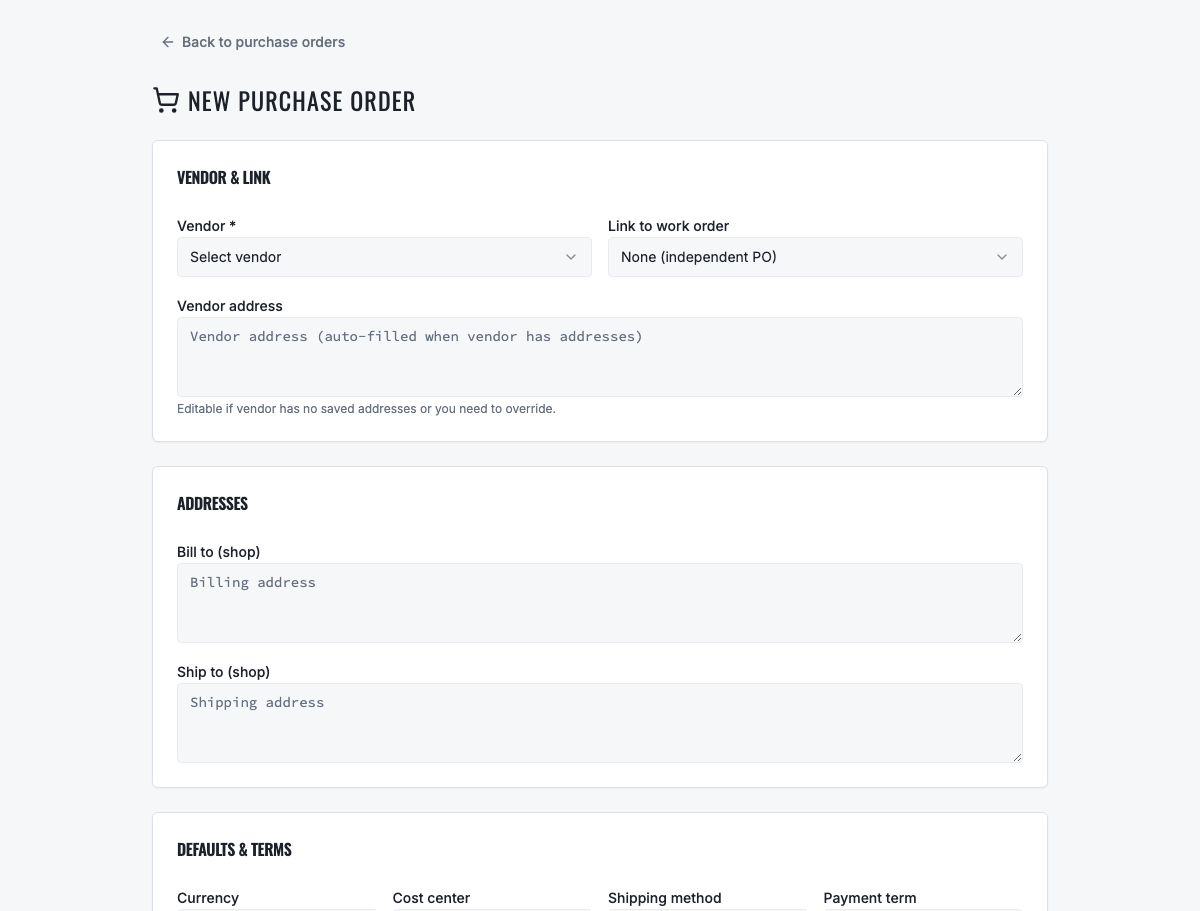
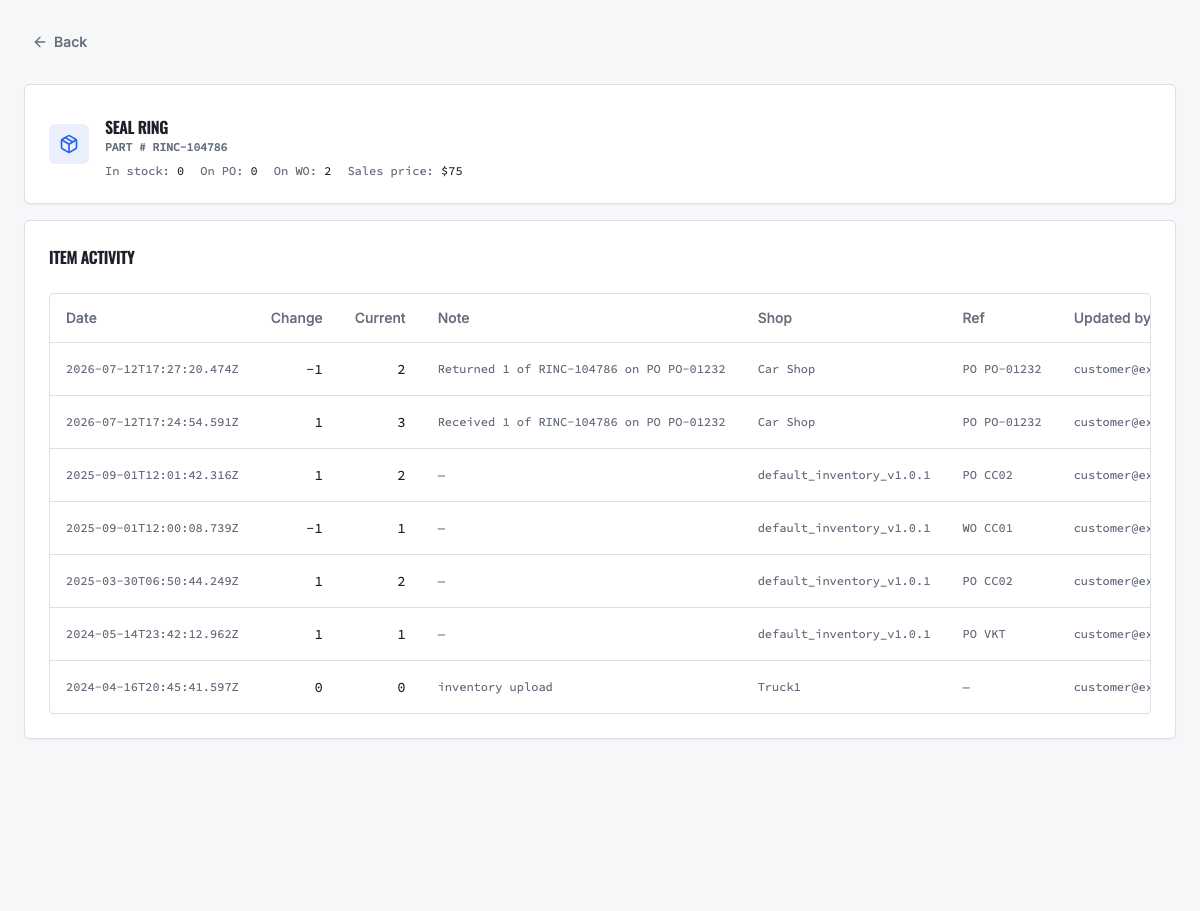
At check-in, VMOTEK converts the appointment's estimate reservation because the work-order material commitment becomes the authoritative demand. Convert approved work into the operational work order, assign the technician or tire bay and retain the intake measurements and selected items. If the reservation reported a shortage, create a purchase order and receive the correct quantity into the performing shop before consumption, or use an authorized inventory transfer. Move the job through Ready, In Repair and Completed, create the invoice, collect payment and mark delivery separately. Review inventory activity and the reporting overview to confirm that the reservation, sale, stock movement, purchasing and revenue are attached to the correct shop.
- Do not silently substitute a different tire; revise customer scope when fitment, brand, specification or price changes materially.
- Use controlled or quick inter-shop transfer according to the source shop's configured policy, not the requester's preference.
- Verify the final invoice includes the approved tire quantity, performed service, fees, taxes and any authorized adjustments.
Related product areas
Understand the capability behind the task
Continue to the applicable platform page for workflow behavior, role differences and connected operating consequences.
Ready to move forward?
Need help with your configuration?
Existing customers should use in-product support for account-aware assistance. Evaluation teams can contact us to discuss requirements.