Data import guide
Upload inventory items and opening shop quantities
Inventory upload can create or update the reusable company-wide product identity without assigning it to any shop. Opening stock is a separate choice: quantity belongs to a location only when stock is introduced. Use the same item code for the same part across shops rather than creating a different product identity for every location.
Written by the VMOTEK Product Team · Updated August 13, 2026
01
Before you begin: understand items versus stock
VMOTEK intentionally separates what a part is from where that part is stored. The item definition, including item code, description, brand, cost and selling information, belongs to the company and is created once. Physical quantity belongs to a shop. For example, BRK-100 remains one item even when Main Shop has eight and North Shop has three. This avoids duplicate catalog records, inconsistent descriptions and repeated vendor data.
- Import definitions when building or updating the shared parts catalog.
- Import opening stock only for quantities physically counted at the migration cutover.
- Use purchase-order receiving for purchases made after go-live.
- Use inventory transfer when stock later moves between shops.
02
Navigate to inventory upload
Sign in as an owner, administrator or employee with inventory access. In the left navigation, expand Procurement, select Inventory and choose Upload Inventory. VMOTEK first asks what the file represents. Choose the mode before selecting the CSV because that choice controls which fields are required.
- Item definitions only, item_code and description are required; no quantity or shop is created.
- Opening stock for one shop, item_code, description and qty are required. A single-shop account selects its only shop automatically. A multi-shop user selects one destination once.
- Opening stock for multiple shops, item_code, description, qty and shop are required because rows can target different locations.
- Use the same item_code at every location. Never add a shop suffix merely to represent where stock is held.
03
Prepare a controlled inventory file
For item definitions, normalize item codes and units of measure and do not add invented quantities. For opening stock, take a count at a defined cutover time and create one row per item and location quantity. Separate blank cost from zero cost and retain the original count evidence. Stop or account for receipts, transfers and work-order consumption during the cutover window.
- Definition-only required fields: item_code and description.
- One-shop opening stock also requires qty; the destination is selected once or automatic.
- Multi-shop opening stock additionally requires shop per row.
- Run a sample containing an existing item, a new item and an invalid row before the full import.
04
Open inventory upload
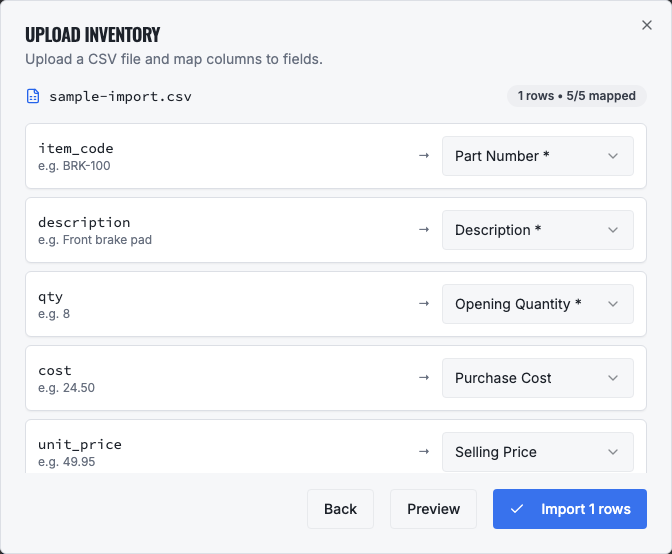
After choosing the import type, select Continue to file mapping, choose the prepared CSV and check every mapping. Required columns change with the selected mode, preventing irrelevant shop questions during a definition-only import.
05
Required and commercial columns
Required fields depend on the selected mode. The mapper marks the active requirements and does not ask for location data during a definition-only import.
- item_code, always required; the stable company-wide part number and match key.
- description, always required; the shop-readable item name.
- qty, required only for either opening-stock mode; the counted quantity placed at the destination shop.
- shop, required only for Opening stock for multiple shops. Use the shop name displayed in VMOTEK.
- cost, optional purchase or actual unit cost. Blank means unknown; zero means the item has no cost.
- unit_price, optional normal selling price.
- retail_price / wholesale_price, optional alternate commercial price points.
- markup_pct / discount, optional default pricing inputs.
- tax_code, optional sales-tax treatment.
- unit_of_measure, optional but recommended, such as EA, BOX or GAL.
06
Catalog, sourcing and stocking columns
Map these columns when the source reliably contains them.
- category, brand, mfr, model, model_year, size and color, search and classification attributes.
- country_of_origin and condition, sourcing/compliance descriptors.
- bin_location, physical storage position at the shop.
- min_stock and reorder_qty, replenishment controls.
- vendor_item and vendor_name, supplier reference and preferred source.
- po_description, specification and notes, purchasing or internal detail.
- image_url, externally accessible product image URL.
- weight and weight_uom, shipping weight and unit.
- fitment, semicolon-separated make|model|yearStart|yearEnd|engine entries.
- alternate_parts, semicolon-separated part|brand|note cross-references.
- lot_number, expiry_date, serial_number and barcode, traceability identifiers when applicable.
07
Mapping and item/location behavior
The mapper auto-matches exact and normalized headings. Required destinations depend on the selected import type. Existing item codes are updated; new item codes are inserted. Definition-only mode creates no lot or shop quantity. In opening-stock modes, quantity belongs to the selected or mapped shop, so the same item code can hold stock at several locations without duplicate product records.
- Do not append a shop suffix to item_code merely to distinguish location quantity.
- A single-shop user never needs to map or select the obvious shop.
- For one-location multi-shop imports, select the shop once instead of repeating it in every row.
- Use transfers for later movement between shops rather than editing both quantities manually.
- Use purchase-order receiving for ordered goods so cost and source history remain auditable.
08
Run a safe pilot import
Start with three to ten representative rows rather than the entire export. Include one new item, one existing item that should update, and, when importing stock, an item with a known count. Upload the CSV, verify the suggested source-to-VMOTEK mappings and deliberately leave unrelated source columns unmapped. Review the row preview before selecting Import. VMOTEK reports inserted, updated and rejected rows so the source file can be corrected without guessing.
- Definition example: BRK-100, Front ceramic brake pad. No shop and no quantity are needed.
- One-shop example: BRK-100 with qty 8, then select Main Shop once or let VMOTEK use the only shop automatically.
- Multi-shop example: two BRK-100 rows, qty 8 at Main Shop and qty 3 at North Shop. The result is one item with two location balances.
- Correct rejected rows in a copy of the source file and re-import only those rows.
09
Reconcile the result
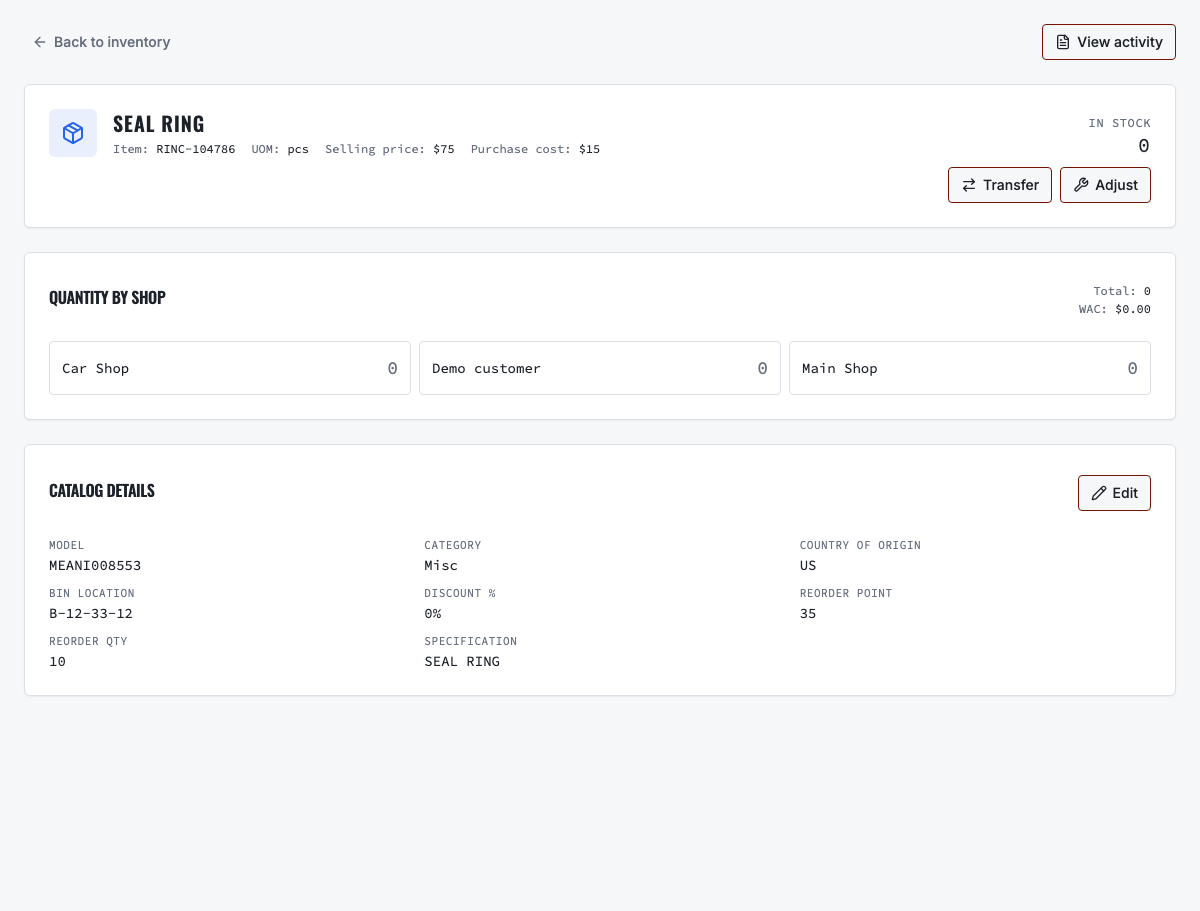
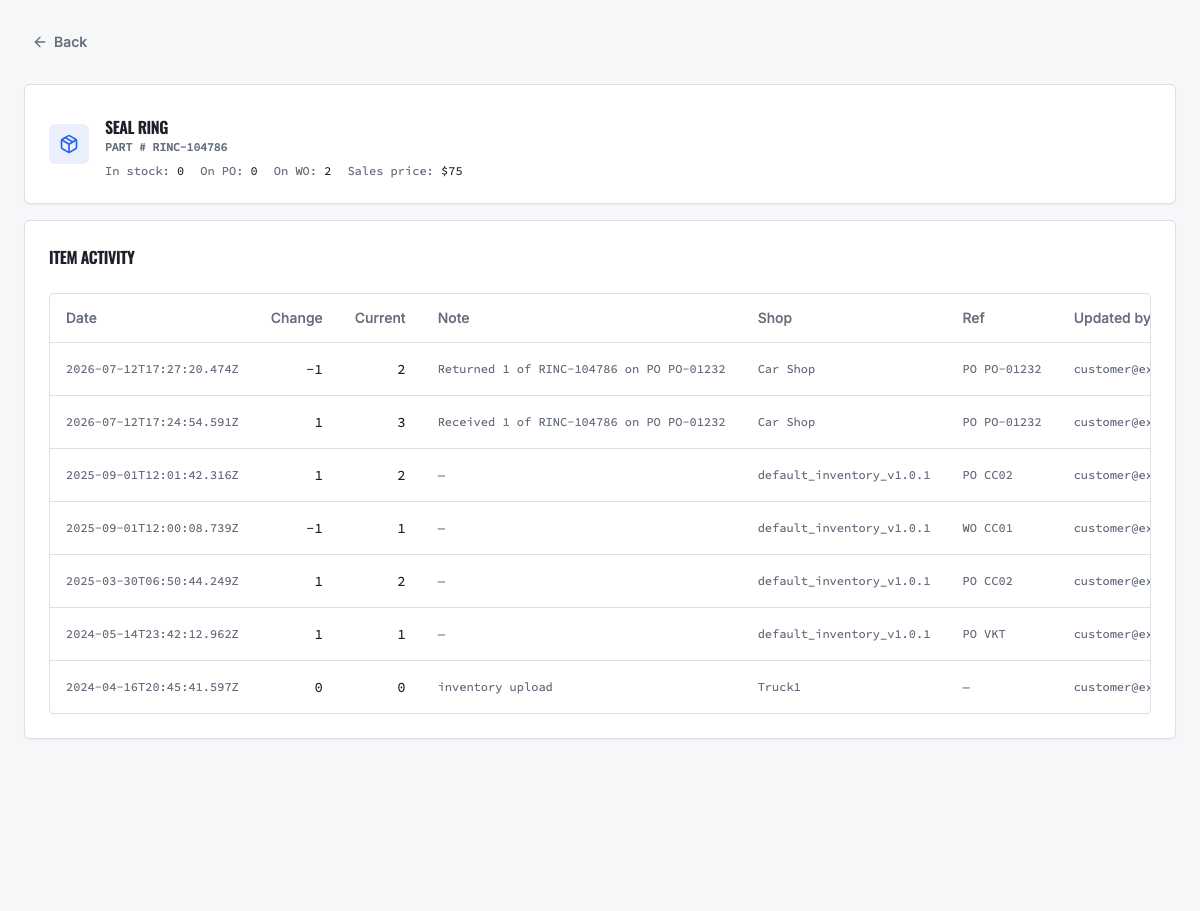
Review inserted, updated and rejected rows. For definitions, confirm the item appears once and no quantity was created. For opening stock, search several item codes, open each item and verify quantity by shop, cost, selling price and bin. Open View activity to confirm the opening quantity or later receipts belong to the intended location. Reconcile quantity and value by shop against the signed count.
10
Troubleshooting
If Import is disabled, check the requirements for the selected mode: two mappings for definitions, three for one-shop opening stock, or four for multi-shop opening stock. If a shop is rejected, copy its displayed VMOTEK name exactly. If quantity is at the wrong shop, preserve the audit trail and correct it with a documented transfer or adjustment. If apparent duplicates exist, compare item_code spacing and punctuation, then consolidate them before more purchasing or work-order history accumulates.
- Item imported but quantity is zero, confirm you chose an opening-stock mode rather than Item definitions only.
- Shop column is not offered, this is expected for definitions and one-location imports.
- Same item appears at several shops, open the item detail; these should be location balances under one item, not duplicate product rows.
- A later delivery is missing, receive its purchase order instead of rerunning the opening-stock file.
Related product areas
Understand the capability behind the task
Continue to the applicable platform page for workflow behavior, role differences and connected operating consequences.
Ready to move forward?
Need help with your configuration?
Existing customers should use in-product support for account-aware assistance. Evaluation teams can contact us to discuss requirements.