Fleet maintenance
Configure fleet repair approvals and consolidated billing
A fleet customer can have different people requesting service, approving repairs and paying invoices. VMOTEK keeps those responsibilities connected to the same organization and vehicles while preserving the approval and work-order detail behind every charge. Portal access and consolidated billing are separate decisions.
Written by the VMOTEK Product Team · Updated August 13, 2026
01
1. Establish the fleet organization and contacts
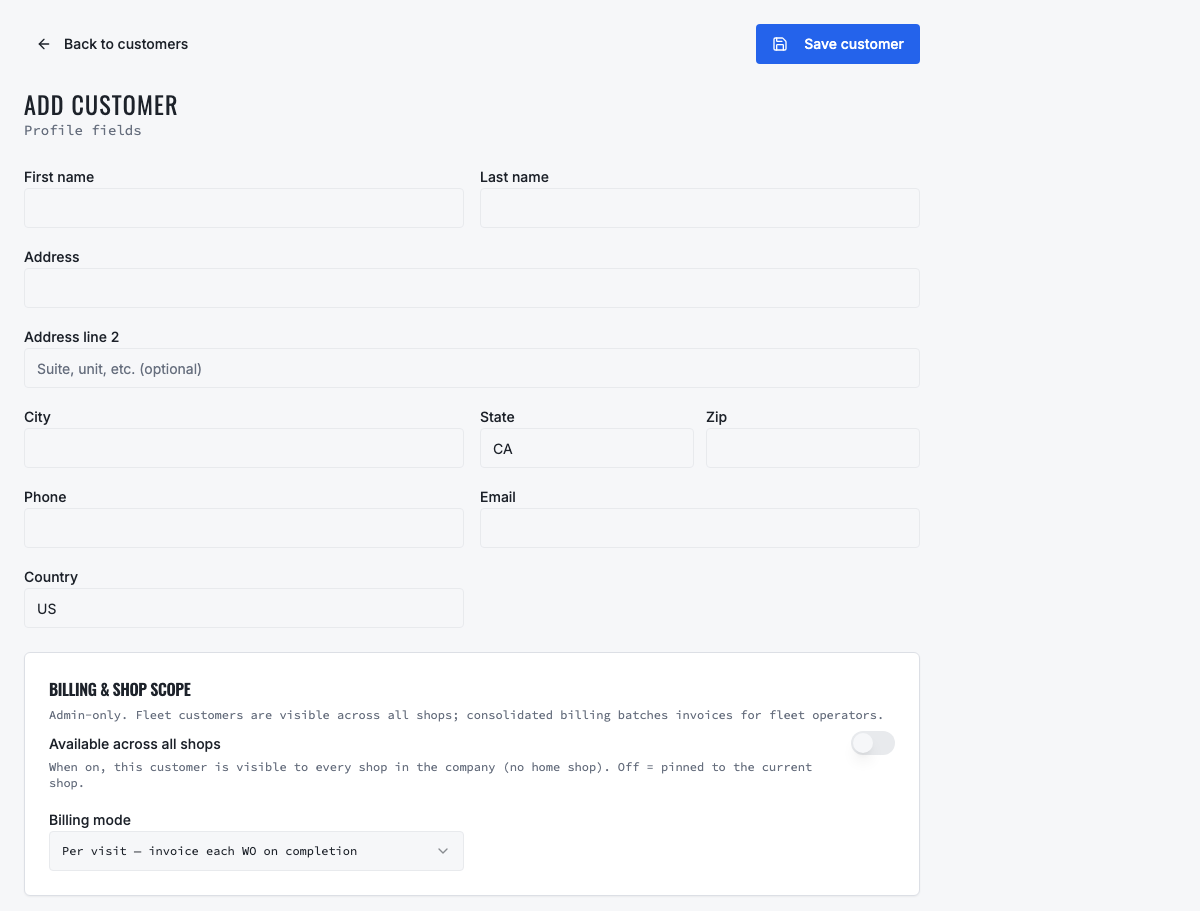
Create one business or fleet customer using the company name. Add the primary operational contact, repair approver and billing contact as separate people when responsibilities differ. Confirm verified email and phone information. Do not enter the organization name as a person's first name or create a new customer for every contact.
02
2. Record authorization and PO requirements
Confirm who may approve repairs, any spending limit, required customer PO number, contract pricing, covered service locations and escalation method. Put concise operating instructions where advisors can see them. Do not treat a portal login, email recipient or billing contact as approval authority unless the fleet agreement says so.
03
3. Prepare and send the estimate
Create the estimate from the correct fleet customer, vehicle and servicing shop. Add labor, parts, fees and taxes, include required PO information and review the total. Send the digital approval request to the authorized contact. Preserve the exact proposed scope rather than discussing one amount while the system contains another.
04
4. Preserve the customer decision
Record approved, declined and deferred lines with the decision time and approver identity. If inspection or repair reveals additional work, issue a revised request instead of treating the original approval as unlimited authorization. The technician should proceed only with authorized scope according to the shop's readiness and dispatch rules.
05
5. Choose the billing model deliberately
Use regular billing when each completed repair should produce its own invoice. Use fleet consolidated billing when eligible completed work should queue for a weekly or monthly billing cycle. The staff member inviting or approving portal access may choose the appropriate billing mode, but the setting must reflect the commercial agreement. A fleet may use portal access with regular billing.
- Regular billing: one repair visit, one normal invoice workflow.
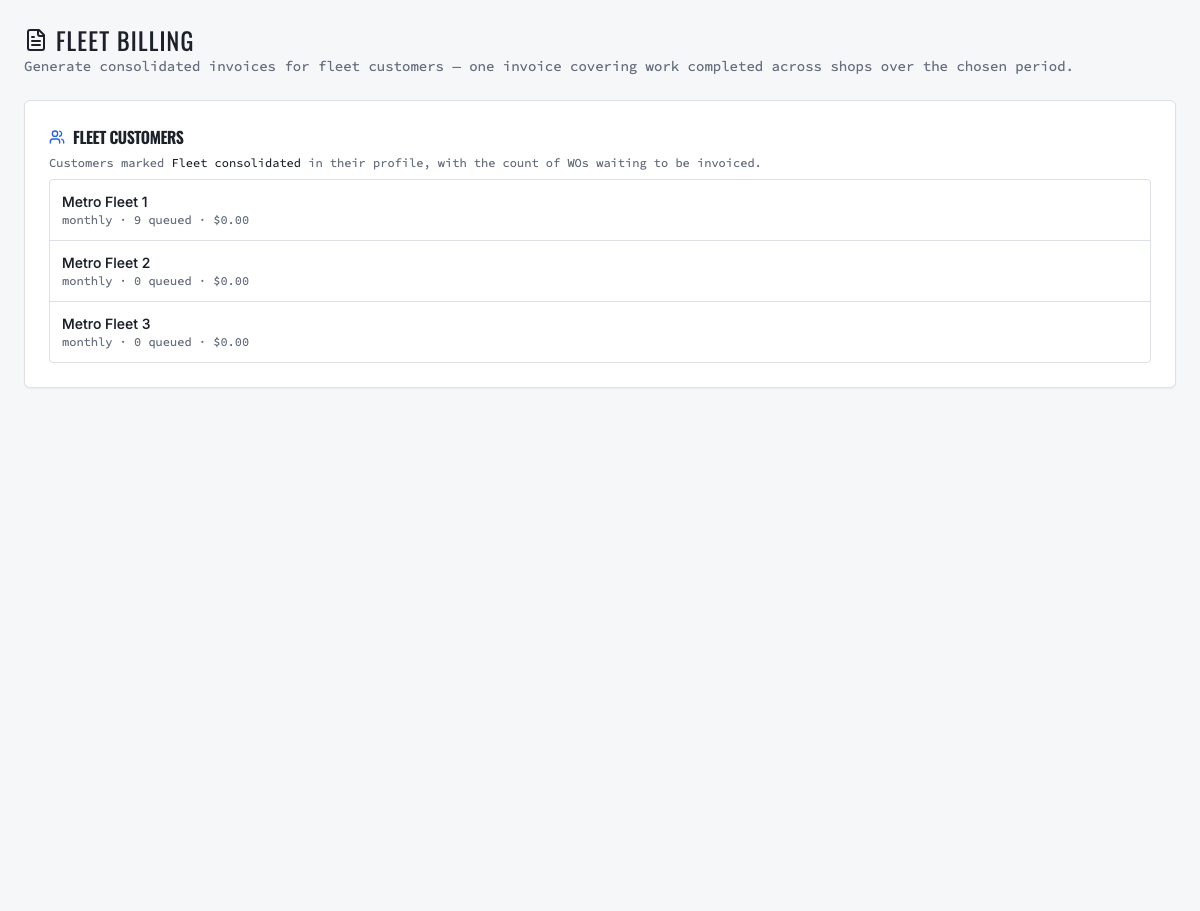
- Consolidated billing: eligible completed work remains individually traceable and is grouped for the configured period.
- Portal membership: controls customer access; it does not by itself choose billing or grant repair approval authority.
06
6. Reconcile the consolidated billing queue
At the end of the billing period, open Fleet Billing, select the customer and verify every queued work order, vehicle, shop, completion date and amount. Resolve missing approvals, disputed work or incorrect totals before generation. The consolidated customer document must retain links to the underlying vehicle and work-order detail.
07
7. Send, collect and retain the audit trail
Generate and email the invoice to the billing contact, record payment through the configured process and retain delivery status. If the customer questions a charge, open the underlying work order, estimate decision, parts, labor and service evidence instead of reconstructing the explanation from email. Mark the vehicle Delivered only when the customer handoff actually occurs.
08
8. Validate permissions with a test account
Use a non-staff fleet portal account to confirm that the customer sees only its authorized vehicles, approvals, invoices and service information. Confirm that portal users cannot open repair-app staff routes. Test regular and consolidated billing configurations separately and revoke a test membership without affecting another valid repair-company relationship.
Related product areas
Understand the capability behind the task
Continue to the applicable platform page for workflow behavior, role differences and connected operating consequences.
Ready to move forward?
Need help with your configuration?
Existing customers should use in-product support for account-aware assistance. Evaluation teams can contact us to discuss requirements.