Multi-shop operations guide
Manage one customer across multiple repair shops
A customer should not become a different customer merely because a vehicle visits another location. VMOTEK keeps customer identity, contacts, vehicles and service history at company level, while each appointment, estimate, work order, invoice and inventory movement records the responsible shop. This guide explains how an owner, administrator or service advisor finds and serves the same customer across locations, when to configure customer-shop rules, how preferred shop differs from access, and how to resolve duplicate records safely.
Written by the VMOTEK Product Team · Updated August 13, 2026
01
1. Understand identity, preference and transaction ownership
VMOTEK separates three ideas that are often mixed together. Customer identity answers who the person or business is and includes contacts, vehicles, fleet settings and combined history. Preferred shop is a convenience used for ranking and future scheduling; it does not move old work or hide the customer. Transaction shop answers where a particular appointment, estimate, work order or invoice belongs. The active shop shown in the application header becomes the proposed transaction location, and staff must have permission to that location.
- Create a customer once per VMOTEK company, not once per shop.
- Keep the same VIN under that customer when it visits another location.
- Use the active-shop selector before creating operational or financial records.
- Changing preferred shop never rewrites historical work orders or invoices.
- Customer visibility and employee shop access are separate controls.
02
2. Find the customer before creating another record
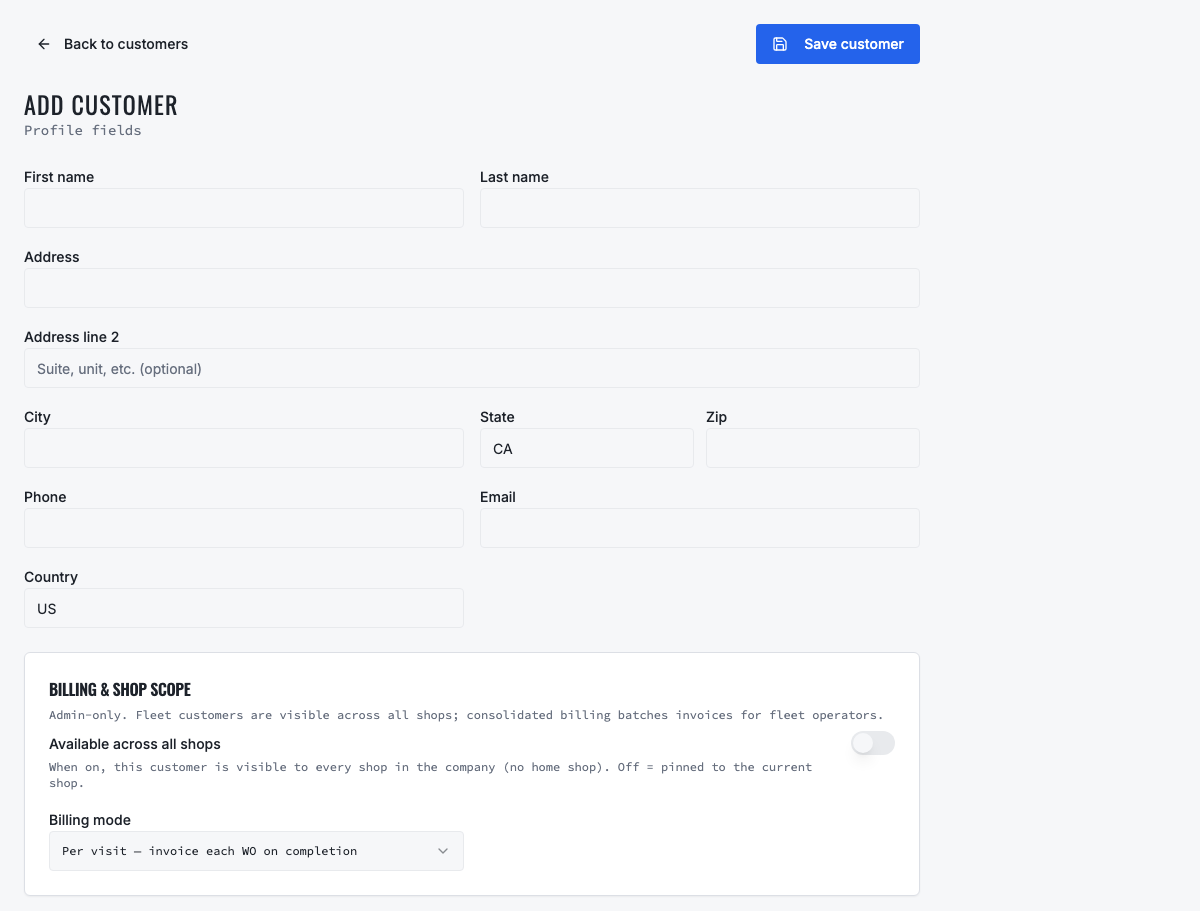
From the left navigation, open Customers. Search by name, email, telephone number or customer account number before selecting Add Customer. The company directory can return customers preferred at another location because discoverability prevents duplicate identity. Review the preferred shop and last-served shop shown with the result. If the person or business already exists, open that record and use it for the new visit. Only create another customer after confirming it represents a genuinely different party.
03
3. Choose the servicing shop for the new visit
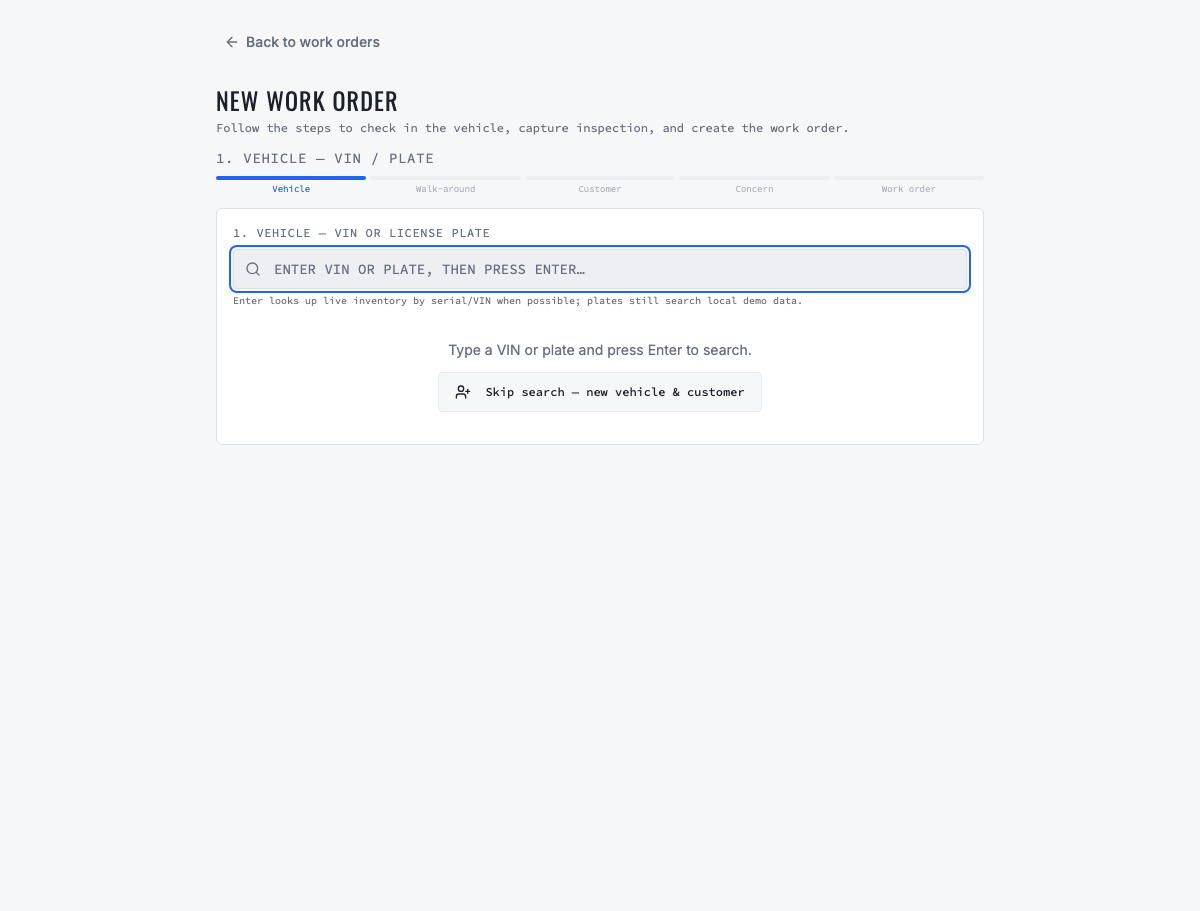
Use the shop selector in the application top bar to choose the location that will schedule, inspect or repair the vehicle. Then create the appointment, estimate or work order. VMOTEK uses the active location rather than silently switching to the customer's preferred shop. Confirm the shop notice before saving. This location drives the appropriate queue, numbering, technician and bay choices, inventory consumption, reporting and customer-facing shop information.
- Shop-limited staff cannot create or open restricted location transactions merely by knowing the URL.
- Technician and bay choices follow the work order's shop and the employee's shop assignment.
- Parts receipts and stock consumption remain attributable to physical inventory locations.
- Company administrators can review cross-shop history; restricted users see only permitted detail.
04
4. Decide whether a preferred shop should change
A preferred shop is useful when a customer normally returns to one location. Open the customer profile to view Preferred shop and Last served by. An authorized user can select Set this shop as preferred. When work is completed at a different location, VMOTEK can ask whether the servicing shop should become the future preference. Make the change only when the visit reflects an ongoing relationship; decline it for a one-time emergency or overflow visit.
- Preference affects ranking and convenience, not basic company-wide discoverability.
- No preference is valid for fleets or customers that routinely use several locations.
- Use Reports → Preferred Shop Review to find customers whose most-used recent shop differs from the saved preference.
- The review report does not change data automatically; an accountable person decides.
05
5. Configure location restrictions only when the agreement requires them
Most customers need no customer-shop relationship rows. With no rows, every company location may find and serve the customer subject to employee permissions. For a fleet contract, credit agreement, specialty service or geographic restriction, an owner or administrator opens the customer profile and uses Customer shop access & terms. One or more Allowed rows forms the approved-location list. A Prohibited row blocks that shop. A prohibited location cannot be the primary approved shop.
- Primary/preferred approved shop, identifies the normal location among approved shops.
- Shop account number, stores a location-specific customer reference when required.
- Credit limit and pricing level, records commercial limits or a location pricing classification.
- Tax treatment or ID, records the location-specific tax reference used by the agreement.
- Fleet contract coverage, confirms that the contract covers service at the location.
- Service instructions, records concise location-specific operating requirements.
06
6. Test a restriction before relying on it
After saving customer-shop rules, test with a non-production appointment or work order. Select an approved shop and confirm the record can be created. Select a shop outside the allow-list or an explicitly prohibited shop and confirm VMOTEK rejects the transaction. Then sign in as a shop-limited advisor and verify the user can find the customer identity but cannot open another shop's restricted work-order or invoice detail. Remove the test transaction after documenting the result.
- A 403 response means the server rejected the action; hiding a button is not the security boundary.
- If a legitimate shop is blocked, update the customer rule rather than duplicating the customer.
- If the employee, not the customer, is restricted, update Team shop access through the authorized workflow.
- Do not change database rows directly to bypass a contract or permission decision.
07
7. Review consolidated history and location activity
Open the customer profile to review company-wide vehicles, work orders and invoices. Every event keeps its shop label. Company users with permission can use Cross-Shop Customers to find accounts served by several locations, Customer Activity by Shop to review first visits and returns, and Preferred Shop Review to identify a preference that may be stale. Fleet operators can combine these views with fleet operations and billing reports without creating separate customer records per shop.
08
8. Merge a confirmed duplicate through the audited workflow
If two records truly represent the same customer, sign in as an owner or administrator and open the customer record you want to retain. Select Merge duplicate, search for the other record and review the preview. The preview identifies the retained customer, the record to archive, the number and type of references to reassign, and any blocker. Confirm only after checking names, contacts, vehicles, account type and fleet portal membership.
- The duplicate source record is archived rather than erased without evidence.
- Contacts, vehicles and supported transaction references move to the retained customer inside one database transaction.
- VMOTEK records who performed the merge, when it occurred, the source snapshot and execution summary.
- A conflicting fleet portal identity blocks the merge so staff can resolve the membership deliberately.
- A merge is data cleanup, not a substitute for correcting shop preference or location access.
09
9. Use this operating checklist
Train advisors and managers to follow the same sequence: search company-wide, open the existing customer and VIN, select the actual servicing shop, confirm any customer-location rule, create the shop-owned transaction, complete the service, review preference and inspect cross-shop reporting. Owners should review duplicate candidates and location restrictions on a schedule. This keeps customer history useful while preserving the local accountability required for dispatch, inventory, purchasing, invoicing and performance reporting.
- One customer and one VIN across the company.
- One explicit shop on every operational and financial transaction.
- Optional restrictions only when there is a real contract or policy requirement.
- No automatic preference changes and no silent duplicate merges.
- Periodic reports to identify cross-shop activity and stale preferences.
Related product areas
Understand the capability behind the task
Continue to the applicable platform page for workflow behavior, role differences and connected operating consequences.
Ready to move forward?
Need help with your configuration?
Existing customers should use in-product support for account-aware assistance. Evaluation teams can contact us to discuss requirements.