Data import guide
Upload customers into VMOTEK
Use customer upload when moving an existing customer list into VMOTEK or adding a controlled batch. The importer creates customer records and their default contacts. It marks them as customers, not vendors and uses email as the update match when one is supplied. Start with a small pilot and keep the original export unchanged.
Written by the VMOTEK Product Team · Updated August 13, 2026
01
Before you begin
Choose the shop that should own these customer records, remove obvious duplicate rows and save an untouched copy of the source export. Use one row per customer or business account. Put the contact person in the contact columns rather than combining the person and business into one name.
- Required: company_name.
- Recommended: a unique, valid email plus at least one phone number.
- Maximum batch: 5,000 rows; use a smaller pilot first.
- Do not upload suppliers here. Use the vendor upload so purchasing records stay separate.
02
Open customer upload
Sign in as an owner or staff member with the required customer and settings access. Open Customers from the left navigation and select Upload customers. Choose a UTF-8 CSV file; the first row must contain column headings.
03
Customer column dictionary
Map only fields whose meaning is known. Unmapped columns are skipped and do not prevent import.
- company_name, required customer, household or business display name.
- contact_first_name / contact_last_name, primary contact person; first name falls back to company_name when omitted.
- email, default contact email and case-insensitive customer dedupe key.
- phone / mobile, landline and mobile contact numbers.
- addr1 / addr2 / city / state / zip / country, default billing/contact address.
- client_accno, optional account number from the previous system.
- sales_tax_id, optional customer tax identifier.
- billing_mode, per_visit or fleet_consolidated when applicable.
- billing_frequency, weekly or monthly for consolidated billing.
- notes, operational context; do not place passwords, payment-card data or sensitive secrets here.
04
How mapping and updates work
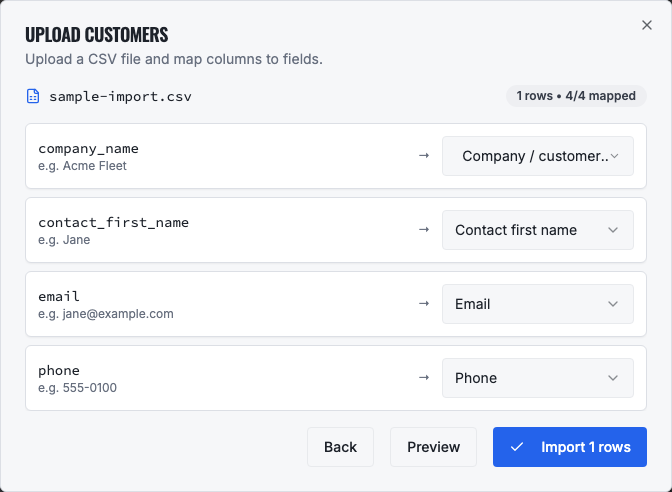
The mapper compares source headings with VMOTEK field keys and labels. A heading such as Company Name maps to company_name even when spaces or underscores differ. Review the destination shown to the right of every source column. The Import button stays disabled until company_name is mapped. If an email matches an existing customer, VMOTEK updates that customer and default contact; otherwise it inserts a new customer.
- A blank email does not provide a dedupe key, so confirm the row is not already present.
- The same email on a vendor does not convert the vendor into a customer; customer and vendor types remain distinct.
- Fix rejected rows in the staging CSV, then re-upload only after understanding the matching result.
05
Verify the import
Review the added, updated and error counts. Search Customers for several imported names and verify contact, address and account details. Then search Vendors for one unique imported customer name; it must not appear there. Open a sample customer and confirm the record is ready for a vehicle, estimate or work order.
06
Troubleshooting
If Import is disabled, map company_name. If a row reports invalid email, correct the email or intentionally leave it blank. If the wrong existing record was updated, compare email values in the source. If the customer is not visible, clear search filters, confirm the active shop and review the row-level result before importing again.
Related product areas
Understand the capability behind the task
Continue to the applicable platform page for workflow behavior, role differences and connected operating consequences.
Ready to move forward?
Need help with your configuration?
Existing customers should use in-product support for account-aware assistance. Evaluation teams can contact us to discuss requirements.