End-to-end workflow
Run an appointment-to-payment repair workflow
Use this workflow for ordinary scheduled service where the shop knows the customer and vehicle, proposes work, receives authorization and completes the visit at one location.
Written by the VMOTEK Product Team · Updated August 14, 2026
01
1. Confirm roles and prerequisites
Run this workflow with named users and representative test data before using it with a customer. An owner or manager configures the policy; operational staff execute only the actions their role and shop access permit. Confirm the active shop in the header before creating a transaction because appointments, work orders, inventory movements, purchasing and invoices retain that location.
- Advisor: appointment, intake, estimate, customer decision, invoice and delivery.
- Technician: findings, authorized labor and parts, work status and completion.
- Cashier or advisor: records the configured payment method; a manager handles exceptions.
- Confirm appointment capacity, shop hours, taxes, labor rates, payment methods and document policy.
- Create or find the customer and vehicle; verify the preferred email, mobile number and SMS consent.
02
2. Execute the workflow from beginning to end
Follow the sequence below in order. Continue from the record already created instead of recreating the customer, vehicle, estimate, appointment or work order. At every handoff, reopen the destination record and confirm its source relationship, shop, status and amounts before proceeding.
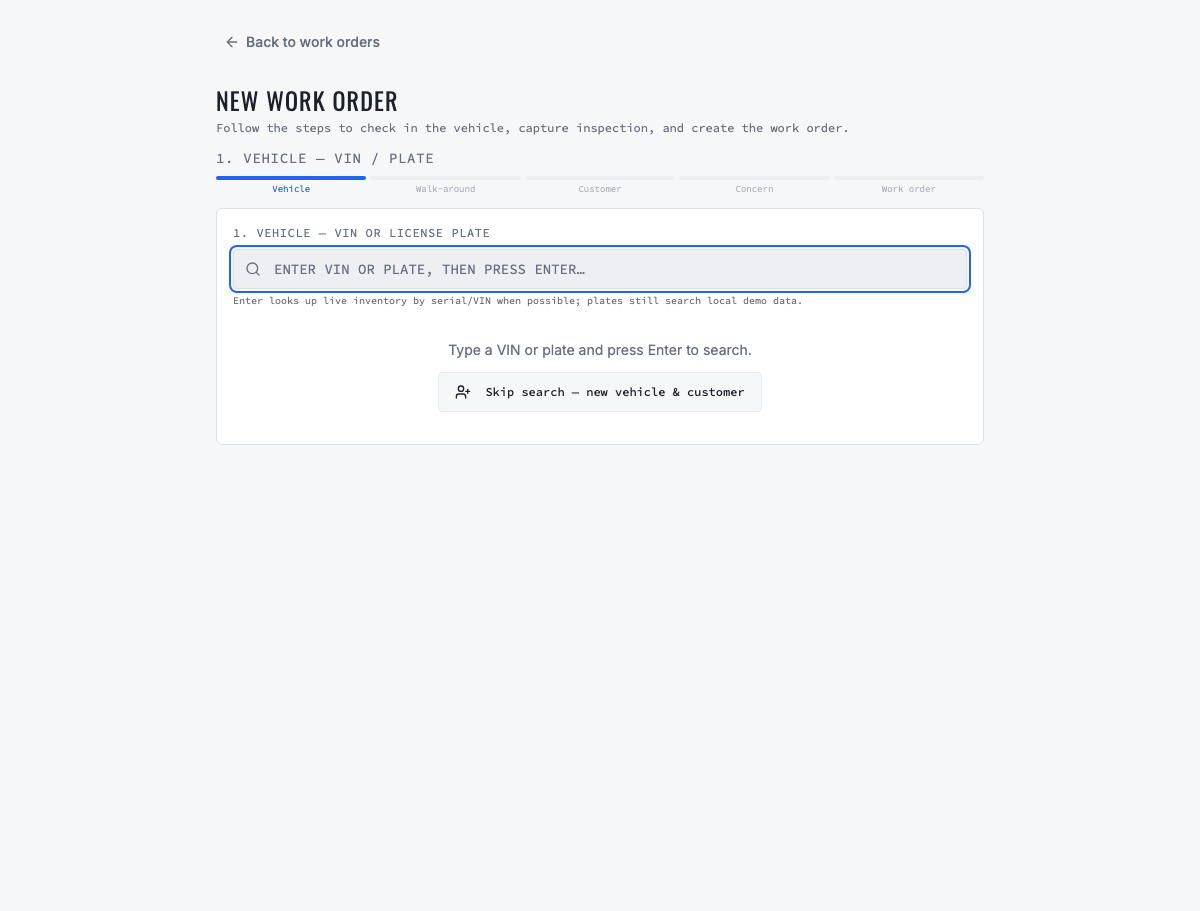
- Appointments → New Appointment: select customer, vehicle, performing shop, requested service, date, time and duration; save and reopen it.
- At arrival, open the appointment, record Arrived or check-in, complete the configured intake and preserve the customer's concern in the customer's words.
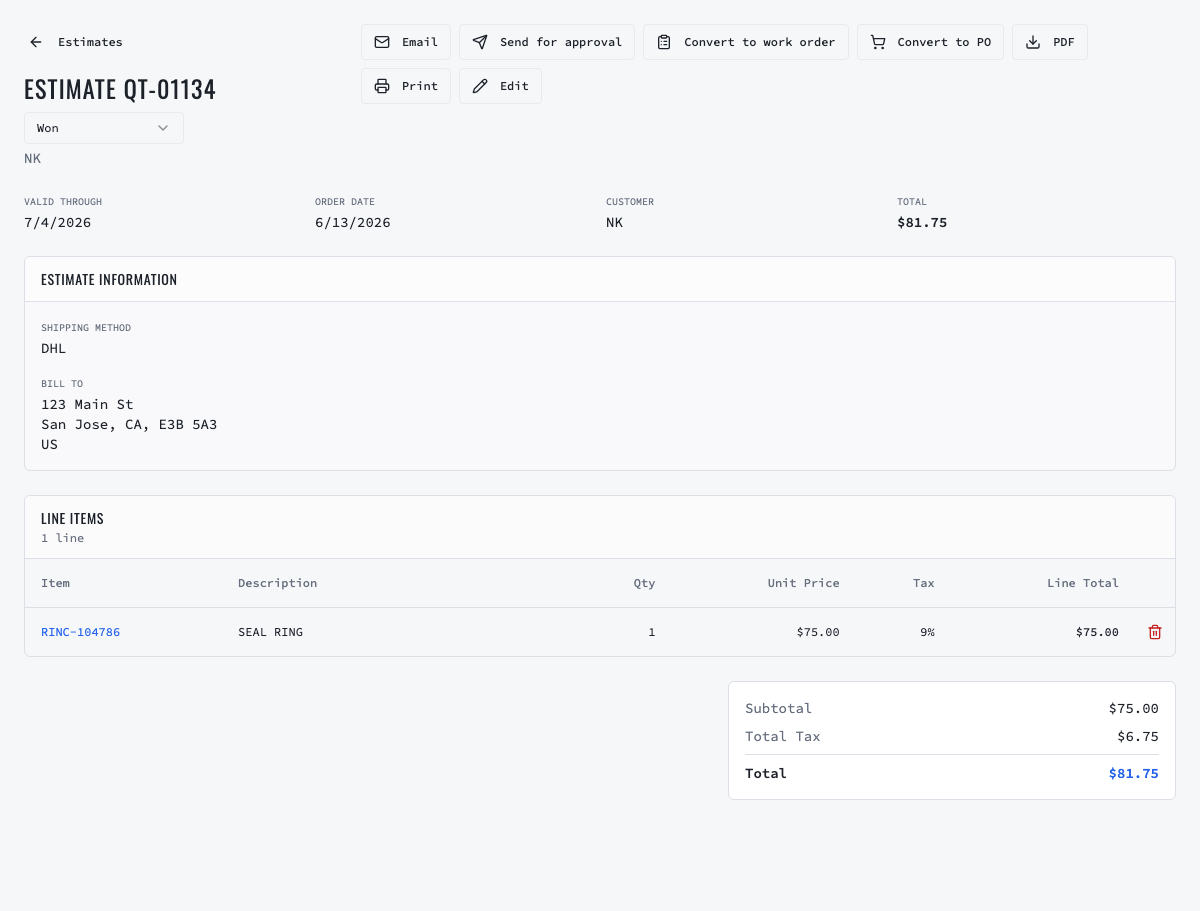
- Create or continue the estimate from the same visit. Add labor, inventory-linked parts, fees, discounts and tax; verify the total and send the secure decision request.
- After the recorded approval, continue to the linked work order. Confirm that only approved scope moved forward, then mark it Ready when configured readiness conditions pass.
- Assign an eligible technician or let the technician claim it under shop policy. Move Ready → In Repair, record findings and consume only authorized parts.
- Move the work order to Completed, create the invoice from that work order and reconcile final labor, parts, fees, discounts and tax with approved changes.
- Collect or record payment using an active method. Confirm amount and status, then mark Delivered only when the vehicle is physically handed back.
03
3. Test the blocked and exception paths
A workflow is not ready merely because its normal path succeeds. Repeat the test using the conditions below. VMOTEK should explain why an action is unavailable, retain the existing record and prevent duplicate, stale, unauthorized or physically impossible activity. Do not bypass a business control by creating an unrelated replacement record.
- Try starting unapproved or unready work; the action must remain blocked or require the configured authority.
- Try assigning a technician without access to the work order's shop.
- Try recording payment twice or delivering before the shop's required completion state.
04
4. Verify records, inventory and financial effects
Open the related records after execution and reconcile them. The customer and vehicle remain company-wide identities, while the appointment, estimate, work order, inventory activity, purchase or transfer, invoice and payment retain the responsible shop. Status labels are operational evidence, not substitutes for checking quantities, totals and source links.
- Appointment, estimate, approval, work order and invoice identify the same customer, vehicle and shop.
- Inventory activity shows reservation/commitment and consumption for the work-order parts.
- Invoice balance equals charges less recorded payments or credits; delivery remains separate from payment.
05
5. Confirm customer communication
Use the customer's permitted contact channel and preserve delivery status. A sent message does not equal approval, payment or receipt. Continue only from the authoritative decision or transaction status. Email and SMS availability depends on the shop's connected providers, customer contact data and consent settings.
- Send appointment confirmation and the estimate decision link through configured channels.
- Notify the customer of material changes and when the vehicle is ready; failed delivery remains visible for staff follow-up.
06
6. Completion checklist
The journey is complete only when the final business outcome and the expected audit trail agree. Record any failed check, correct configuration or source data, and rerun the scenario from a clean test record.
- The work order is Completed and the invoice/payment show the expected status and amount.
- The vehicle history opens the connected visit documents without duplicate customer or vehicle records.
- Reports attribute revenue, labor, parts and payment to the performing shop.
Related product areas
Understand the capability behind the task
Continue to the applicable platform page for workflow behavior, role differences and connected operating consequences.
Ready to move forward?
Need help with your configuration?
Existing customers should use in-product support for account-aware assistance. Evaluation teams can contact us to discuss requirements.