Guide
Cross-shop inventory without losing control
VMOTEK separates the item catalog from shop-owned quantity. Create a part once, hold quantities at one or more shops, and let authorized staff see what is local, what another shop has and what is already committed or on order. This guide shows how to use that model without losing physical or financial accountability.
Written by the VMOTEK Product Team · Product reviewed August 13, 2026
01
1. Decide who owns catalog, purchasing and stock movement
Before loading parts, assign responsibility for catalog quality, purchasing, receiving, adjustments and transfers. A service advisor may need network visibility without permission to change another shop's quantity. Purchasers, receivers and administrators should have the shop access and role permissions required for the locations they operate.
- Catalog ownership answers what the item is; shop inventory ownership answers where the quantity physically exists.
- Use adjustments only to correct verified physical differences, not as a substitute for receiving or transferring stock.
- Require a meaningful note for unusual transfers and adjustments so the activity history explains the decision.
02
2. Build one reusable item catalog
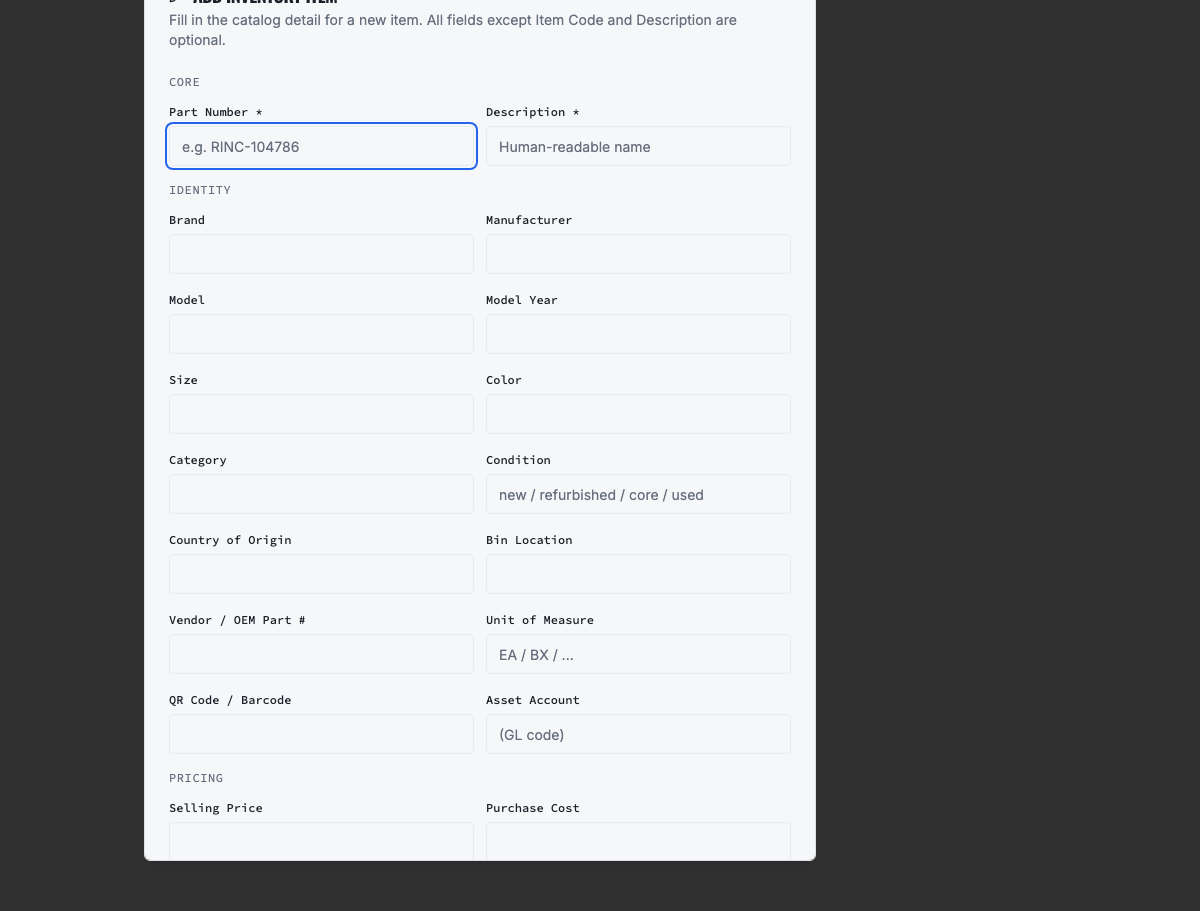
Create a product record once with a stable item or part number, description, unit of measure, category, brand, manufacturer, cost, selling price, tax treatment, reorder point, preferred vendor reference and useful fitment information. Do not create separate copies such as Brake Pad, North and Brake Pad, South merely because both shops carry it.
- Search by item code, description and vendor part number before creating a new record.
- Use the same unit of measure at every shop so company totals remain meaningful.
- Archive obsolete catalog records instead of deleting history used by prior work orders and purchase orders.
03
3. Select a shop and read the network stock view
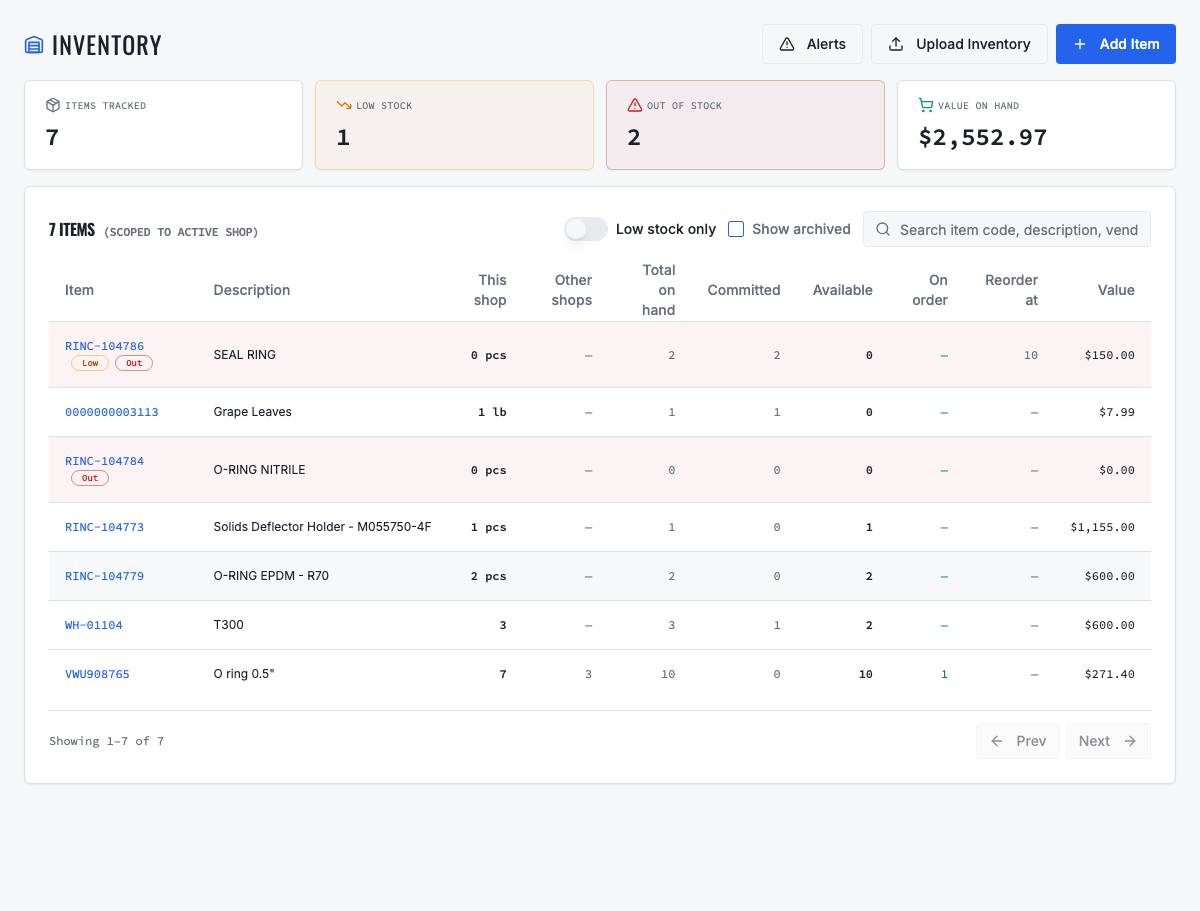
Use the shop selector in the top bar before reviewing inventory. For a multi-shop company, the stock table separates This shop, Other shops and Total on hand. It also shows committed, available, on-order and reorder quantities. Check Available, not merely On hand, before promising a part to a work order.
- This shop is the quantity physically owned by the selected location.
- Other shops tells the advisor that the network may already have the part, but it is not yet local stock.
- Committed quantity has already been allocated; on-order quantity has been purchased but not yet received.
04
4. Open the item before changing quantity
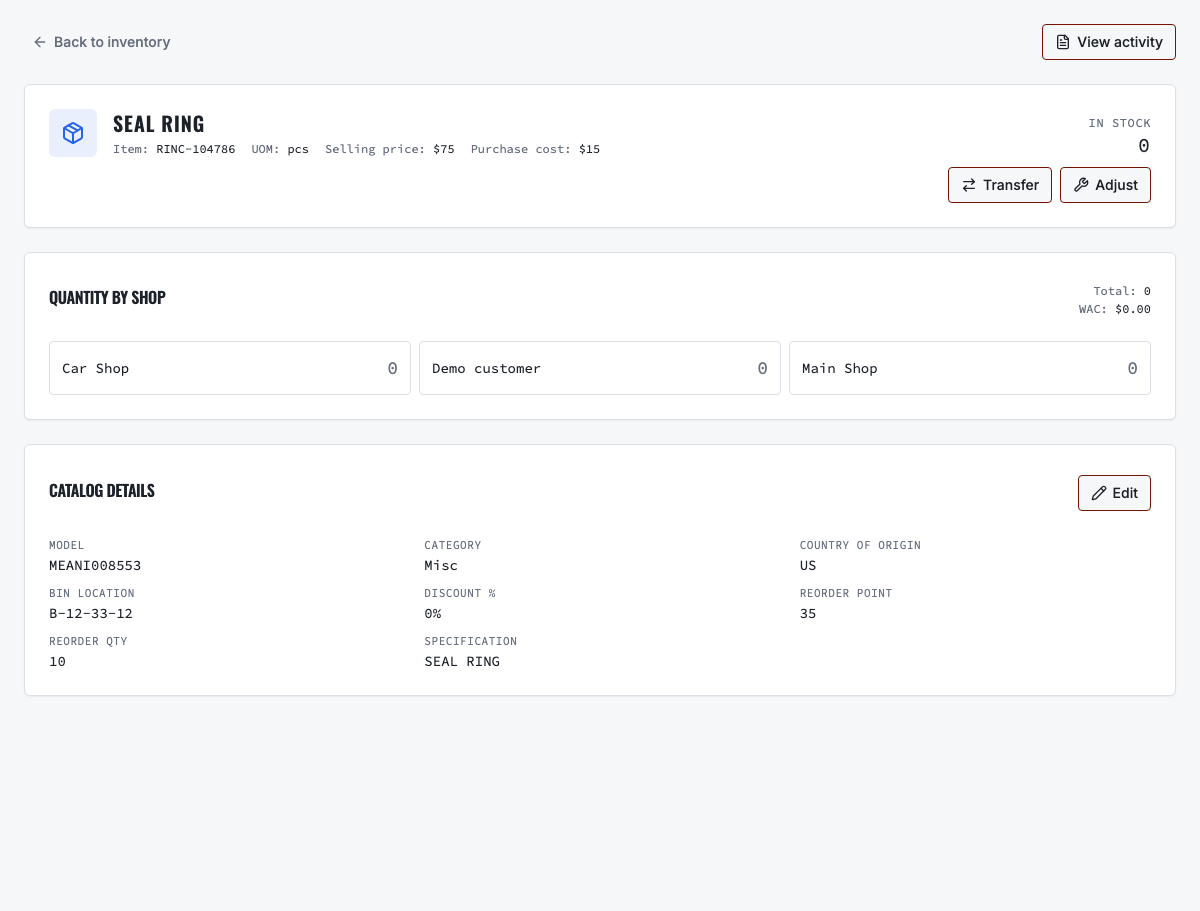
Open the item from the stock table to review the catalog record, per-shop balances, costs and inventory controls. Confirm that the part and source location are correct before choosing Transfer or Adjust. If the catalog identity is wrong, fix the catalog information rather than moving quantity under the wrong part number.
05
5. Transfer stock between shops
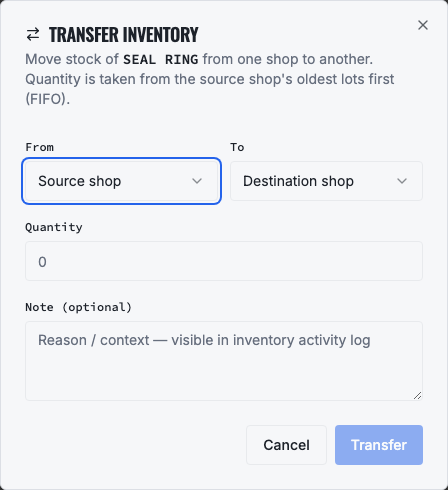
Choose Transfer, select the source, destination and quantity, and explain the operational reason. The initiator does not select the control mode. VMOTEK applies the source shop's effective policy: the company default unless an authorized source-shop override exists. Quick transfer records an immediate authorized handoff and moves quantity with preserved lot cost. Controlled transfer creates a numbered internal document and moves through request, approval, dispatch/in transit and destination receipt. Both are internal stock movements, not vendor purchases or inter-shop sales.
- Configure Quick for a source shop only when its operating model permits an authorized immediate physical handoff.
- Configure Controlled when stock leaving the source requires approval, courier or in-transit visibility, or destination confirmation.
- A company-wide default keeps the rule consistent; an authorized shop override handles a location with a different risk or operating model.
- Because the source policy chooses the mode, a requester cannot bypass approval by selecting Quick.
- At controlled dispatch, source stock decreases and value becomes inventory in transit; destination availability increases only after receipt.
- The original purchase spend remains with the PO location, while parts COGS later belongs to the shop that consumes the part on customer work.
06
6. Verify every movement in inventory activity
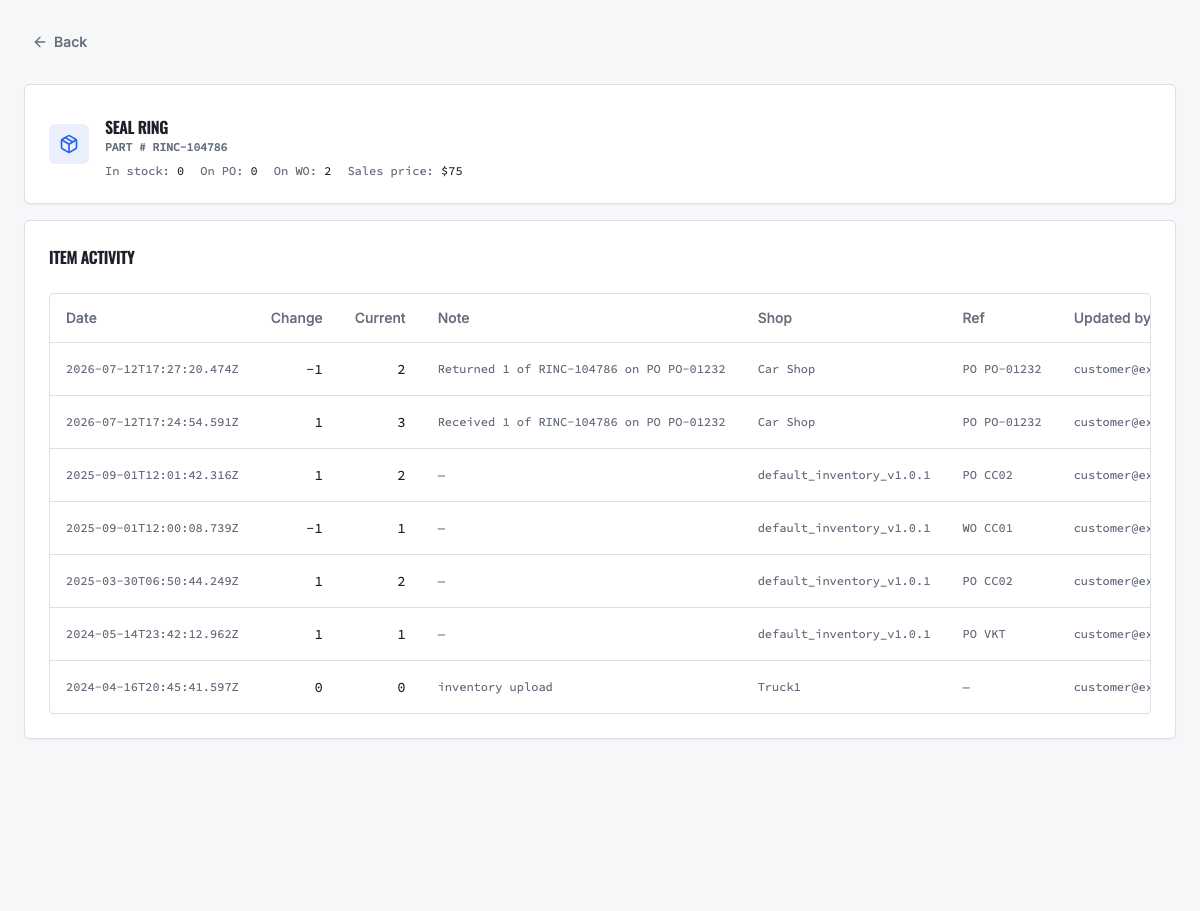
After a transfer, receipt or adjustment, open the item's activity history. Confirm the date, movement type, quantity, location and reference. Investigate unexpected corrections immediately while staff can still reconstruct what happened.
07
Understand transfer accounting and shop profitability
For locations inside one VMOTEK company, an internal transfer moves inventory quantity and cost but does not create revenue, accounts payable or a second purchase. Purchase spend stays with the shop or centralized PO that bought the stock. Current inventory value follows the physical location. When the destination shop consumes the part on a work order, VMOTEK snapshots the actual FIFO or selected-lot cost as that shop's parts COGS. Shop performance can therefore show parts revenue, parts COGS, parts margin, labor margin and total gross margin without treating internal movement as profit.
- Quick transfer moves location value immediately while company value remains unchanged.
- Controlled dispatch moves value into Inventory in transit; receipt moves it into destination inventory.
- Damaged or short receipt quantity remains visible instead of silently inflating destination availability.
- Invoice cancellation or part return writes a compensating cost and quantity reversal rather than deleting history.
- Review Purchase spend, Transfer in/out, In transit, Inventory value and Consumed COGS as separate measures.
08
7. Purchase a shortage instead of duplicating stock
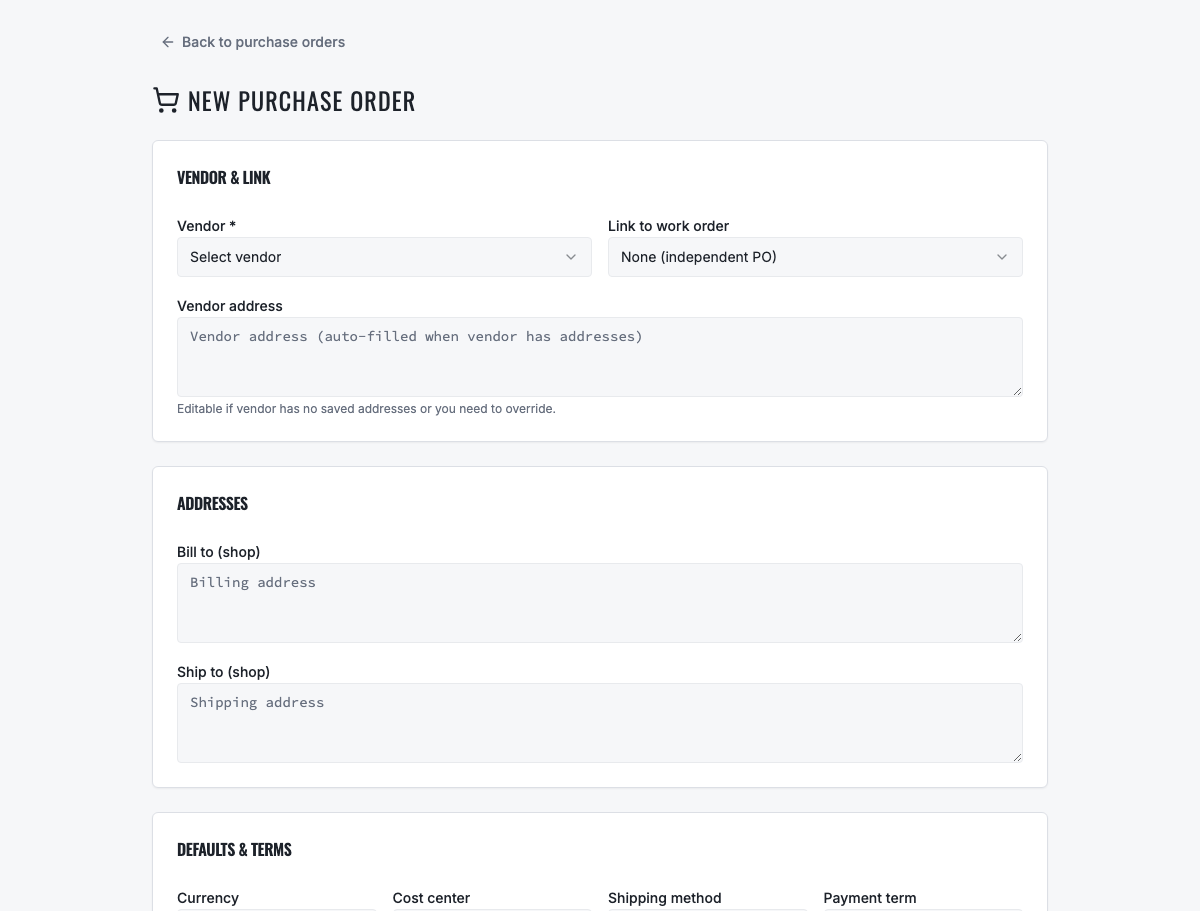
If another shop cannot supply the part, create a purchase order for the vendor. Choose the serving or receiving shop, add the shared catalog item, quantity, cost, requested date, shipping and tax information. Review supplier alternatives, availability and recent pricing where evidence is available before submitting the order.
- VMOTEK Shop includes purchase-order management; Connected Operations also supports purchase requests and centralized buying workflows.
- Use a purchase request when local staff need central approval before a buyer creates the purchase order.
- Keep the vendor part number and shop destination explicit so receiving can match the shipment correctly.
09
8. Follow purchase-order status and receive accurately
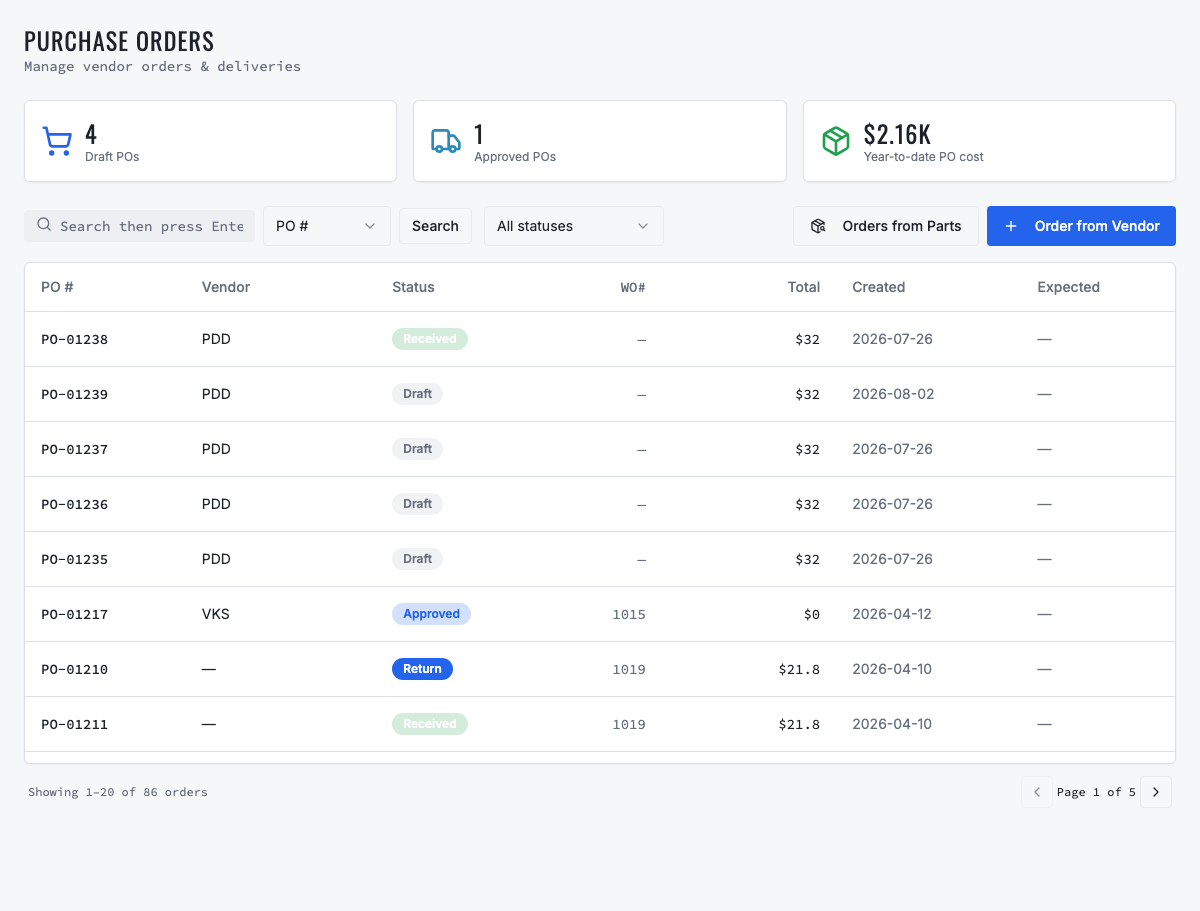
Track the order through its current status instead of treating ordered quantity as usable stock. When the shipment arrives, open the purchase order, choose Receive, select the location where the goods physically arrived and enter the quantity received for each line. Partial receipts remain open for the balance; discrepancies and returns should be recorded against the purchase order.
10
9. Replenish with network context
Set reorder points by location demand, lead time and service level. Before issuing a replenishment PO, check whether another shop has surplus available stock and whether moving it would jeopardize that shop's work. Compare the cost and delay of transfer with the vendor's price and delivery time.
11
10. Run weekly inventory controls
Review low and out-of-stock items, negative or unexplained balances, repeated adjustments, high emergency purchasing, overdue open purchase orders, partial receipts, dormant stock and price variance. Cycle-count selected bins and reconcile differences through documented adjustments. The goal is not merely a company total, it is a quantity that each shop can physically prove.
Related VMOTEK workflows
Continue from the guide into the product
Use the capability pages for operating behavior, role differences, related guides, pricing and a product walkthrough.
Ready to move forward?
See the workflow in VMOTEK
Bring your current process and we will demonstrate where the platform fits, what changes, and what it does not yet support.