Service packages
Build vehicle-aware service packages with included quantities and overages
A service package turns a repair procedure the shop performs repeatedly into a controlled starting point for the advisor. Instead of rebuilding the same oil service, brake service or scheduled-maintenance job line by line, VMOTEK can combine parts, labor, consumables and checklist tasks; define which vehicles the package fits; include a base quantity; and calculate additional material when the vehicle needs more. The advisor still confirms the vehicle and required quantity before applying the package. Published versions remain stable so an old work order keeps the exact definition and calculation that were used when it was sold.
Written by the VMOTEK Product Team · Updated August 13, 2026
01
1. Decide what belongs in a service package
Use a package for work with a repeatable core procedure and predictable components. A synthetic oil service might include five quarts of oil, one filter, 0.5 labor hour and a checklist task to reset the maintenance indicator. A package should not hide an unresolved diagnostic problem or pretend that every vehicle requires the same parts. Create separate packages when the procedure, customer presentation or commercial policy is materially different.
- Part: a discrete component such as an oil filter, drain-plug washer or brake pad set.
- Labor: the billed work required to perform the procedure.
- Consumable: a measured material such as oil, coolant or refrigerant that may exceed an included amount.
- Checklist: a required action or verification that carries no customer quantity or price by itself.
02
2. Open the service-package builder
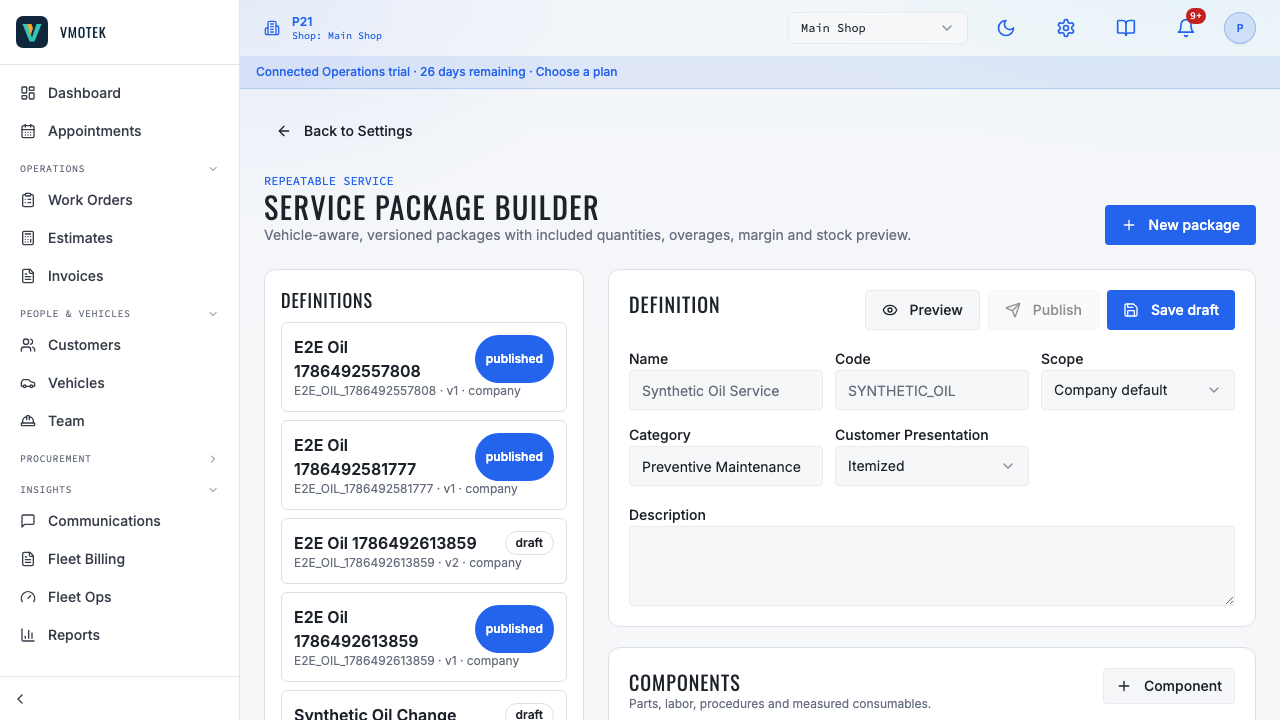
Sign in as an owner or administrator who can maintain Settings. Select the Settings gear in the upper-right corner, then select Service Packages under Company. Existing definitions appear on the left. Select New package to start a draft, or open an existing draft to continue editing. The builder starts in Simple mode so a shop can name the service and add normal parts, labor and checklist tasks without seeing controls it does not need. Select Advanced when the package needs vehicle fitment, measured consumables, included quantities, billing increments or overage rules. Opening an existing package that already contains those rules automatically restores Advanced mode. Switching back to Simple hides advanced settings but never deletes them. Published packages cannot be silently rewritten; use Copy new version when the shop needs to change one.
03
3. Name and code the definition
Name is the human-readable label advisors see, such as Full Synthetic Oil Service. Code is the stable internal identity, such as SYNTH_OIL. The code is not a part number or vendor catalog code. Keep the same code across later versions of the same package so VMOTEK can show that version 2 superseded version 1. Choose Company scope when all shops use the definition, or select one shop when the procedure or price truly belongs only to that location.
04
4. Choose itemized or flat presentation
Itemized presentation prices each customer-facing component from its quantity and unit price. Flat presentation shows the package's base price while still calculating a separately explainable overage when required material exceeds the included amount. For example, an oil package may have a $79.99 flat base price including five quarts. If the selected vehicle requires seven quarts and overage is $9.99 per quart, the preview becomes $99.97. Flat pricing does not erase the underlying component, cost and quantity evidence used for margin and work execution.
05
5. Add parts, labor, consumables and checklist tasks
In Package components, add each operational line once. Enter a plain description that an advisor and technician will understand. Link an inventory item when the component represents a stocked part or fluid; the preview can then expose availability and use the linked item's Purchase Cost for margin and cost-based matrix calculations. The inventory item's Default Selling Price is the normal selling fallback, while MSRP remains reference-only. Enter Qty for the package's base operational quantity, Unit price for itemized selling, and sequence the lines in the order staff should review them. For Role = Checklist, choose Single task for one observable completion step such as Verify leaks after run-up. Choose Existing diagnostic template when the service should perform a reusable multi-point inspection. Select the template and review its categories, inspection points and required markers before saving. When the package is applied, VMOTEK copies the template's current inspection points onto the work order and records both the source package component and diagnostic template-item identities. Later template edits do not rewrite the checklist already applied to a work order.
- Use Single task for a short execution step such as Reset maintenance reminder.
- Use Existing diagnostic template for a structured oil-service, brake, tire or safety inspection.
- Create and review the diagnostic template in Settings before linking it to a service package.
- Removing the package application removes all checklist rows generated by that application together.
06
6. Configure included quantity and overage
For a measured consumable, enter the amount included in the advertised base service, its unit of measure and the billing increment. Included quantity is what the base package covers. Required quantity is the vehicle-specific or advisor-confirmed need. Overage is the positive difference rounded up to the billing increment. If five quarts are included, the vehicle requires 6.2 quarts and the billing increment is one quart, VMOTEK bills two overage quarts. If the increment is 0.5 quart, it bills 1.5 overage quarts.
- Use qt, gal, L, mL, fl oz, each or ea consistently; VMOTEK converts only compatible unit families.
- Fixed overage uses the amount entered for each additional unit.
- Retail overage uses the linked component's configured selling price.
- Matrix overage applies the named parts pricing matrix to the linked item's Purchase Cost, not its Default Selling Price or MSRP.
- Require advisor quantity when the shop must confirm the actual capacity rather than relying on a configured vehicle rule.
07
7. Add vehicle applicability rules
In Advanced mode, applicability defines which vehicles may use the package. Choose vehicle type, make, model, engine and trim from dropdowns; model choices narrow after Make is selected, and engine and trim choices narrow as the vehicle becomes more specific. VMOTEK combines its supported make/model vocabulary with vehicle and fitment values already observed by the company. Choose Any when the attribute should not restrict the package. Choose Custom only when a legitimate value is not present, then type it carefully so the shop does not create multiple spellings for the same vehicle. Enter only the attributes needed to make the rule reliable. A 2020–2027 Toyota Tundra rule is more specific than a rule containing only Toyota, so VMOTEK selects the most specific active match. Avoid claiming licensed OEM specifications unless the shop has a licensed source. VMOTEK labels shop-maintained rules as Shop configured so the advisor understands their provenance.
08
8. Add required-quantity rules carefully
A required-quantity rule links one measured component to a vehicle applicability rule. Example: the Tundra rule may require seven quarts for the oil component while the base package includes five. Enter the quantity, unit and a source label that truthfully describes where it came from. If the shop does not have a reliable rule, leave the quantity to advisor confirmation. The work order cannot apply a package with a required advisor quantity until the missing value is entered and recalculated.
09
9. Preview price, margin, fit and availability
Before publishing, enter a test vehicle's year, make, model, engine, trim and type. Select Preview. Confirm that the vehicle is applicable, every included and required quantity is sensible, overage is correctly rounded, customer price matches policy, and gross margin remains acceptable. For linked inventory components, review the availability signal. Test one matching vehicle, one non-matching vehicle, the exact included quantity and at least one overage case.
10
10. Publish without rewriting history
Save Draft while the definition is being reviewed. Publish only after operations and pricing are approved. A published version is immutable because work orders need reproducible evidence. When price, included quantity, components or applicability changes, select Copy new version, edit the new draft and publish it. Existing work orders retain version 1 and its calculation snapshot; new applications can use version 2.
11
11. Apply the package to a work order
Open the work order for the correct customer, vehicle and shop. In the labor-and-parts area, select Add service package. Choose a published package. VMOTEK previews it against the work-order vehicle before adding anything. If a required quantity is missing, the advisor enters the confirmed value and selects Recalculate. Review fit, overage, price, margin and availability, then select Apply package. The parts, labor and checklist tasks become work-order lines tied to one service-application record.
12
12. Correct a package application
If the wrong package was applied, remove the service application rather than deleting its generated lines independently. Enter a meaningful removal reason. VMOTEK removes the generated package lines together and retains who removed the application, when and why. If the job has already been customer-approved or invoiced, follow the shop's authorization and financial-correction process instead of silently replacing the sold scope.
- Do not edit a published package to alter an old work order.
- Do not use a generic package when the vehicle does not match its applicability rule.
- Do not describe shop-configured quantities as OEM data without an authorized source.
- Review package price, margin and use after rollout; create a new version for approved changes.
Related product areas
Understand the capability behind the task
Continue to the applicable platform page for workflow behavior, role differences and connected operating consequences.
Ready to move forward?
Need help with your configuration?
Existing customers should use in-product support for account-aware assistance. Evaluation teams can contact us to discuss requirements.