Fleet maintenance
Configure and validate telematics maintenance data
VMOTEK uses supported telematics data to improve maintenance scheduling. It is not a route-optimization or live GPS-dispatch product. The purpose of this integration is to bring trusted usage readings and supported vehicle signals into durable fleet records and preventive-maintenance calculations.
Written by the VMOTEK Product Team · Updated August 13, 2026
01
1. Confirm provider and intended scope
Before configuration, confirm that the fleet uses a supported Geotab setup and identify the administrator who may authorize access. Document which vehicles should be linked, which readings will be consumed and how support should handle expired credentials or missing devices. Do not promise location tracking, routing or predictive component failure from this maintenance integration.
02
2. Open telematics settings
Sign in as an authorized administrator. Select the Settings gear, open the Settings Hub and choose Telematics (Geotab) under integrations. Regular shop staff should not receive credential-administration permission merely because they review maintenance reminders.
03
3. Add the provider credential securely
Create the provider connection using the approved Geotab database and authorization information. Keep secrets in the designated protected configuration and never paste credentials into customer notes, work orders, screenshots or support email. Save the connection and confirm VMOTEK reports a usable status before linking production assets.
- Use a dedicated accountable provider identity where the provider supports it.
- Grant only the access needed for the documented maintenance workflow.
- Record the credential owner and renewal or revocation procedure.
04
4. Link each device to the correct VMOTEK vehicle
Open the provider connection, load available devices and map each selected device to one VMOTEK vehicle. Compare VIN, unit number, plate and provider identifier before saving. A valid reading attached to the wrong vehicle is more dangerous than a missing reading because it can produce an apparently credible maintenance decision.
05
5. Run and inspect the first synchronization
Run the supported synchronization or wait for its scheduled execution. Open the linked vehicle and verify current odometer, engine hours when provided, source and update time. Compare a sample with Geotab before accepting the connection for operational use. Investigate unit conversions, decreasing readings, implausible jumps and stale timestamps.
06
6. Verify the maintenance consequence
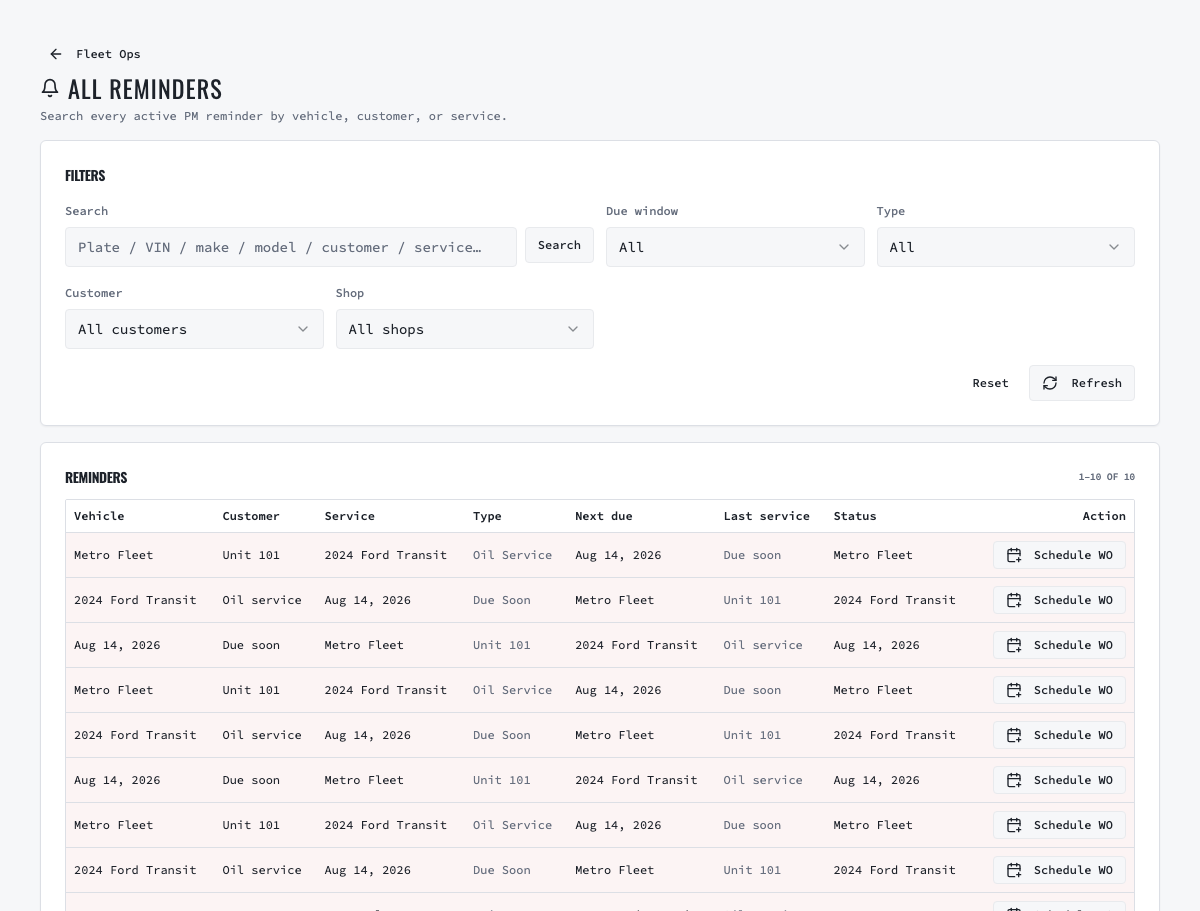
Open Fleet Ops → All reminders and find the linked vehicle. Confirm the newest trusted reading is used by the applicable mileage or engine-hour rule and that its due state is explainable. Test with a non-critical vehicle first. Telematics data should update the maintenance evidence; it must not silently dispatch work or create an invoice.
07
7. Handle missing or failed data safely
A disconnected credential, removed device or stale reading should be visible to the accountable team. Correct the provider connection or device mapping, then verify the next sync. When telematics is unavailable, capture mileage during check-in, inspection, invoice completion or authorized manual entry. Mark the source; do not disguise manually entered data as provider data.
08
8. Review links and access periodically
Audit active credentials, device mappings, stale vehicles and retired units. Disable unused credentials and unlink disposed vehicles. Revalidate a sample after provider changes. Keep a support record containing company, vehicle, provider connection, UTC time and public error details without including tokens or secrets.
Related product areas
Understand the capability behind the task
Continue to the applicable platform page for workflow behavior, role differences and connected operating consequences.
Ready to move forward?
Need help with your configuration?
Existing customers should use in-product support for account-aware assistance. Evaluation teams can contact us to discuss requirements.