Guide
From purchase request to purchase order: a complete procurement guide
VMOTEK supports two procurement operating models. A single shop can buy directly with purchase orders. A multi-shop organization can let locations request what they need while a central buyer approves, combines demand and creates fewer, better-supported purchase orders. This guide explains both workflows, when to use each one and how to keep the final buying decision under human control.
Written by the VMOTEK Product Team · Product reviewed August 13, 2026
01
1. Choose the workflow that fits the business
Use the direct purchase-order workflow when one shop or one buyer already knows what to order and from whom. Use purchase requests and consolidated procurement when multiple shops identify demand but purchasing authority, vendor selection or budget approval belongs to another person. Do not force a single shop to create an internal request when a controlled PO is sufficient.
- VMOTEK Shop: purchase orders for straightforward local buying and receiving.
- Connected Operations: purchase requests, cross-shop consolidation, procurement analysis and centralized PO creation in addition to purchase orders.
- A purchase request expresses internal demand; a purchase order is the external commitment sent to a vendor.
- Approved purchase requests do not order anything by themselves, they must be consolidated into a PO before vendor commitment and receiving.
02
2. Establish catalogs, vendors, roles and approval limits
Before buying, create clean catalog items and vendor records. Assign who may request, approve, create POs, approve POs and receive goods. Give each person only the shops they operate. If PO approval rules are configured, define thresholds and approvers before the first live order so staff cannot bypass the intended control during an urgent purchase.
- The item catalog should identify the part consistently across all shops.
- Vendor records should contain ordering contacts, vendor part references and delivery expectations.
- Shop access controls where staff can request, purchase and receive, not merely which data they can view.
- Separate request approval from PO approval when management needs to approve both the business need and the final vendor commitment.
03
3. Single shop: create the purchase order directly
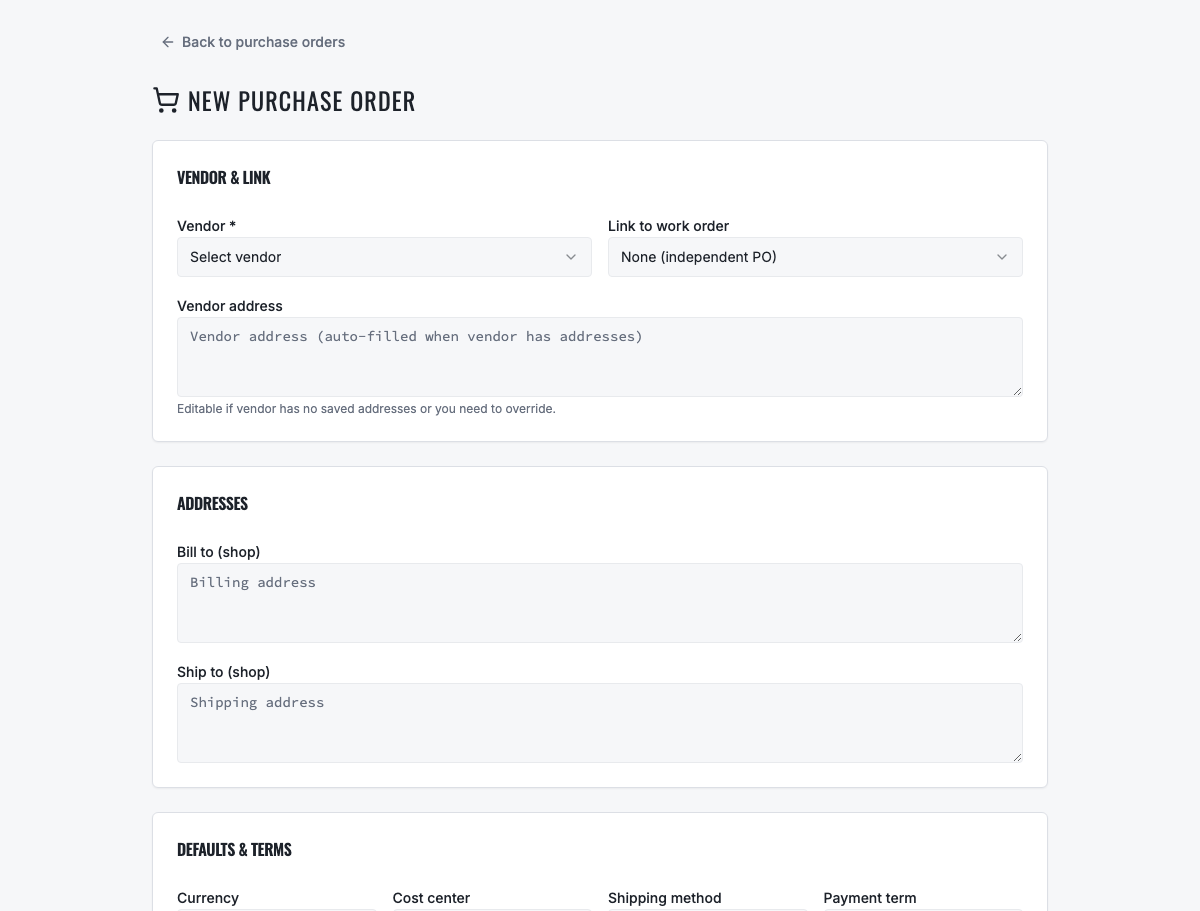
Open Purchase Orders and create a new order. Select the vendor and receiving shop, then add catalog items, descriptions, quantities, unit costs, requested dates, shipping, taxes and notes. Review the destination and total before saving. Link the purchase to a work order when it is being bought for a particular repair so the service advisor can follow the shortage.
04
4. Single shop: approve and send the PO
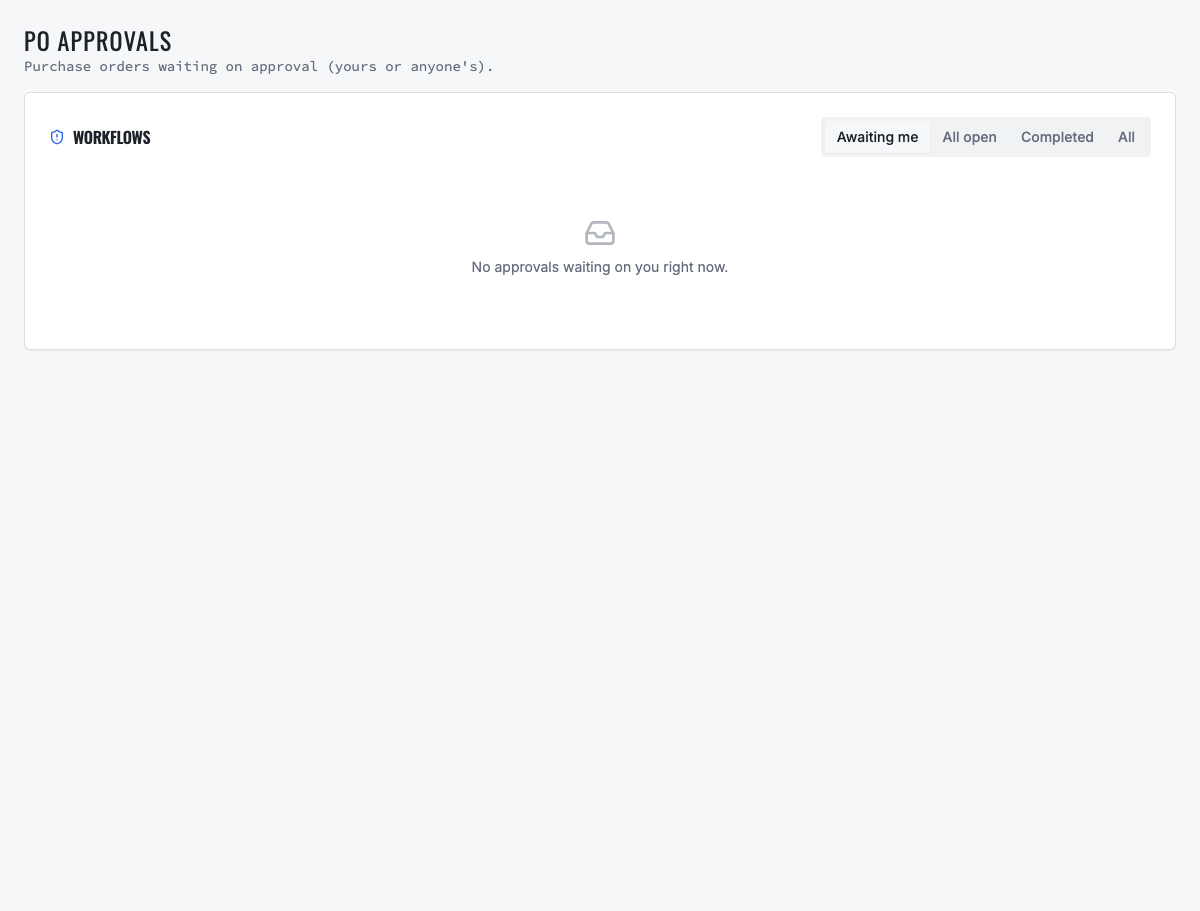
If an approval workflow applies, submit the PO and wait for the required approver instead of ordering outside VMOTEK. The approver should review vendor, destination, source work order, line quantities, price and total. After approval, email the PO to the vendor from VMOTEK or download the PDF for the vendor's accepted ordering channel. Do not interpret Draft or Approved as proof the vendor received the order.
05
5. Single shop: track, receive and reconcile
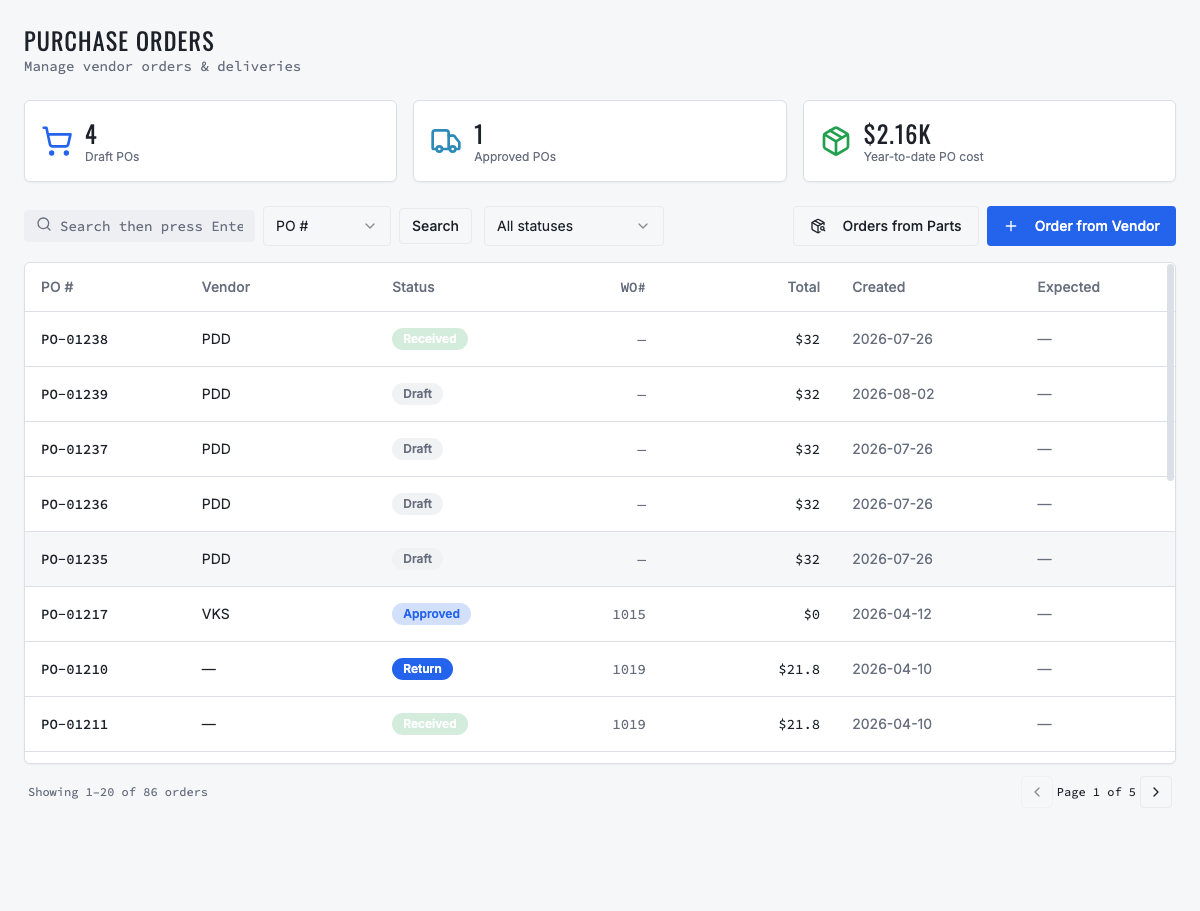
Monitor the PO through its lifecycle. When goods physically arrive, open the PO, choose Receive, select the actual receiving location and enter the quantity received for each line. Record a partial receipt when the vendor shorts an item; do not mark the entire order received. Upload the vendor invoice when applicable, investigate cost or quantity differences, and record returns against the original receipt.
- Submitted means the order was issued; it does not make stock available.
- Partially received keeps the remaining quantity open and visible.
- Received quantity becomes inventory at the selected location, not automatically at every shop.
- Reconcile the vendor invoice to ordered and received quantities before treating the purchase as complete.
06
6. Multi-shop: let each location create a purchase request
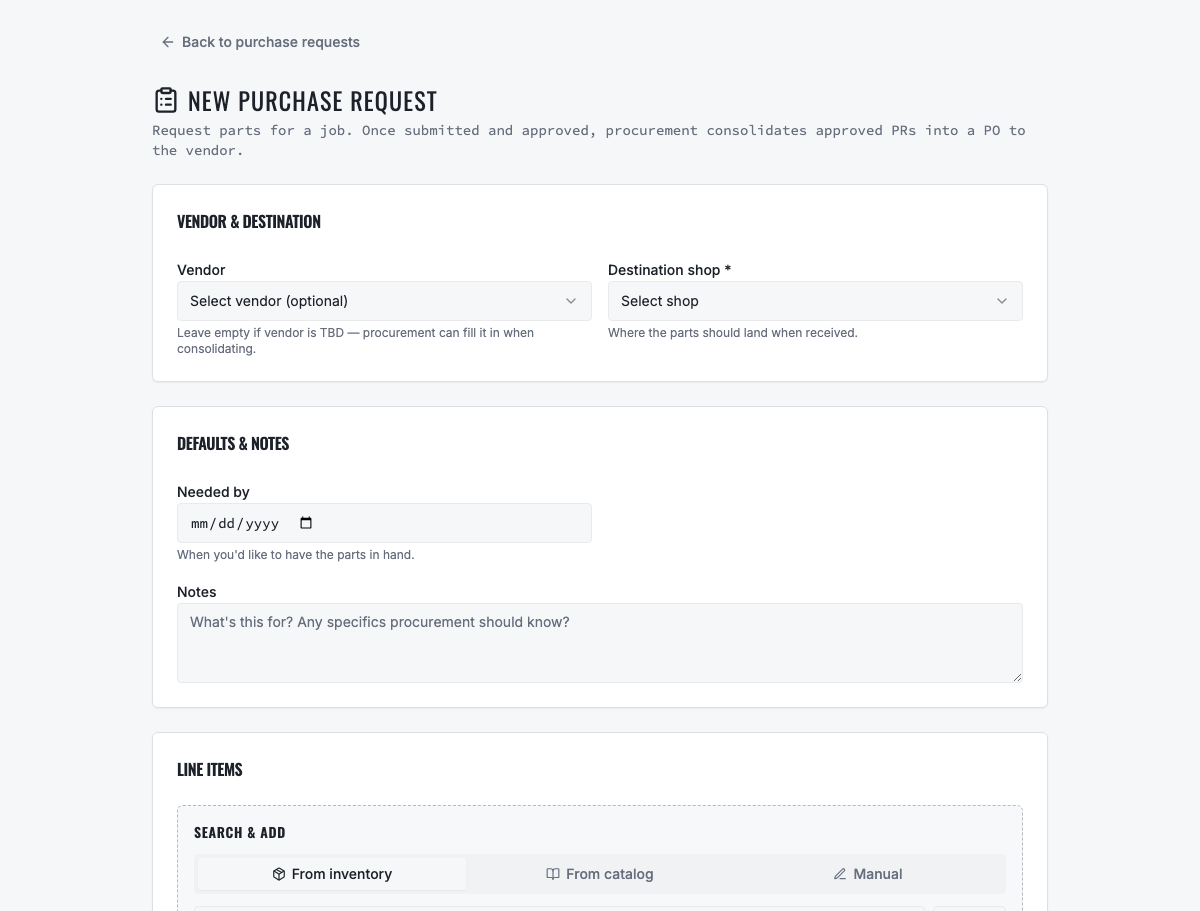
A shop requester creates a purchase request for needed parts or supplies. Select the source shop, add catalog or permitted non-catalog lines, quantities, estimated prices, requested-for date, cost center, work-order reference and business justification. Select a vendor when the source is known, or leave it unspecified when central procurement should choose.
- Use a clear needed-by date instead of marking every request urgent.
- Identify the work order or operating reason so the approver can judge impact.
- Use catalog items whenever possible; non-catalog descriptions make price history and demand consolidation less reliable.
- A draft remains with the requester. Submit it when it is ready for an approval decision.
07
7. Multi-shop: approve the business need
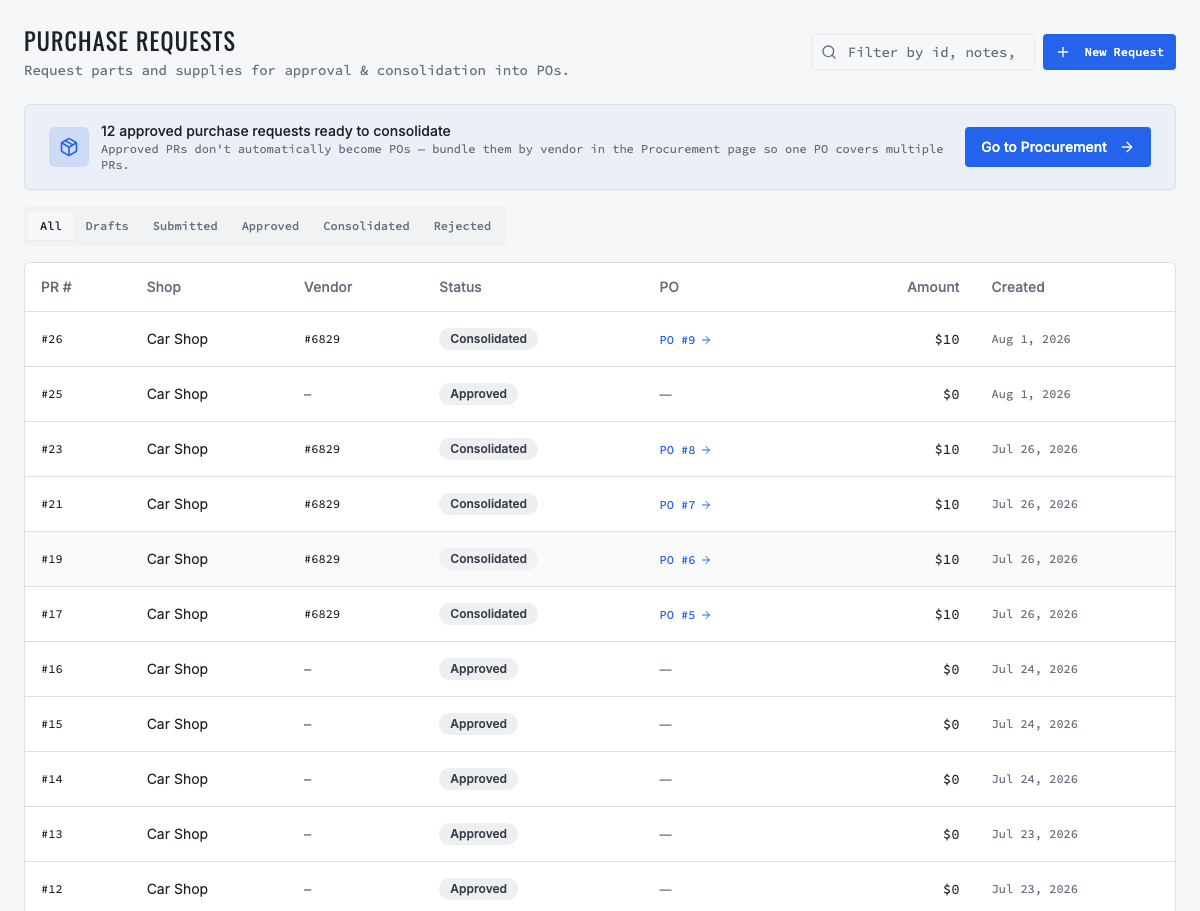
The purchase-request approver verifies the shop, requester, items, quantities, date, estimated amount and justification. Approve legitimate demand, reject it with a useful reason or return it for correction according to the configured process. Approval makes the request eligible for procurement consolidation; it does not automatically create or send a PO.
08
8. Multi-shop: assemble a buyer's working selection
Open Procurement to see approved requests grouped by vendor. Select requests that share one vendor and should become one PO. VMOTEK retains each line's source shop and cost center even though the vendor receives a consolidated order. For requests without a vendor, the buyer selects one before consolidation. Do not combine different vendors merely to reduce the apparent PO count.
- Check needed-by dates so consolidation does not delay a vehicle waiting for an urgent part.
- Confirm catalog identity before rolling quantities together; similar descriptions are not always interchangeable parts.
- Review whether another shop already has transferable stock before buying new inventory.
- Use the spend summary to understand recent purchasing by vendor and shop before committing.
09
9. Use savings analysis and AI-assisted recommendations
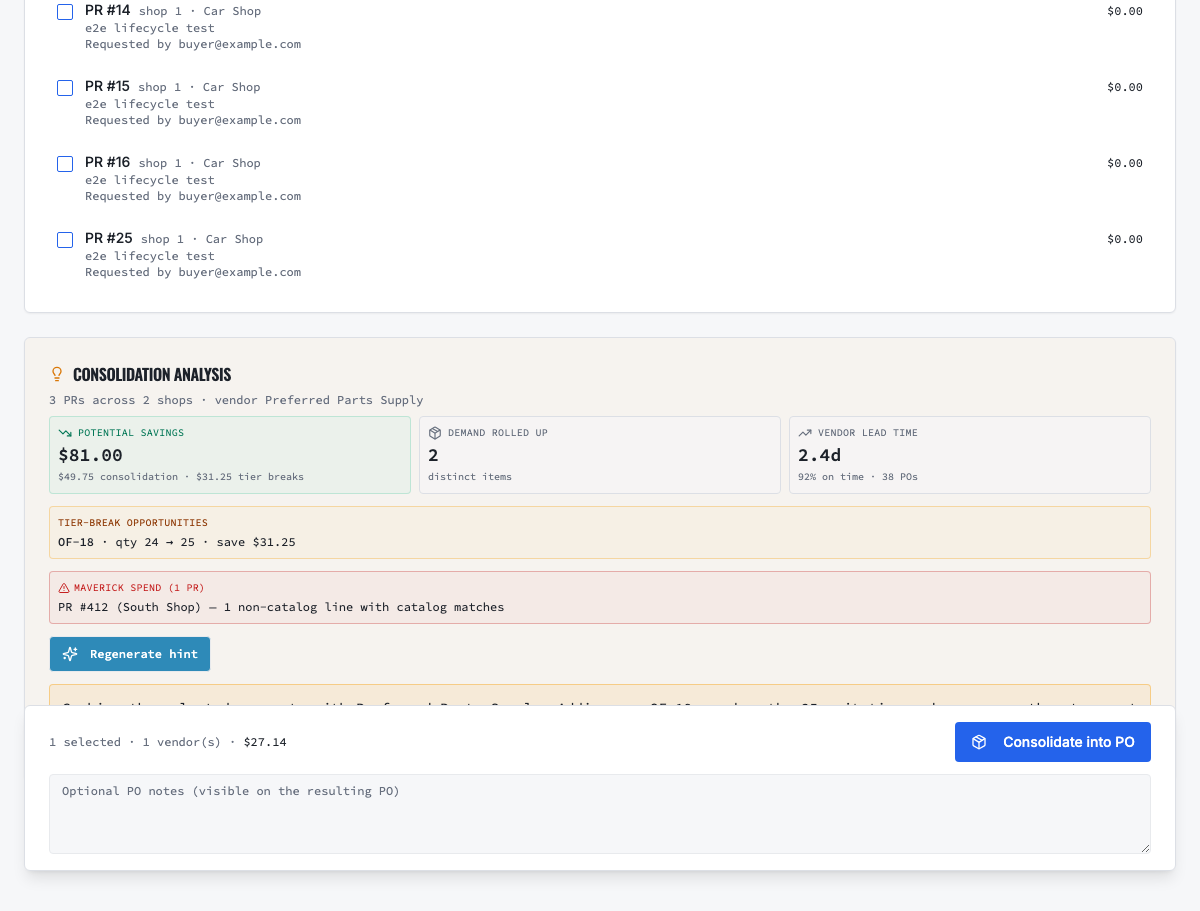
When the buyer selects eligible requests, VMOTEK analyzes the proposed consolidation. It rolls up demand by item and shop, compares selected costs with recent paid-price evidence, identifies vendor quantity-tier opportunities, flags non-catalog or maverick spend with catalog matches, and summarizes vendor lead-time and on-time history. Potential savings separate consolidation effects from tier-break opportunities.
- Potential savings are decision support, not booked savings. Validate quantity, fitment, availability, freight, return terms and service urgency.
- A tier recommendation may suggest buying slightly more to reach a lower unit price; accept it only when the extra stock is likely to be used.
- Maverick-spend flags help buyers replace free-text purchases with controlled catalog items when the match is valid.
- Select Get hint to generate an AI-assisted buyer brief from the displayed evidence. The brief recommends what to review but does not create or approve the order.
- A person remains responsible for vendor choice, quantity, price and the final consolidation action.
10
10. Create the consolidated PO
After reviewing the working selection and analysis, add optional buyer notes and select Consolidate into PO. VMOTEK creates one PO while preserving links back to the contributing requests, shops and cost centers. The requests move to Consolidated, and the PO becomes the source of truth for vendor commitment, approval, communication and receiving.
- Open the generated PO and verify vendor, delivery plan, every line, total and request linkage before submitting it.
- If the final PO differs materially from the approved need, route it through PO approval rather than assuming request approval covered every change.
- The original shop should be able to follow its request to the resulting consolidated PO without creating a duplicate order.
11
11. Receive a consolidated order into the right locations
Receiving must reflect where the goods physically arrive. If the vendor ships directly to individual shops, receive each delivery into that shop. If goods arrive centrally, receive them into the central location and transfer quantities to destination shops when dispatched. Record partial shipments and discrepancies instead of forcing the PO to Received while items remain outstanding.
12
12. Measure realized savings and procurement health
Review requested-to-approved and approved-to-PO cycle time, request rejection rate, consolidated requests per PO, spend by vendor and shop, price variance, tier opportunities accepted, emergency purchases, vendor lead time, on-time delivery, partial receipts and invoice discrepancies. Compare estimated opportunity with actual ordered and received cost before claiming realized savings.
- Estimated savings: what analysis suggested before the buying decision.
- Committed savings: the difference represented by the approved vendor order.
- Realized savings: the result after freight, received quantity, credits, returns and invoice reconciliation.
- Review false or unhelpful recommendations so catalog, vendor and pricing evidence improve over time.
13
Daily operating checklist
Requesters review drafts and rejected requests. Approvers work submitted purchase requests and pending PO approvals. Buyers review approved demand, network stock, consolidated opportunities and vendor evidence. Receivers work expected and partial deliveries. Managers review aged requests, open POs, exceptions and realized savings. Clear ownership at each stage prevents procurement from becoming another shared spreadsheet.
Related VMOTEK workflows
Continue from the guide into the product
Use the capability pages for operating behavior, role differences, related guides, pricing and a product walkthrough.
Ready to move forward?
See the workflow in VMOTEK
Bring your current process and we will demonstrate where the platform fits, what changes, and what it does not yet support.