Purchase-order management
Purchase-order software for auto repair shops
Control the commitment from requested part to vendor order, receipt, inventory and job cost without rebuilding the record in separate tools.
VMOTEK gives repair shops a controlled purchase-order workflow connected to vendors, catalog items, shop inventory and work orders. A buyer creates the PO, an authorized approver reviews it when policy requires, the receiving team records what arrived, and inventory and purchasing history update from the same transaction.
The problem
A parts order is a financial commitment, not an informal note
Phone calls, supplier portals and email may place the order, but the shop still needs an internal record of what it committed to buy, why it was needed, where it should arrive and whether the invoice matches the receipt.
- Parts ordered without a PO cannot be reliably tied to a job or stock requirement.
- Partial deliveries and backorders disappear inside email threads.
- Duplicate orders happen when advisors and buyers cannot see existing demand.
- Vendor price, received quantity and final job cost drift apart.
How it works
From demand to received inventory
- 01
Choose vendor and shop
Select the supplier, ordering location, delivery destination and expected terms.
- 02
Build the order
Add catalog or job-specific parts with quantity, purchase cost and a clear description.
- 03
Review and approve
Apply configured authority so the person preparing the PO does not silently exceed purchasing limits.
- 04
Send and track
Issue the PO and follow ordered, partially received, received, cancelled or returned status.
- 05
Receive accurately
Record actual quantities, destination and exceptions rather than assuming the complete order arrived.
- 06
Reconcile
Retain the vendor, PO, receipt, inventory movement and related repair context for review.
What you get
Capabilities in this area
PO numbering and status
Maintain a traceable order number and lifecycle instead of treating every supplier interaction as complete.
Location-aware receiving
Receive into the intended shop or central inventory location and preserve the destination on the record.
Partial receipt and return
Record what arrived, what remains open and what was returned without rewriting the PO.
Vendor and catalog context
Carry supplier, item reference, description and price into the commitment and its history.
By role
What changes for each person
Owner or manager
See open commitments, approval accountability and purchasing history before cash leaves the business.
Buyer
Prepare an accurate order from known demand and avoid ordering a part that is already on order or available elsewhere.
Receiver
Check actual delivery against the PO and put quantity into the correct shop inventory.
Use it in VMOTEK
Where to find this workflow and how to complete it
A single shop normally starts directly with a purchase order. Purchase requests and consolidated procurement are optional controls for organizations that separate the person identifying the need from the buyer.
Where to find it
Open the left navigation, expand Procurement, and select Purchase Orders. Choose New Purchase Order. You can also start from a work order when the part requirement should remain linked to that repair.
Who can use it
Owners, administrators and staff with the Purchase Orders module permission can create POs. Approval actions require approval authority; receiving requires access to the destination shop.
Before you start
- • Create the vendor under Procurement → Vendors & Catalogs.
- • Confirm the shop billing and shipping addresses.
- • Create shared inventory items or search a vendor catalog when applicable.
Step by step
Create, approve, send and receive a purchase order
Button names and menu paths below match the VMOTEK repair application. Options appear according to the subscription, role and assigned shop.
- 1
Open Purchase Orders
Expand Procurement in the sidebar and select Purchase Orders. Review drafts and existing open orders before creating another commitment.
- 2
Select New Purchase Order
Choose the action to create a PO, then select the vendor. Optionally link the order to a work order when the purchase supports a specific repair.
- 3
Confirm vendor and shop addresses
Review the vendor address, Bill to address and Ship to address. These values determine who receives the order and where the supplier should deliver it.
- 4
Enter terms and line items
Choose currency and terms, then add the part number or description, quantity, unit cost and applicable tax or discount information. Search inventory and vendor catalog records instead of retyping known items.
- 5
Save the draft and review totals
Verify the vendor, destination, quantities, cost and work-order link. A draft is not yet evidence that the supplier received the order.
Result: A numbered draft PO is available in the Purchase Orders list.
- 6
Submit for approval when required
If policy or value requires approval, submit the PO and use Procurement → PO Approvals. An authorized approver reviews the order and approves or rejects it with the business context visible.
- 7
Send the approved PO
Open the approved order and use Email to vendor. VMOTEK uses the configured purchase-order email template and records the communication result.
- 8
Receive the delivery
Open the PO and select Receive. Enter the quantity physically received on each line and confirm the destination shop. Leave missing quantities open rather than marking the complete order received.
What the system records
The operational result, not just the screen action
Vendor commitment
The PO number, supplier, currency, terms, addresses, line quantities and expected cost remain together.
Status and accountability
Draft, approval, sending and receiving actions retain the order status instead of disappearing into email.
Inventory consequence
Received inventory lines update the selected shop location and retain their purchase context.
Common exceptions
- • If no vendor appears, create or activate the vendor before building the PO.
- • If a line is already on another open PO, review that order before committing duplicate quantity.
- • If only part of the shipment arrives, record a partial receipt and keep the balance open.
- • If the user cannot approve or receive, review role permission and shop assignment instead of sharing an administrator account.
Product screens
Recognize the workflow before you configure it
Screens may change as VMOTEK improves, but the records and control points shown here remain the basis of the workflow.
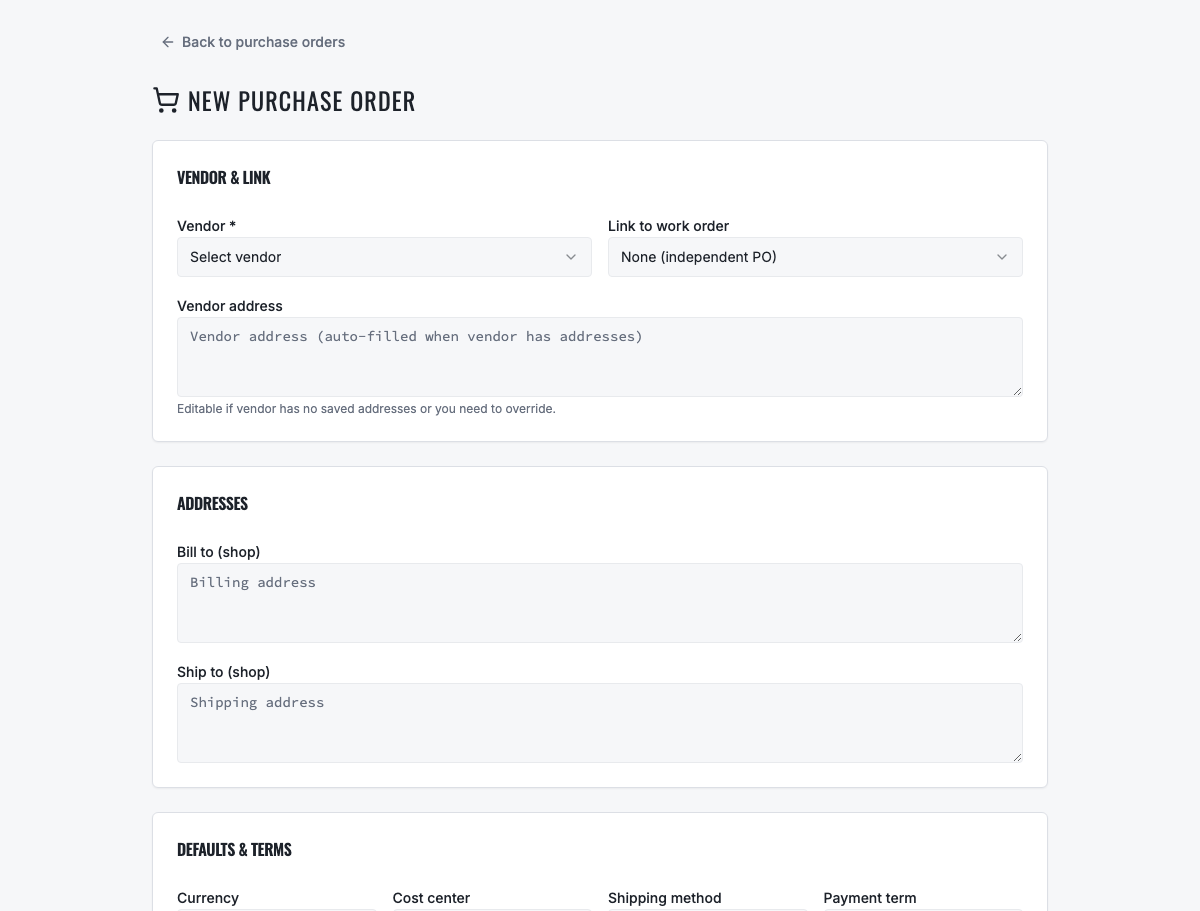
Use status, PO number and vendor search to find drafts, approved orders and deliveries.
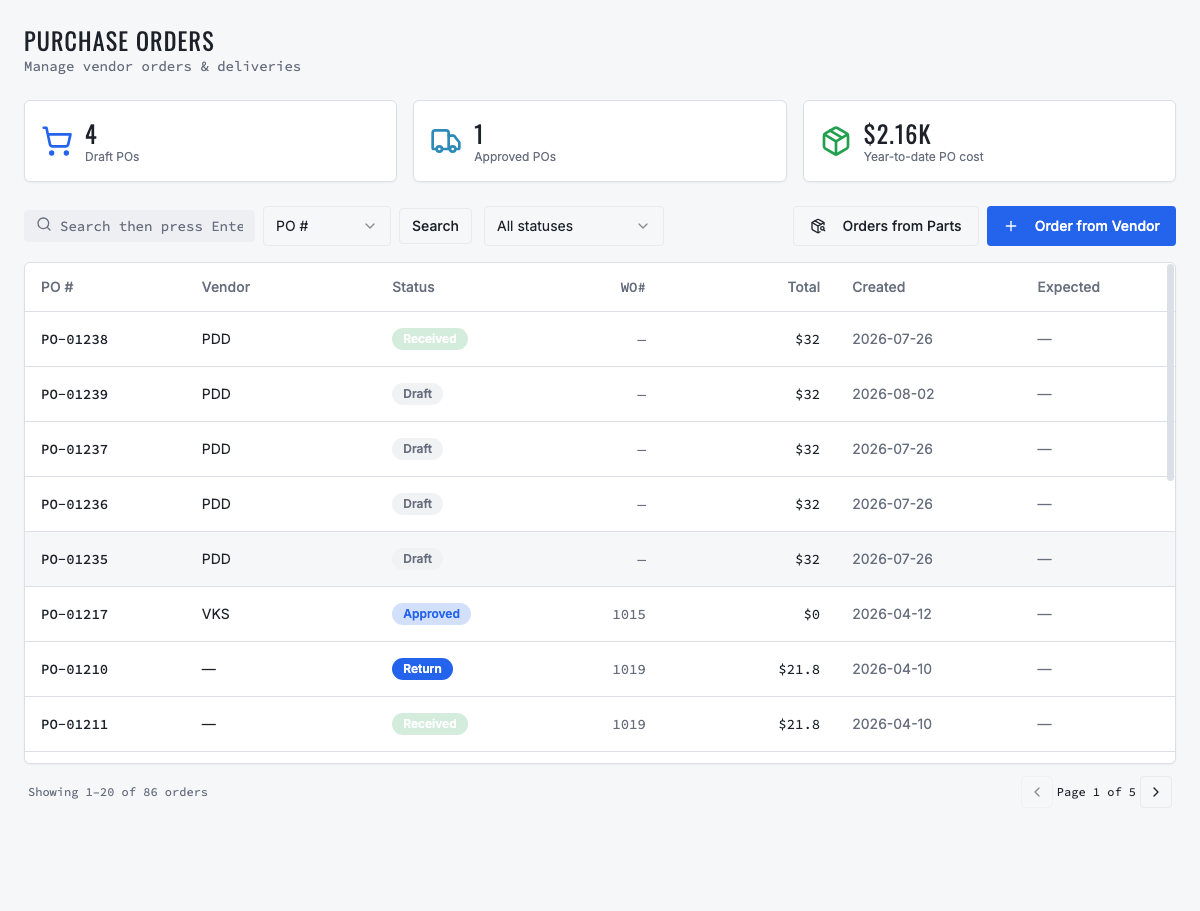
The detail page is the source of truth for approval, vendor delivery and receipt status.
Need the complete operating sequence? Read the purchase-order and consolidated-procurement guide →
Ready to move forward?
See the shop-to-fleet workflow
A personalized walkthrough of VMOTEK against your own operation. No pressure, no scripted pitch, bring the questions your team actually has.