Multi-location purchasing
Purchase-order management across multiple repair shops
Let each location operate while giving the company a reliable view of demand, commitments, receipts and vendor spend.
VMOTEK connects location-specific demand to company purchasing controls. A shop can order locally when policy allows, or approved demand can be combined centrally, while every line retains its requesting shop and intended inventory destination.
The problem
Independent ordering hides company buying power
When every location manages orders in its own inbox, the group cannot tell what is already available, combine compatible demand or distinguish a local exception from a recurring purchasing problem.
- Two shops may buy the same part at different prices.
- Central buyers cannot see urgent location demand early enough.
- Receiving at one location may not identify the final owning shop.
- Company reporting loses the relationship between request, PO and inventory.
How it works
Keep location ownership through the buying cycle
- 01
Capture location demand
Identify the requesting shop, required quantity, timing and repair context.
- 02
Check network stock
Decide whether an authorized transfer can meet the need before buying again.
- 03
Choose local or central buying
Follow company policy based on urgency, value, vendor and approval threshold.
- 04
Create controlled POs
Preserve shop allocation even when several requests become one vendor order.
- 05
Receive by destination
Receive centrally for later transfer or directly into the shop that owns the quantity.
- 06
Review company spend
Compare price and order history across locations without erasing shop accountability.
What you get
Capabilities in this area
Shop-specific authority
Separate where a person may order from how much or what they may approve.
Central and local receiving
Support a central receipt or a destination-specific receipt according to the actual delivery.
Line-level destination
A direct PO belongs to one shop. When approved demand is consolidated into a company vendor order, every line still retains the requesting shop and intended receiving destination.
Cross-location visibility
See open demand, on-order quantity and available stock before duplicating a purchase.
By role
What changes for each person
Company buyer
Combine compatible requirements and negotiate using visible demand rather than phone calls from each shop.
Shop manager
Keep ownership of local demand and see whether it will be transferred, ordered or received centrally.
Finance
Review commitments and vendor spend with both company and location context.
Use it in VMOTEK
Where to find this workflow and how to complete it
Multi-shop purchasing uses the same PO record, but location ownership matters at every stage. The requesting shop, buyer, approval scope, shipping destination and receiving location must remain aligned.
Where to find it
Use the shop selector in the top bar for local work. Then open Procurement → Purchase Orders. Company buyers can also use Purchase Requests, Procurement and PO Approvals for controlled cross-shop demand.
Who can use it
A user sees only shops assigned to their role. Company owners and authorized administrators can work across locations; shop-level purchasers remain within their assigned shop.
Before you start
- • Create every operating shop and assign staff to the correct locations.
- • Define purchasing and approval roles before accepting requests.
- • Maintain one company item definition with stock tracked separately by shop.
Step by step
Manage a location-aware purchase from need through receipt
Button names and menu paths below match the VMOTEK repair application. Options appear according to the subscription, role and assigned shop.
- 1
Confirm the active shop
Use the top-bar shop selector and verify the shop displayed beside the company name. This establishes the local operating context for the order.
- 2
Review company availability
Search Inventory and open the item detail. Read Stock by shop before buying; another authorized location may already hold the required quantity.
- 3
Choose transfer, local PO or purchase request
Transfer when existing network stock can meet the need. Create a direct PO when local policy permits. Create a purchase request when central review or consolidation is required.
- 4
Preserve the requesting location
On the request or PO, confirm the shop and shipping destination. Do not use a central address merely because a central buyer is entering the order.
- 5
Apply approval authority
Route the PO through PO Approvals when configured. The approver must have company or applicable shop authority for the commitment.
- 6
Send and monitor the order
Email the approved PO to the vendor and use Purchase Orders filters to track approved, sent, shipped, partially received and received records.
- 7
Receive where the parts arrived
Select the actual receiving shop. If parts arrive centrally, receive centrally and create a later inventory transfer; if delivered directly, receive at the destination shop.
- 8
Review location and company results
Use the PO detail, item activity and procurement reports to compare commitment, receipt and stock ownership.
What the system records
The operational result, not just the screen action
Shop ownership
The order and inventory effect retain the relevant location rather than becoming anonymous company stock.
Company visibility
Authorized users can review purchasing and stock across locations without granting every employee cross-shop access.
Movement history
Receiving and later transfer remain separate events so the company can reconstruct where quantity moved.
Common exceptions
- • A worker assigned explicitly to one shop should not appear as an authorized buyer or receiver for another shop.
- • Do not receive directly into the final shop if the physical delivery went to a central warehouse; use a transfer after receipt.
- • If the wrong shop was selected, correct the workflow before receiving rather than using an unexplained inventory adjustment.
Product screens
Recognize the workflow before you configure it
Screens may change as VMOTEK improves, but the records and control points shown here remain the basis of the workflow.
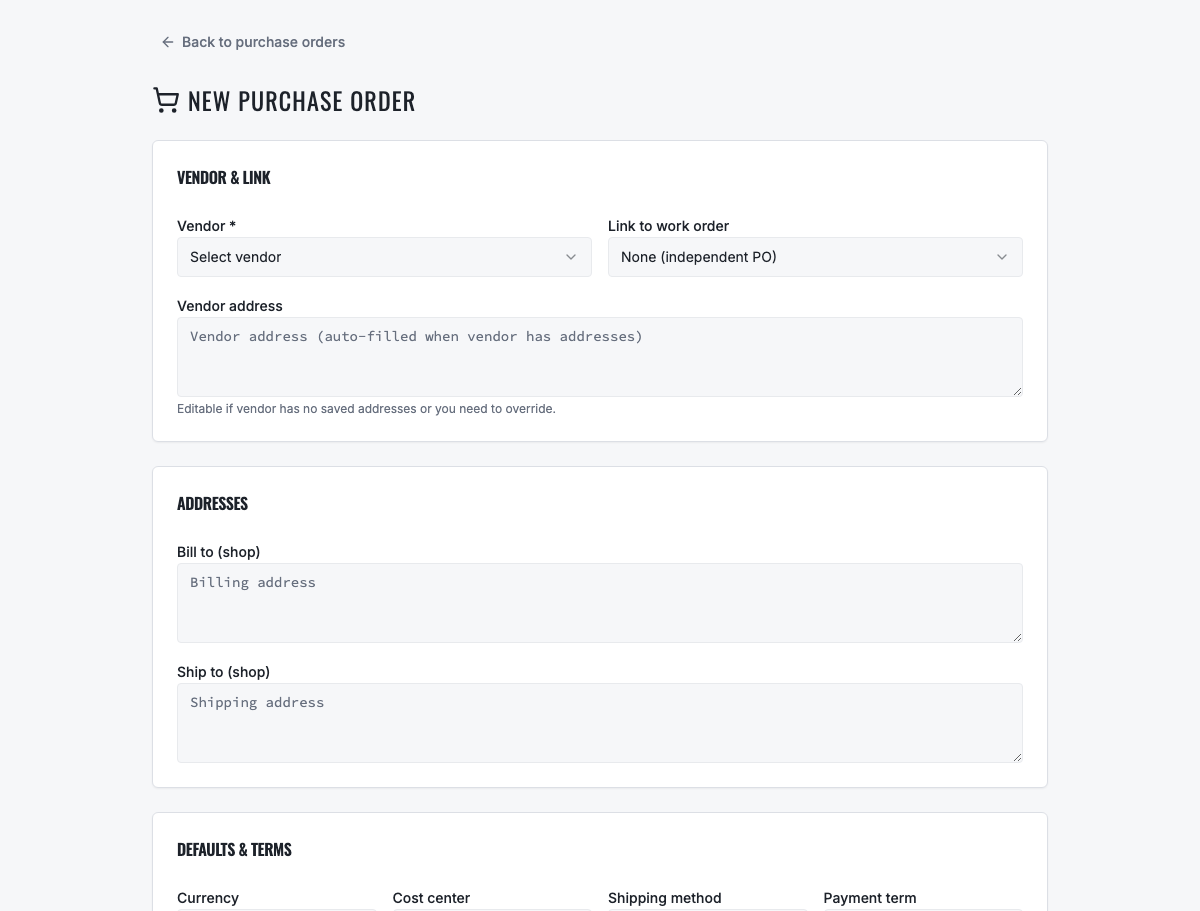
Use status, PO number and vendor search to find drafts, approved orders and deliveries.
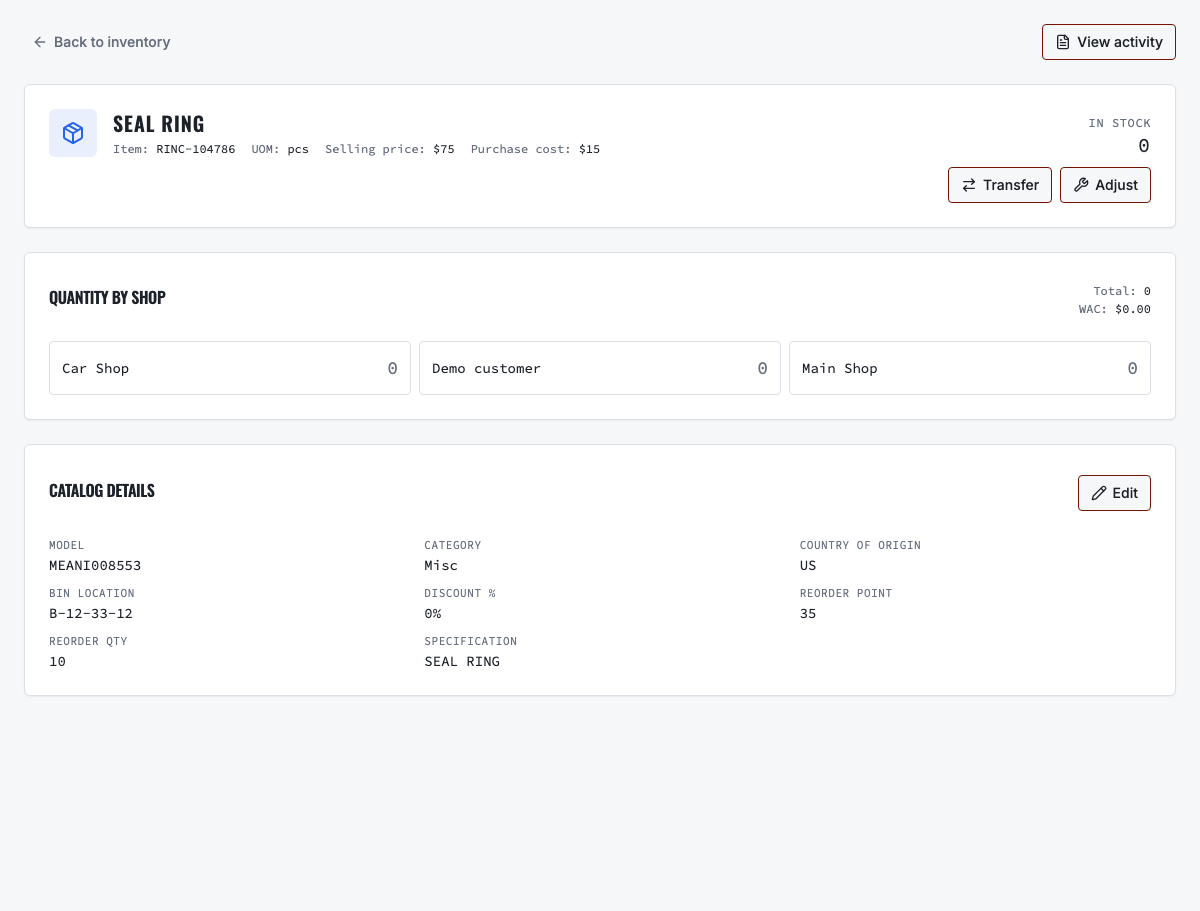
Authorized users can see total quantity and the location that physically owns it.
Need the complete operating sequence? Read the purchase-order and consolidated-procurement guide →
Ready to move forward?
See the shop-to-fleet workflow
A personalized walkthrough of VMOTEK against your own operation. No pressure, no scripted pitch, bring the questions your team actually has.