Purchase-order receiving
Automotive parts receiving connected to inventory
Record what physically arrived, where it belongs and what remains open before the stock becomes available to the shop.
VMOTEK receives parts against the purchase order rather than through an unrelated inventory adjustment. The receiver confirms quantities and destination, records partial delivery or exceptions, and creates location-owned stock with purchasing history attached.
The problem
Ordered is not the same as received
Inventory becomes unreliable when the system assumes the supplier shipped every line and quantity exactly as ordered.
- Partial deliveries are marked complete.
- Parts enter the wrong shop inventory.
- Damage, substitution and return details are lost.
- On-order and available quantities become misleading.
How it works
Verify the physical delivery
- 01
Open the PO
Use the order as the expected-delivery record.
- 02
Choose destination
Confirm the receiving shop or central inventory location.
- 03
Count each line
Enter actual received quantity rather than accepting the ordered amount by default.
- 04
Record exceptions
Leave backorders open and document damaged, substituted or returned items.
- 05
Post inventory
Create the quantity at the selected location with receipt and cost context.
- 06
Review status
Show partial or complete receipt based on the remaining order.
What you get
Capabilities in this area
Partial receipts
Receive one delivery without closing quantities that remain outstanding.
Location selection
Put stock where it was actually delivered and will be controlled.
Receipt history
Retain who received the parts, when and against which PO.
Returns
Reduce the received quantity through a recorded return instead of a silent correction.
By role
What changes for each person
Receiver
Work from an expected list and document exceptions while the delivery is in hand.
Parts manager
Trust on-hand and on-order quantities when allocating parts to repairs.
Finance
Compare the vendor commitment and receipt before reconciliation.
Use it in VMOTEK
Where to find this workflow and how to complete it
Receiving begins from the purchase order because the PO states what the shop expected. The receiver records the physical truth, quantity, location and exceptions, rather than assuming the supplier delivered every line.
Where to find it
Open Procurement → Purchase Orders, search by PO number or vendor, open the approved or sent order, and choose the receiving action on the PO detail page.
Who can use it
The user needs Purchase Order access and authorization for the destination shop. An employee should not receive stock into an unrelated location merely because the PO is visible.
Before you start
- • The PO must contain the expected items and quantities.
- • Confirm where the physical shipment arrived.
- • Count and inspect the delivery before posting the receipt.
Step by step
Receive the physical delivery against the purchase order
Button names and menu paths below match the VMOTEK repair application. Options appear according to the subscription, role and assigned shop.
- 1
Find the open PO
Use the Purchase Orders search and status filter. Open the order matching the vendor paperwork or packing slip.
- 2
Compare expected lines
Read ordered quantity, previously received quantity and remaining quantity for every line before entering a new receipt.
- 3
Confirm receiving shop
Select the location where the quantity should become available. This must reflect the real delivery, not simply the buyer’s current shop selector.
- 4
Enter Receiving now
For each delivered line, enter the quantity counted in the shipment. Do not enter the remaining amount automatically when the boxes do not match.
- 5
Post the receipt
Confirm the action. VMOTEK records the receipt, increases location stock for inventory lines and recalculates the PO status.
Result: The PO becomes Partially Received or Received based on outstanding quantity.
- 6
Handle the balance
Leave backordered quantity open for a later delivery. Use the same PO again when the remaining shipment arrives.
- 7
Review inventory activity
Open Inventory, select the item, and use View activity to confirm the receipt and shop-level quantity.
What the system records
The operational result, not just the screen action
Receipt event
Who received the order, the quantities and the related PO remain connected.
Outstanding quantity
The system distinguishes ordered, received and remaining quantity per line.
Location stock
Inventory becomes available at the selected shop rather than as an unexplained company total.
Common exceptions
- • Do not mark the PO fully received when a line is missing, damaged or backordered.
- • If the shipment went to the wrong shop, receive where it physically exists and transfer it through the controlled inventory workflow.
- • A non-inventory expense line may belong on the PO without creating physical stock.
Product screens
Recognize the workflow before you configure it
Screens may change as VMOTEK improves, but the records and control points shown here remain the basis of the workflow.
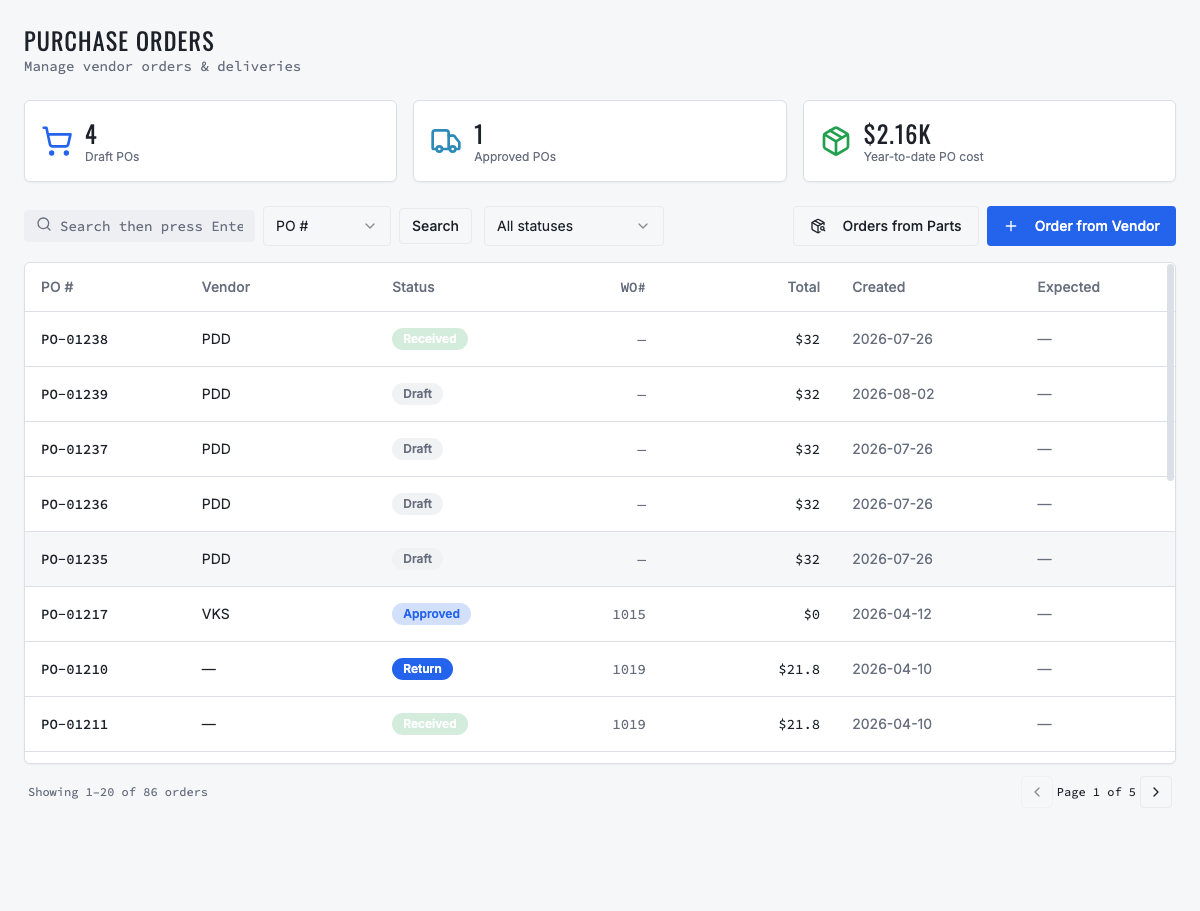
The detail page is the source of truth for approval, vendor delivery and receipt status.
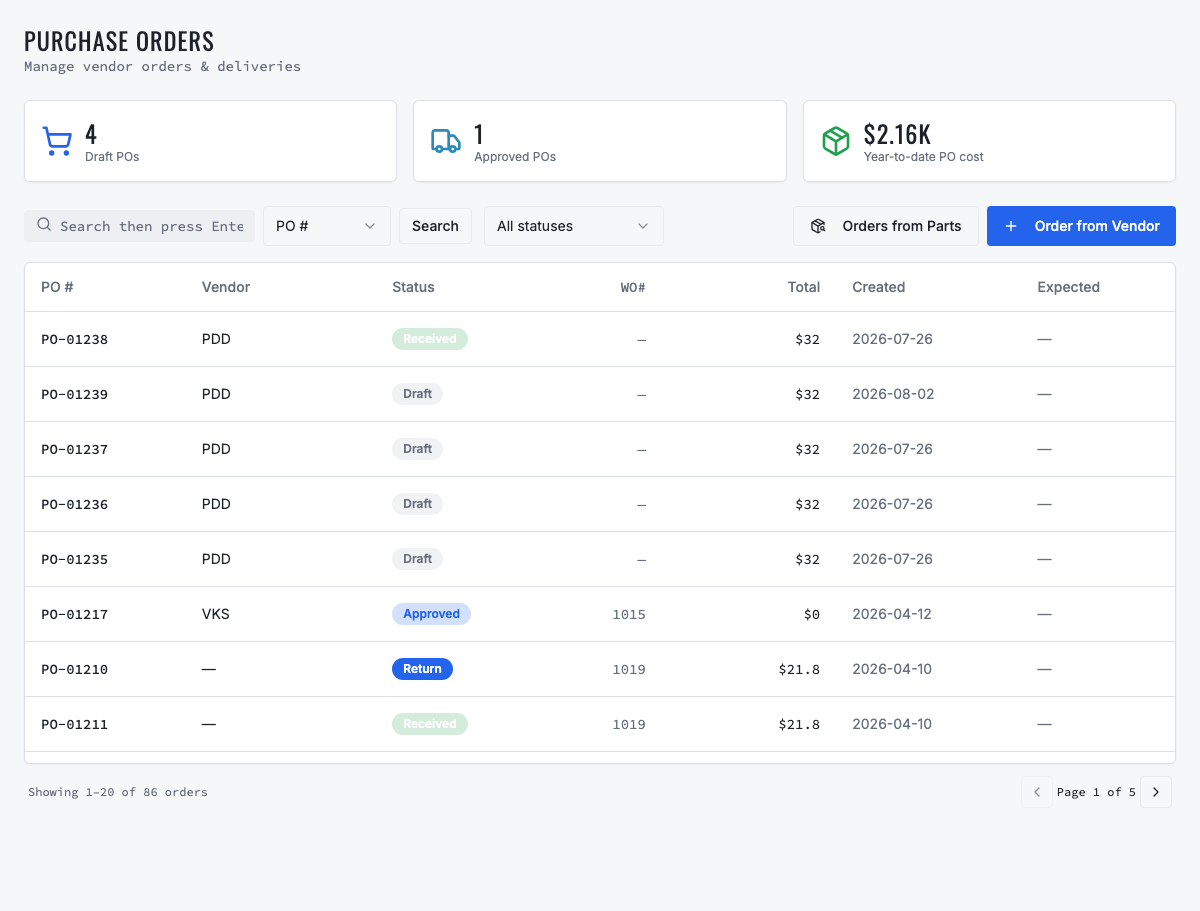
The PO status reflects remaining quantity rather than a manual declaration that delivery is complete.
Need the complete operating sequence? Read the purchase-order and consolidated-procurement guide →
Ready to move forward?
See the shop-to-fleet workflow
A personalized walkthrough of VMOTEK against your own operation. No pressure, no scripted pitch, bring the questions your team actually has.