Guided onboarding
Select, review and update a VMOTEK operating template
Operating templates help a new or existing shop begin with recognizable intake, inspection and service-package structures instead of a blank screen. They are not turnkey legal, pricing or technical standards. VMOTEK previews the proposal first, preserves matching definitions, creates missing records as drafts and sends the administrator to Setup & Readiness to finish the decisions that only the business can make.
Written by the VMOTEK Product Team · Updated August 15, 2026
01
1. Open Operating Templates for the correct shop
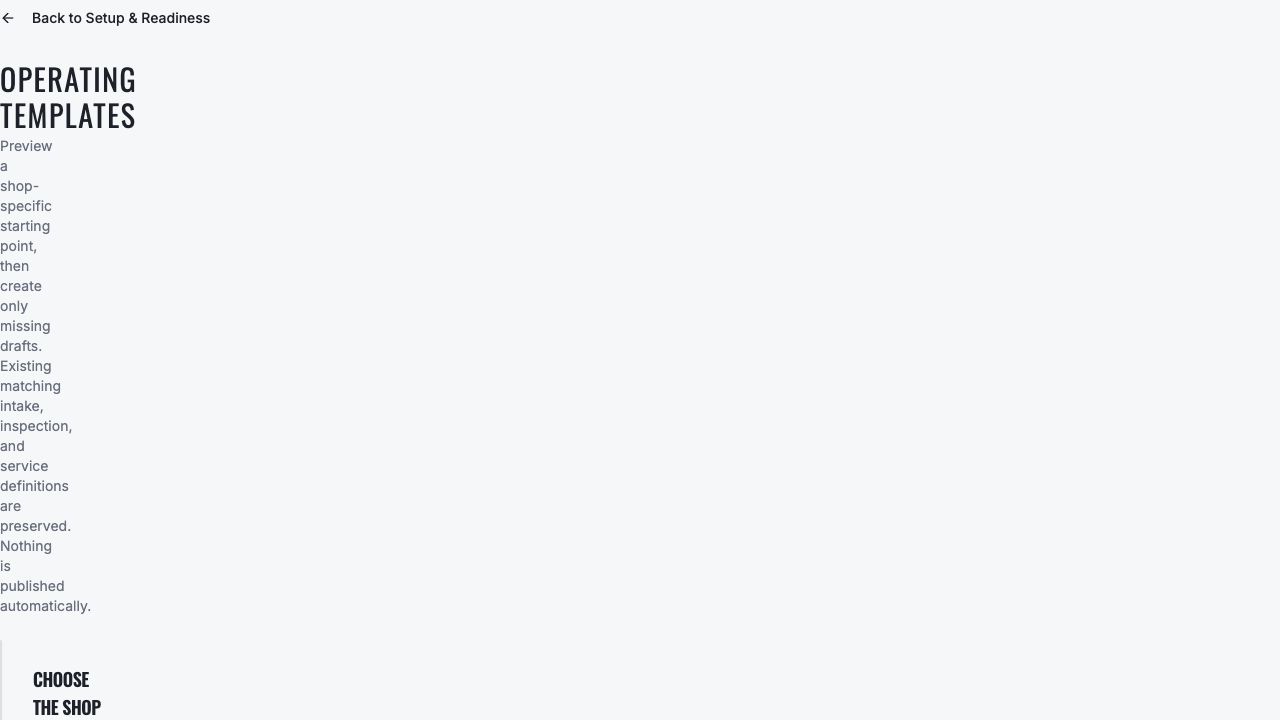
Sign in as an Owner or company administrator. Select the Settings gear, open Setup & Readiness and choose Operating templates. Select the physical shop that will use the configuration. In a multi-shop company, repeat this review separately for each location; choosing a template for one shop does not publish or copy it to every shop.
- During initial registration, the same selector appears in Guided Setup under Choose how each shop operates.
- After onboarding, use Settings → Setup & Readiness → Operating templates to preview or safely reapply a template.
- A shop manager without company-administrator access cannot apply templates.
- Confirm the shop name before selecting a template. Transactions and operational configuration retain their shop scope.
02
2. Choose the closest operating model
Choose General repair, Tire shop, Oil change / quick lube, Brake shop, Body and collision, Mobile glass, Fleet service or Heavy-duty. Read the summary and capability labels. Choose the model that best matches the location's primary daily work, not the most feature-rich label. The choice determines recommended drafts; it does not limit the other VMOTEK modules the company may configure later.
- General repair: general intake, inspection, oil-change and brake-inspection starting points.
- Tire shop: tread/pressure intake, tire inspection, installation, rotation and flat-repair drafts.
- Quick lube: short intake, courtesy inspection and standard/synthetic oil-service drafts.
- Brake shop: concern intake, axle measurements and front/rear brake-service drafts.
- Body/collision, mobile glass, fleet and heavy-duty: specialized evidence and service drafts with explicit qualification boundaries.
03
3. Preview before creating records
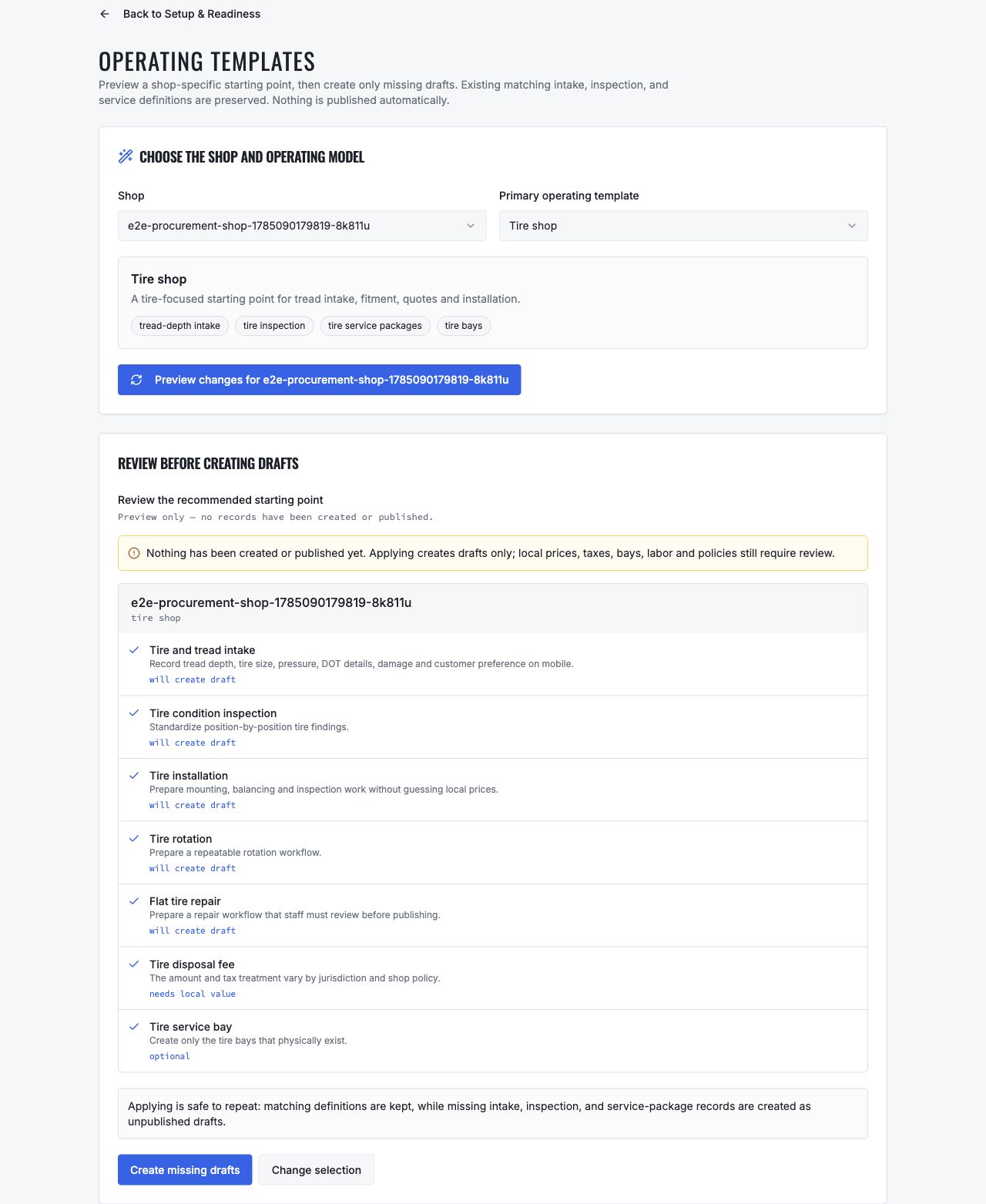
Select Preview changes. Read every proposed artifact and its action. Will create draft means a missing editable record will be added. Needs local value identifies a fee, price, policy or other decision VMOTEK cannot safely guess. Optional describes a physical-capacity or workflow recommendation. Existing matching definitions are preserved rather than overwritten.
- Confirm the preview names the intended shop and template.
- Expect intake, inspection and service-package definitions to remain unpublished.
- Do not interpret a bay, lane, mobile unit or fee recommendation as an existing configured resource.
- Select Change selection when the proposed records do not match the operation.
04
4. Create missing drafts and inspect the result
Select Create missing drafts. VMOTEK records the template application and creates only missing intake, inspection and service-package records. It keeps an existing definition with the same shop and code. Return to Setup & Readiness, select the shop and choose Needs attention. Open each Configure action rather than assuming the template completed setup.
- Safe repetition prevents duplicate matching template records; it does not overwrite existing content.
- Reapplying is useful after a previously omitted draft is needed, but it does not reset edited or published records.
- Created drafts carry a Guided Setup source label and zero or placeholder commercial values where appropriate.
- Use Recheck after saving an underlying configuration record.
05
5. Edit the generated intake and inspection drafts
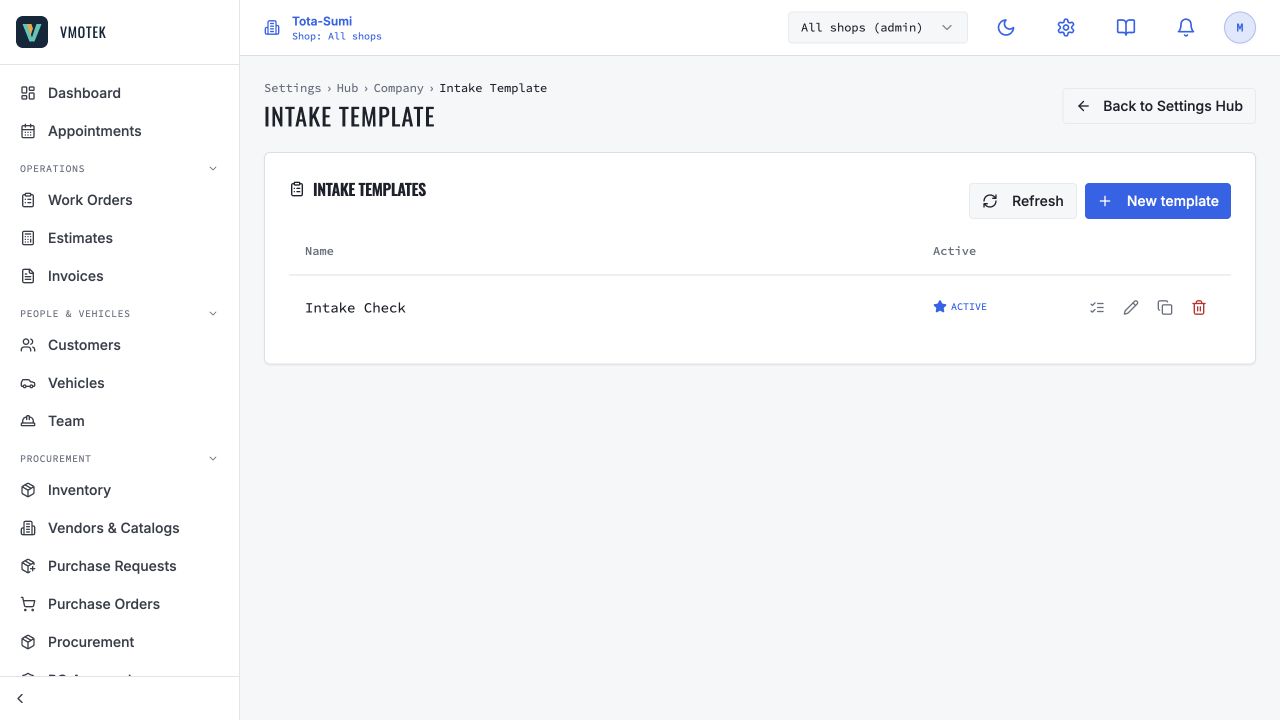
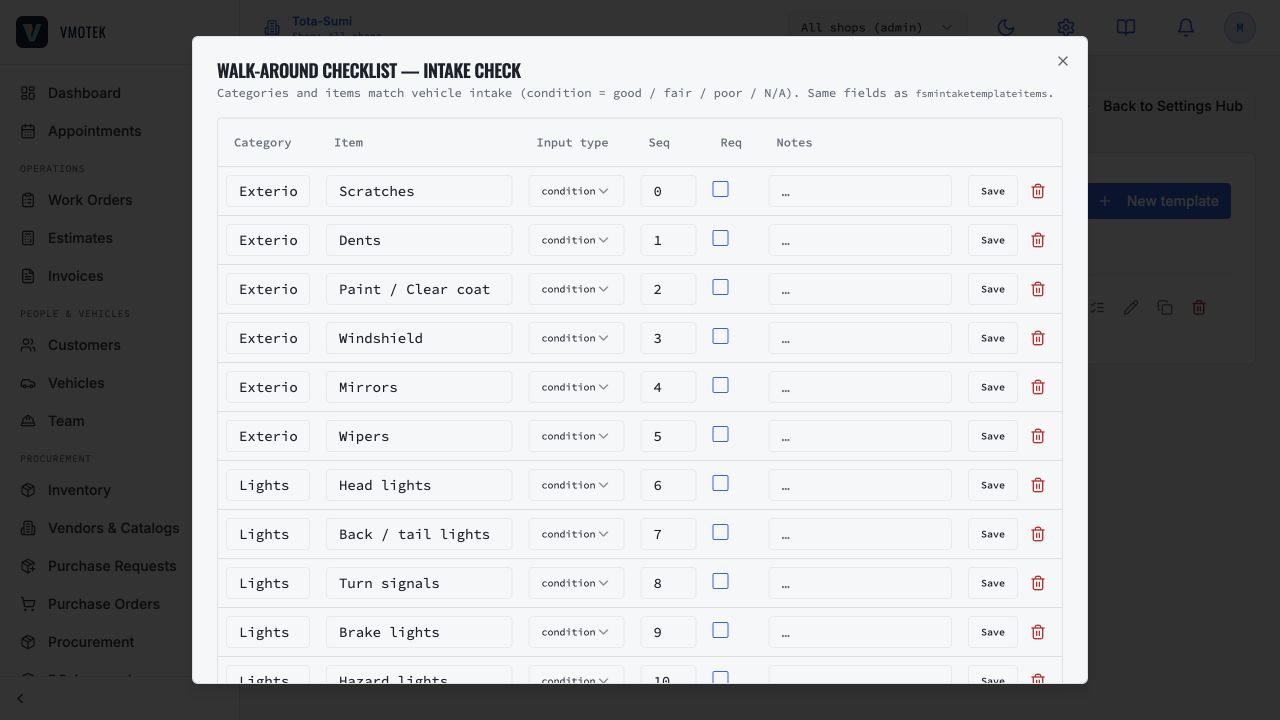
For intake, select Settings → Company → Intake Template and open the generated draft by name. Review the checklist rows, collection order, input type and Required setting. For the generated inspection, open Settings → Company → Intake Template or the governed inspection editor indicated by Setup & Readiness. Use Settings → Company → Diagnostics only for the shop's diagnostic finding categories; it is not a substitute for the governed inspection template created by operating templates.
- Use customer-language fields for arrival concerns and observable condition.
- Use technician inspection fields for measurements and findings; include units in the label when necessary.
- Require only information staff can obtain reliably.
- Save and reopen the draft. Publish only after a representative intake or inspection test succeeds.
- To change a published definition, create a new version; do not rewrite historical evidence.
06
6. Complete and publish service packages
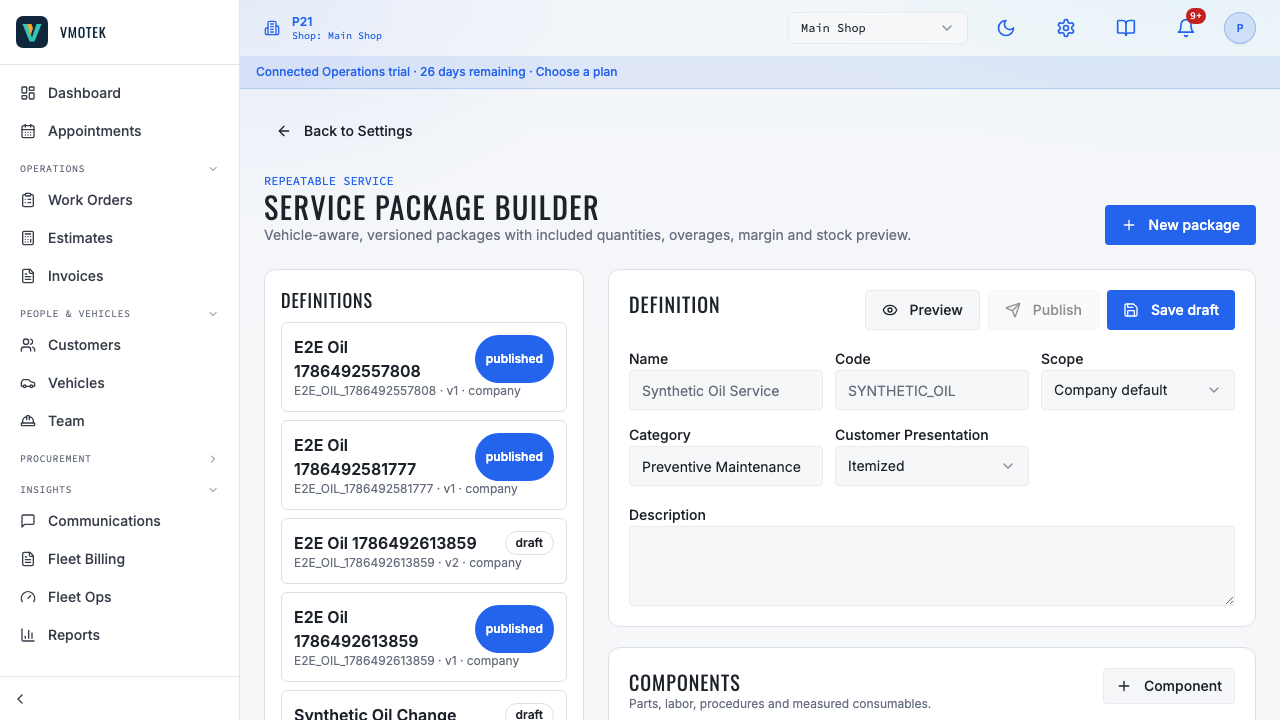
Select Settings → Company → Service Packages and open each generated draft by name. Start in Simple mode for ordinary labor, parts and checklist tasks. Use Advanced mode for vehicle applicability, required advisor confirmation, included quantity, overage, unit-of-measure and margin preview. Replace placeholders with real inventory links, labor time, customer price and reviewed checklist tasks.
- A part description is not an inventory link. Connect the actual company item definition when stock, purchasing or consumption must be tracked.
- Enter vehicle-specific quantity only from a reliable source; otherwise require advisor confirmation.
- Preview a normal vehicle, a nonmatching vehicle and any high-capacity or overage case.
- Publish only when the package shows an explainable price, cost, margin, fit and stock result.
- Use New version for later changes to a published package; archive obsolete versions without deleting history.
07
7. Complete local capacity, pricing and policy
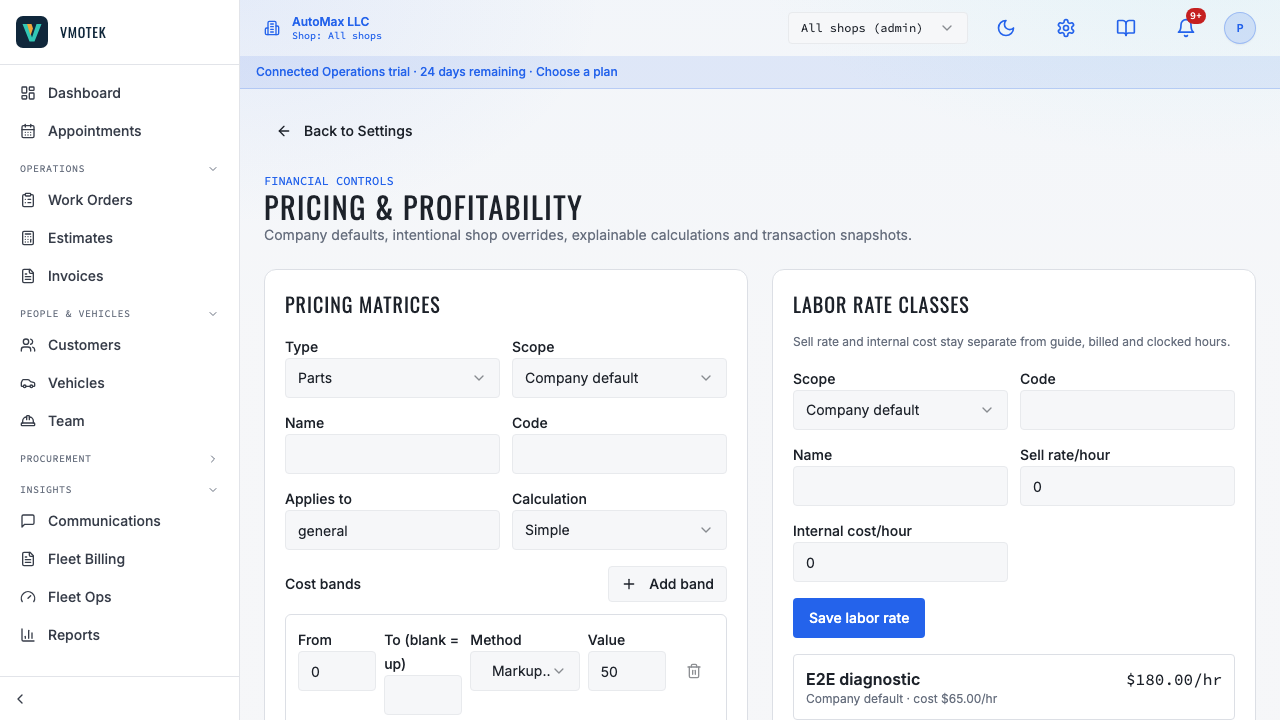
A template deliberately does not create imaginary bays, lanes, crews or mobile units. Configure the real resources under Settings → Shop → Work Order Workflow and Appointment & Capacity. Configure labor and parts pricing, taxes, fees, discounts, customer-document wording and payment methods from their corresponding Settings pages. For a multi-shop company, decide which values are company defaults and which locations legitimately override them.

08
8. Validate before live use
Create a test customer and representative vehicle. Run the shop-type guide's complete workflow from intake through estimate, approval, appointment or walk-in, work order, inventory, invoice and payment. Test at least one blocked case such as missing approval, unavailable stock, mismatched vehicle or inadequate capacity. Reopen Setup & Readiness and select Recheck only after the saved records and end-to-end result agree.
- The expected draft names exist for the intended shop and no duplicate matching definitions were created.
- Published definitions contain real local values and no Guided Setup placeholders.
- Staff roles and shop access permit the intended actions and block unauthorized ones.
- Inventory, invoice and reporting effects belong to the performing shop.
- A new version, not a historical rewrite, is used for later published-template changes.
Related product areas
Understand the capability behind the task
Continue to the applicable platform page for workflow behavior, role differences and connected operating consequences.
Ready to move forward?
Need help with your configuration?
Existing customers should use in-product support for account-aware assistance. Evaluation teams can contact us to discuss requirements.