Inventory movement
Transfer parts between repair shop locations with control
Move available stock to the shop that needs it while preserving source, destination, quantity, cost and activity history.
VMOTEK supports two accountable inventory-transfer lifecycles. Quick mode records an authorized immediate handoff; Controlled mode uses request, approval, dispatch, in-transit visibility and destination receipt. The initiator cannot choose the easier path: company and source-shop policy determine the required mode.
The problem
A phone call does not move inventory
Physical parts often move between locations before the system is updated, leaving both shops with a misleading balance and no accountable handoff.
- The source still appears to own shipped quantity.
- The destination uses a part that never entered its stock.
- Lot or cost context is lost during the move.
- Purchasing cannot distinguish transfer demand from new buying.
How it works
The source shop sets the level of control
- 01
Find network stock
Confirm the source has enough available quantity and the user may access both locations.
- 02
Apply source policy
The company default or authorized source-shop override determines Quick or Controlled mode; the requester cannot bypass that rule.
- 03
Enter the movement
Identify destination, quantity, operational reason and, when required, the relevant lot or FIFO movement.
- 04
Execute the required lifecycle
Quick records the immediate handoff. Controlled records approval, dispatch, in-transit quantity and destination receipt.
- 05
Confirm handoff
Use activity history to reconcile the physical delivery.
What you get
Capabilities in this area
Source validation
Reject movements that exceed available source quantity.
Lot preservation
Retain batch, expiry and cost context when the item uses traceable lots.
Policy-based mode selection
Use a company default and optional source-shop override so the inventory owner, not the requester, sets the control level.
Two operating modes
Support immediate authorized Quick handoffs and approval-based Controlled transfers without turning internal movement into a purchase or sale.
Activity ledger
Show transfer-out and transfer-in entries with actor and context.
By role
What changes for each person
Source shop
Know exactly what left and avoid promising quantity already transferred.
Destination shop
Receive accountable stock instead of using an undocumented hand-carried part.
Company manager
Measure transfers and determine when network balancing is preferable to purchasing.
Use it in VMOTEK
Where to find this workflow and how to complete it
A transfer records one movement between two shops. It should replace the informal pattern of reducing one location and independently increasing another through unrelated adjustments.
Where to find it
Open Procurement → Inventory, select the shared item, review Stock by shop, and choose Transfer on the item detail page.
Who can use it
Transfer requires purchasing authority and access to the applicable locations. Shop-level workers should not move another shop’s stock without the required assignment.
Before you start
- • The source shop must have sufficient available quantity.
- • Both source and destination shops must exist and be accessible to the user.
- • Confirm the physical handoff and a meaningful transfer reason.
Step by step
Move existing stock between shops with one traceable action
Button names and menu paths below match the VMOTEK repair application. Options appear according to the subscription, role and assigned shop.
- 1
Search and open the item
Go to Inventory, find the company item and open its detail. Do not create another item at the destination.
- 2
Review Stock by shop
Confirm the source quantity and compare other locations. Verify that transfer is preferable to a new purchase.
- 3
Choose Transfer
Open the Transfer Inventory dialog from the item detail action area.
- 4
Select source and destination
Choose the shop releasing the part and the shop receiving it. Source and destination must be different.
- 5
Enter quantity and reason
Enter the physical quantity being moved and describe the operational reason or related repair. Do not exceed source availability.
- 6
Confirm the transfer
Submit once the handoff is valid. VMOTEK reduces the source and increases the destination as one controlled transaction.
Result: Both shop balances and the company total reflect the movement without creating or destroying quantity.
- 7
Verify activity
Open View activity and confirm the source, destination, quantity, user and time. The receiving shop can now allocate its quantity.
What the system records
The operational result, not just the screen action
Source reduction
The originating shop’s quantity decreases as part of the same transaction.
Destination increase
The receiving shop obtains the quantity under the existing company item.
Transfer audit
Source, destination, item, quantity, reason, user and time explain the movement.
Common exceptions
- • A transfer cannot move more than the source shop owns.
- • If parts are only planned for movement but have not physically changed custody, follow the company’s handoff policy before confirming.
- • If the item was purchased for direct delivery to the destination, receive it there instead of creating an unnecessary transfer.
Product screens
Recognize the workflow before you configure it
Screens may change as VMOTEK improves, but the records and control points shown here remain the basis of the workflow.
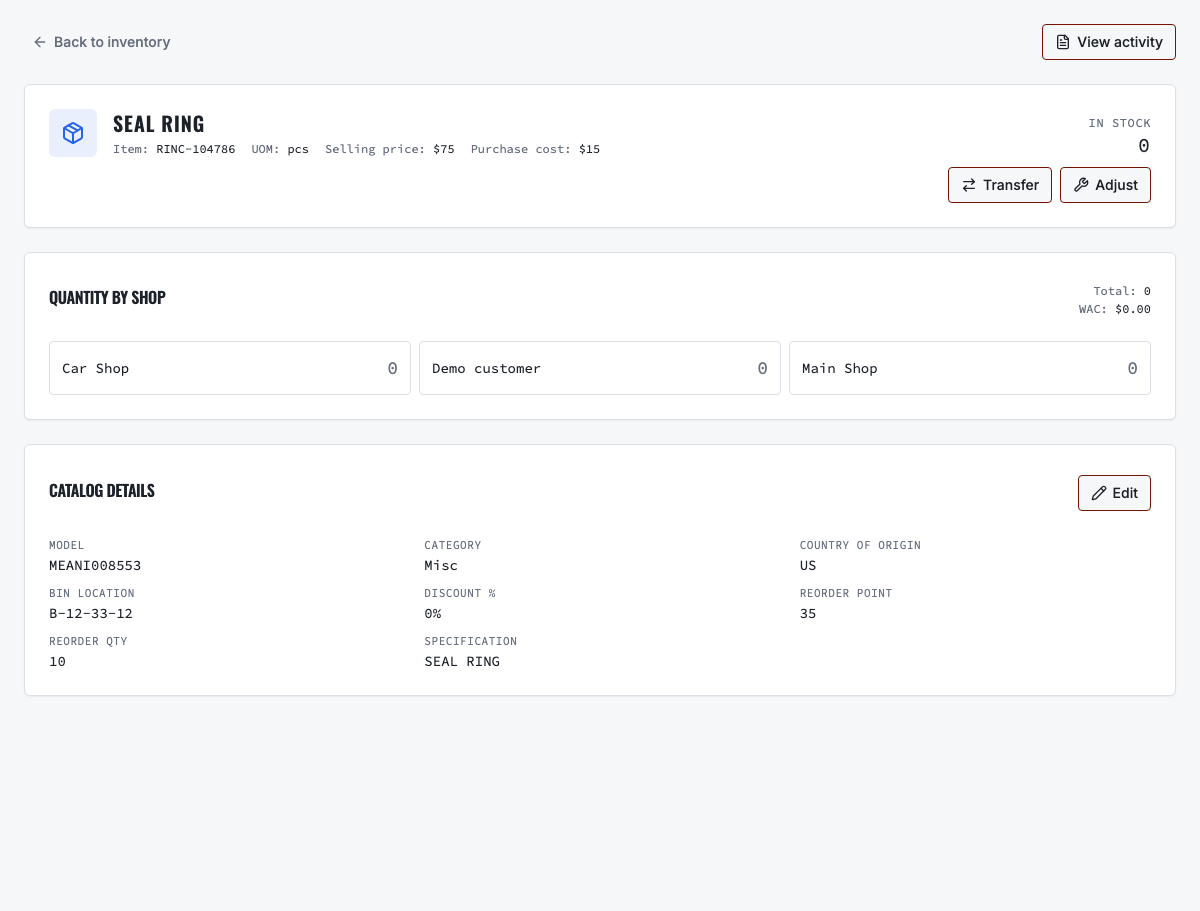
Authorized users can see total quantity and the location that physically owns it.
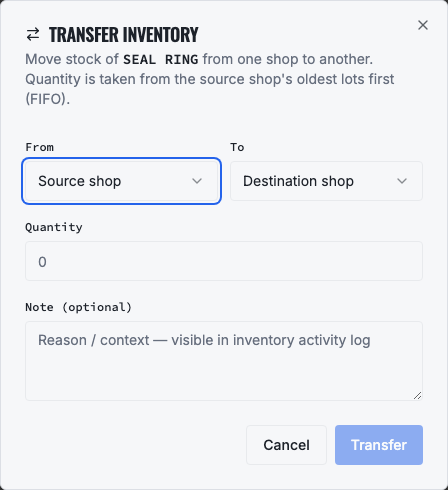
A transfer reduces the source, increases the destination and preserves one movement trail.
Need the complete operating sequence? Read the purchase-order and consolidated-procurement guide →
Ready to move forward?
See the shop-to-fleet workflow
A personalized walkthrough of VMOTEK against your own operation. No pressure, no scripted pitch, bring the questions your team actually has.