Vendor catalogs
Vendor catalog management for automotive parts
Give buyers searchable supplier information without confusing a vendor offering with quantity already owned by the shop.
VMOTEK keeps vendor catalog offers distinct from the company's shared item catalog and each shop's physical stock. Buyers can search supplier items, compare relevant cost context and select an offer for a request or purchase order without pretending it is already on hand.
The problem
Catalog availability is not inventory
A supplier may list a part, but the shop still needs to distinguish the vendor offer, its own item definition, local stock and an actual purchase commitment.
- Supplier spreadsheets become stale and unsearchable.
- Similar part numbers lose vendor identity and cost context.
- Catalog results are mistaken for owned stock.
- Selected offers are retyped into requests and POs.
How it works
Turn supplier files into controlled sourcing context
- 01
Prepare the source
Obtain an authorized vendor file with item reference, description and price context.
- 02
Map columns
Map supplier fields to the catalog template and review required values.
- 03
Import
Load the catalog under the correct vendor and preserve source identity.
- 04
Search
Find offers by part number, description, brand or alternate reference.
- 05
Compare
Review relevant vendor and cost context alongside owned stock.
- 06
Select for buying
Carry the chosen offer into a purchase request or PO for human review.
What you get
Capabilities in this area
CSV mapping
Use a repeatable import structure instead of manually creating every vendor item.
Supplier identity
Every offer remains associated with the vendor that provided it.
Unified search
Search authorized catalogs and shop inventory from one sourcing workflow while preserving their distinction.
Purchase handoff
Move a selected offer into a request or PO without losing reference and price context.
By role
What changes for each person
Catalog administrator
Maintain repeatable vendor imports and identify row-level errors.
Buyer
Search across permitted suppliers while still seeing what the company already owns.
Owner
Reduce untracked sourcing decisions and improve price visibility.
Use it in VMOTEK
Where to find this workflow and how to complete it
A vendor catalog describes what a supplier offers. It does not create company-owned inventory. VMOTEK preserves that distinction so a search result never implies that a part is physically on a shop shelf.
Where to find it
Open Procurement → Vendors & Catalogs and select Catalog, or use the catalog link from a vendor. Catalog search and vendor-specific item pages provide supplier offer details.
Who can use it
Vendor/catalog administrators maintain imports. Purchasers and authorized advisors can search permitted catalog information when sourcing a work-order part or PO line.
Before you start
- • Create the vendor before importing its catalog.
- • Obtain an authorized CSV containing supplier part reference, description and pricing fields.
- • Download or follow the supported field structure and preserve the original source file.
Step by step
Import and use a vendor catalog without creating false stock
Button names and menu paths below match the VMOTEK repair application. Options appear according to the subscription, role and assigned shop.
- 1
Open the supplier catalog area
Go to Vendors & Catalogs, choose the relevant vendor and open its catalog management screen.
- 2
Start the catalog upload
Select the catalog import action and choose the supplier file. Verify that the file belongs to the vendor currently selected.
- 3
Map the columns
Map vendor part number, description, brand, cost, unit and other supported fields. Do not map unrelated supplier fields merely to avoid an import warning.
- 4
Validate before committing
Review required-field errors, duplicates and rejected rows. Correct the source or mapping and rerun validation when necessary.
- 5
Complete the import
Commit accepted rows under the vendor and retain the import result so rejected lines can be corrected separately.
- 6
Search the catalog
Use part number, description, brand or alternate reference. Verify vendor identity and cost context on the result.
- 7
Select for a request or PO
Carry the chosen vendor offer into purchasing. The offer becomes a commitment only after an authorized user creates and approves a PO.
- 8
Receive to create stock
Physical inventory changes when the purchase order is received into a shop, not when the catalog is imported.
What the system records
The operational result, not just the screen action
Vendor offer
Supplier identity, reference, description and cost remain searchable as sourcing information.
Import result
Accepted and rejected rows make catalog maintenance reviewable instead of silently incomplete.
Separation from stock
Catalog availability, company item identity and shop-owned quantity remain different concepts.
Common exceptions
- • A catalog price may become stale; verify time-sensitive supplier terms before commitment.
- • A successful import does not prove physical supplier availability or delivery time.
- • Do not use an inventory adjustment to represent a catalog offer; receive an actual purchase instead.
Product screens
Recognize the workflow before you configure it
Screens may change as VMOTEK improves, but the records and control points shown here remain the basis of the workflow.
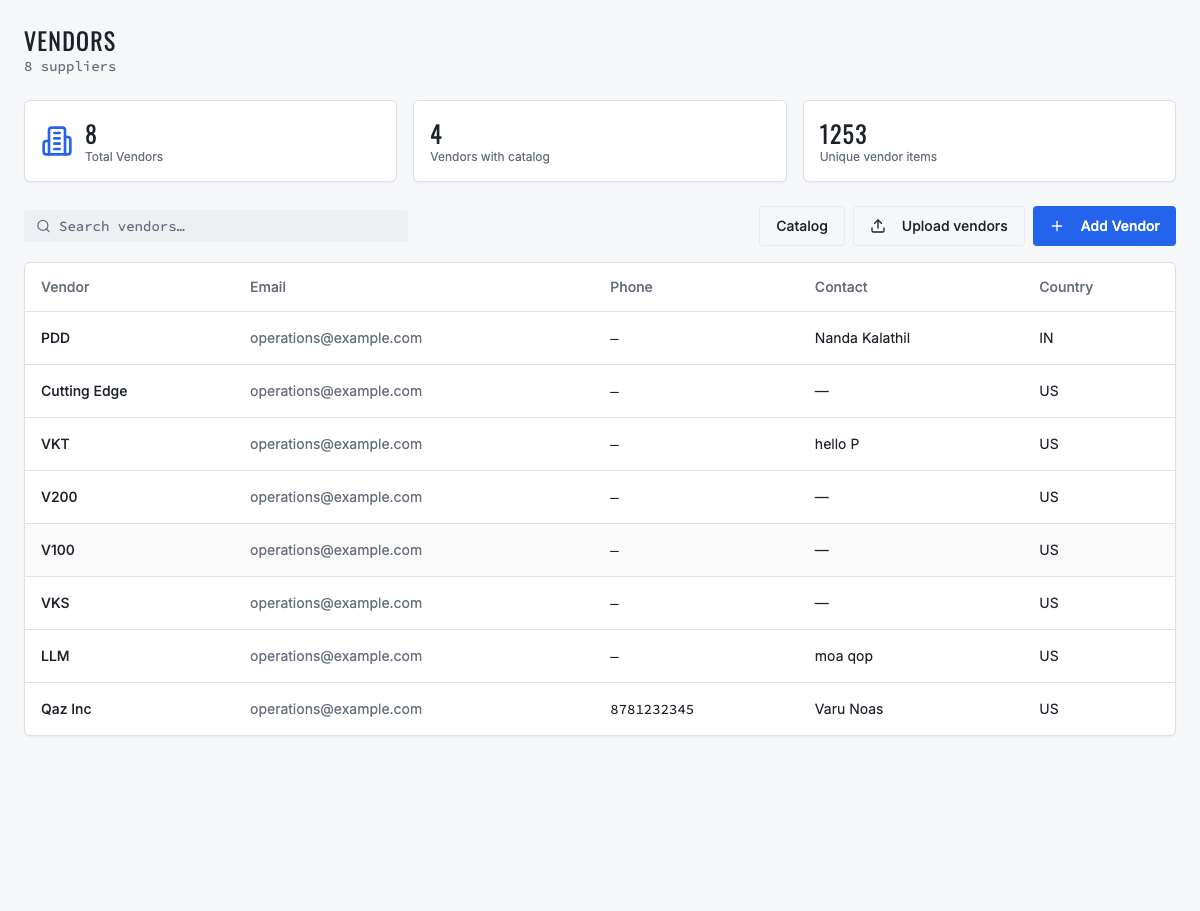
Search suppliers, open their records, upload vendors or move into catalog management.
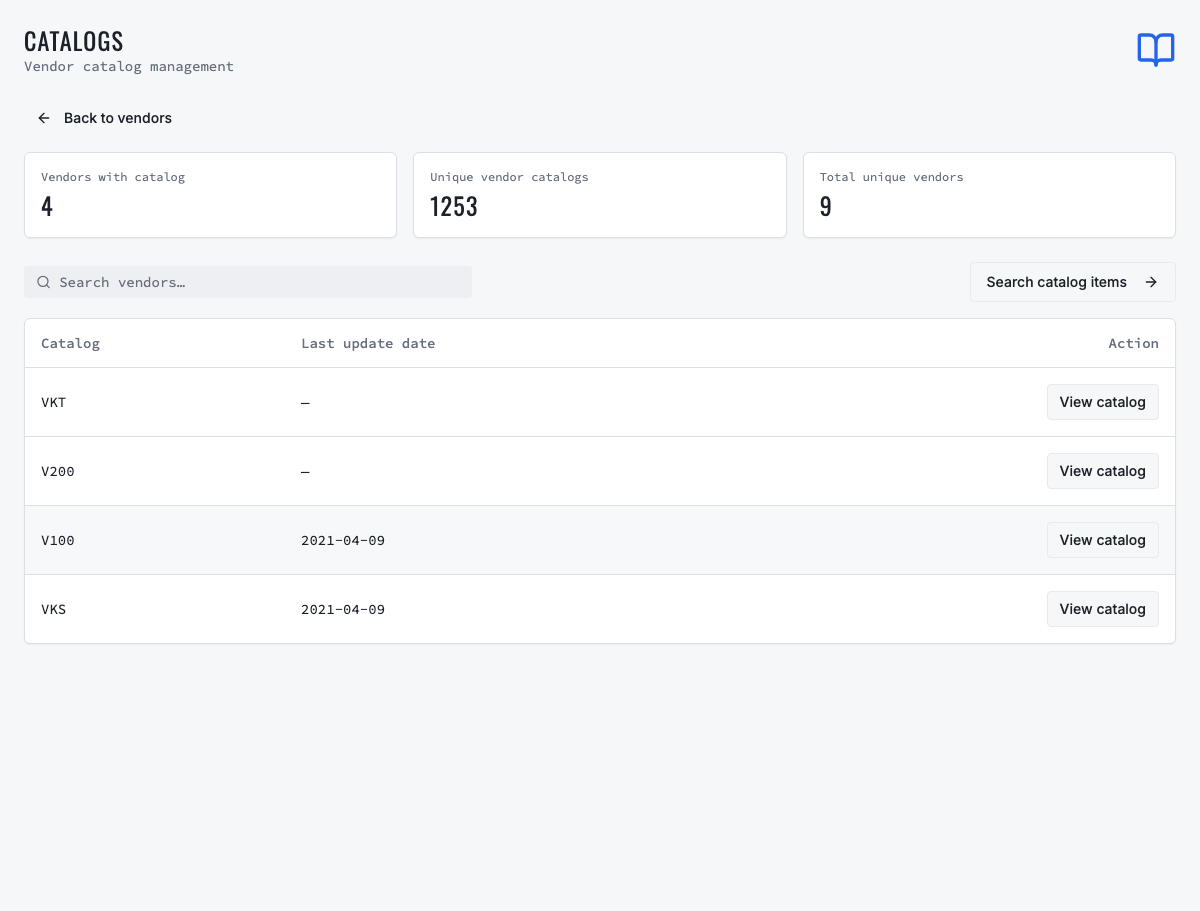
Map supplier columns, validate rows and keep catalog offers distinct from owned stock.
Need the complete operating sequence? Read the purchase-order and consolidated-procurement guide →
Ready to move forward?
See the shop-to-fleet workflow
A personalized walkthrough of VMOTEK against your own operation. No pressure, no scripted pitch, bring the questions your team actually has.